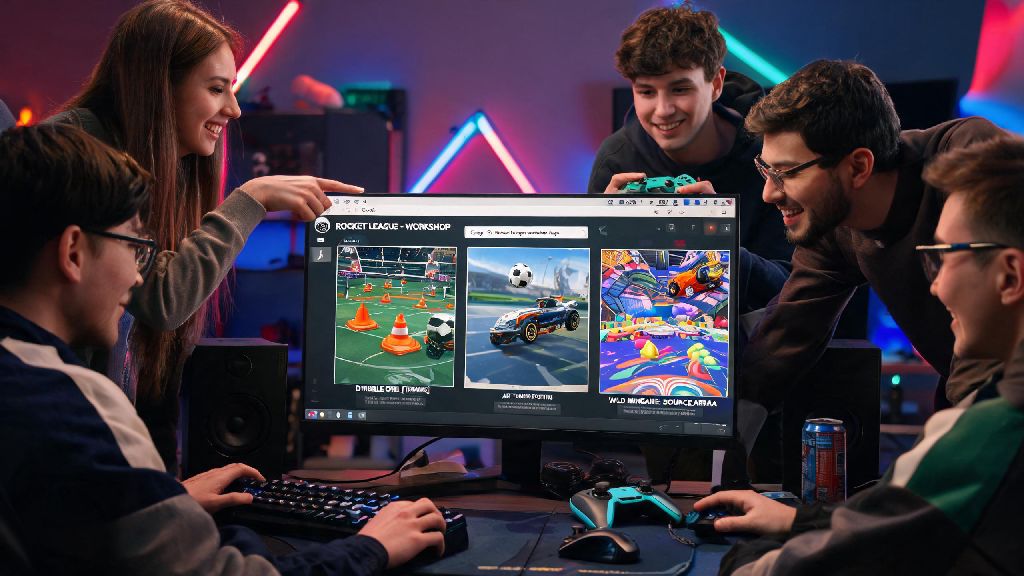
I still remember the first time my friend group tried to play a custom floor is lava Rocket League map, we spent 25 minutes fumbling through settings and Google searches because none of us knew the correct process to get the map loaded for everyone. Rocket League's workshop has thousands of hidden gems, from hyper-specific training drills to wild custom game modes that feel nothing like the base game, but most players never touch them because they assume the setup is too complicated. If you’ve been wondering how to play workshop maps in Rocket League, this guide breaks down every step for both PC and console players, no advanced tech skills required.
Pre-Requisites for Accessing Rocket League Workshop Maps
First, it’s important to note that access to workshop maps varies depending on what platform you play on. Steam PC players have full native access to the Rocket League workshop, while console (PlayStation, Xbox, Switch) players can’t directly browse or download workshop maps on their own. That doesn’t mean console players are left out entirely, though – they can still join custom lobbies hosted by PC players with no extra downloads needed.
Before you get started, make sure you have all of the following ready to avoid unnecessary delays:
Always make sure your Rocket League client is fully updated before downloading workshop maps to avoid compatibility issues that can crash your game mid-session. If you’re on console, all you need to do is make sure your game is updated and cross-play is turned on, and you’ll be able to join any workshop map lobby you’re invited to.
How to Play Workshop Maps in Rocket League Solo: Full Walkthrough
Playing workshop maps by yourself is the easiest way to test out new content, and the whole process takes less than five minutes once you know the steps. First, open your Steam desktop app, navigate to your Rocket League library page, and click the “Workshop” tab located right under the game’s title. You can browse maps by category, search for specific skill training drills, or sort by most popular to find the highest-rated content.
When you find a map you want to try, just click the green “Subscribe” button on the map’s workshop page. Steam will automatically download the map in the background, no manual file transfers or modding tools required. Once the download is complete, open Rocket League, navigate to Play > Custom Games > Workshop, and all your subscribed maps will appear in the menu. Just click the map you want to load, and you’re ready to go.
If a subscribed map doesn’t show up in your workshop menu, restart both Steam and Rocket League to force the client to sync your new downloads. Solo play is perfect for targeted skill training – I spend at least 20 minutes a day on a custom aerial training map, and my 2v2 rank jumped two divisions in a month after I started adding that daily practice to my routine.
Hosting a Workshop Map Lobby for Multiplayer Play
Once you’ve tested a few maps solo, you’ll probably want to share the fun with friends, and hosting a multiplayer lobby is just as straightforward as playing alone. First, load the workshop map you want to play the same way you would for solo play. Once the map is fully loaded, press escape to open the in-game menu, and select “Create Private Match”.
From there, you can adjust all your match settings to fit your group’s preferences: change team sizes, adjust score limits, turn off boost, or enable mutators like low gravity or unlimited demo respawns. When your settings are ready, invite friends directly through your Rocket League friends list, or share the 5-digit lobby code with them so they can join manually.
If console players get an error when trying to join, ask them to restart their game and double-check that their cross-play setting is enabled. You don’t have to stick to casual fun either – many competitive teams use custom workshop map lobbies to run scrims and practice specific team rotations without random players messing up their drills. Last month, my friend group hosted a 12-player workshop battle royale tournament, and it was the most fun we’ve had with Rocket League in years.
Top Workshop Map Types to Try First
With thousands of workshop maps available, it can be overwhelming to decide what to try first when you’re just getting started. Stick to these popular categories to find high-quality content that fits whatever you’re looking for, whether that’s skill training or casual fun.
First, skill training maps are the most useful for players looking to climb the ranked ladder. These maps are designed to isolate specific skills, from ground dribble practice to ceiling shot drills, and many pro players use them daily to warm up before scrims or tournament matches. Second, novelty game mode maps are perfect for casual game nights: think floor is lava, obstacle courses, Mario Kart-style racing maps, even Minecraft-themed maps where you can place blocks mid-game.
Stick to maps with 4+ star ratings and thousands of downloads when you’re first starting out, as these are usually well-tested and free of glitches that can ruin your game. That said, don’t be afraid to try lower-download maps sometimes – I found a really fun retro racing map last month that only had 200 downloads, and it’s now a staple for our weekly game nights.
Playing custom user-created content is one of the most underrated parts of Rocket League, and it’s way easier to access than most players assume. Whether you’re looking to grind specific skills to climb the ranked ladder, or just mess around with friends after a long work or school week, knowing how to play workshop maps in Rocket League opens up hundreds of hours of extra content you won’t find in the base game. Next time you’re bored of the same standard ranked maps, pull up the Steam workshop, subscribe to a few maps that catch your eye, and give them a try. You might be surprised by how much fun you have, or how quickly your in-game skills improve.