There’s nothing better than grabbing a friend, sitting on the same couch, and duking it out in Rocket League without having to mess with online lag or lobbies. If you’ve been trying to figure out how to play split screen on Rocket League, you’re far from the only player who’s stumbled through confusing menu settings or cross-platform restrictions to make it work. Last month I hosted a game night with three friends, and we spent 20 minutes fumbling through menu settings before we realized we had to pair our Switch Pro controllers before launching the game. That mess is what inspired me to put this guide together, so you don’t waste half your game night troubleshooting. I’ve tested split screen across every major platform over the past two years, so I’ve broken down everything you need to know to get set up in minutes, no technical expertise required.
How to Play Split Screen on Rocket League: Platform-Specific Setup Steps
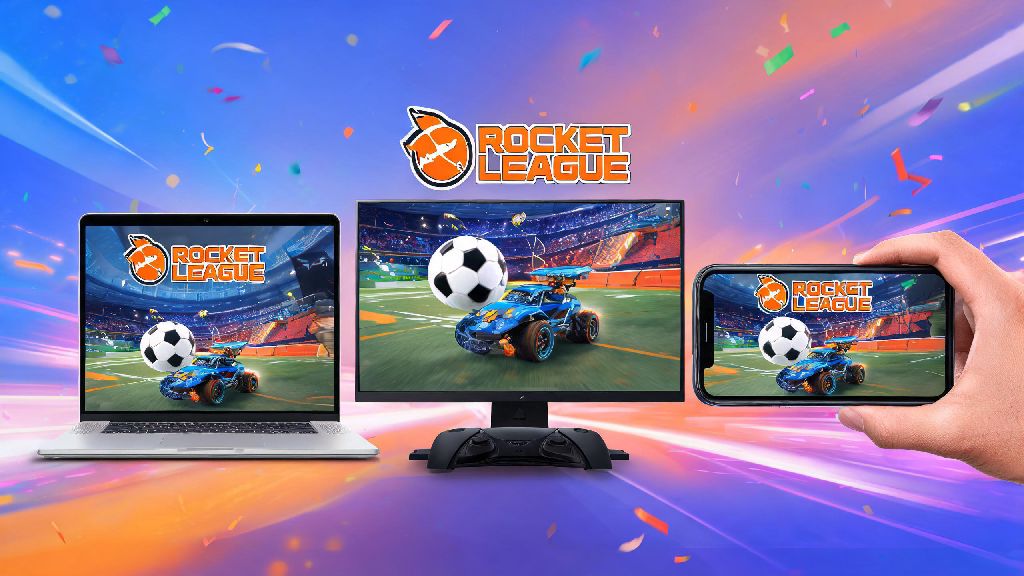
The setup process varies slightly depending on what device you’re using, but none of the steps take more than a minute once you know what to look for. PlayStation 4/5 users can start by pairing all controllers to the console first, either via Bluetooth or USB cable. Launch Rocket League, navigate to the main menu, then press the options button on the second controller. You can sign in to a secondary PSN profile or use a guest profile if you don’t have an extra account, and the second player will automatically appear in the main lobby.
For Xbox One/Series X/S users, the process is almost identical. Pair all controllers to the console first, launch the game, then press the menu button on the second controller. Sign in to an Xbox profile or use a guest account, and the second player will join the lobby right away. You don’t need an extra Xbox Live subscription for the second player if you’re only playing offline modes.
Nintendo Switch users can pair Joy-Cons, Pro Controllers, or third-party compatible controllers first before opening the game. Once you’re on the main menu, press the + button on the second controller, select a user profile (guest profiles work here too), and you’re ready to go. The Switch supports up to four player split screen, so you can repeat this step for extra controllers if you have more friends over.
PC (Steam/Epic Games) users have a few extra small steps. First, make sure all controllers are connected and recognized by your operating system before launching Rocket League. If you’re using a PlayStation or Switch controller on Steam, enable Steam Input in your Steam controller settings to make sure the game recognizes it. Once you’re on the main menu, press the start or equivalent button on the second controller, sign in to a secondary Steam/Epic account if you want to track progress, or use offline mode for guest play. You don’t need a second online account to play split screen offline on PC, despite what some old forum posts might say.
Common Split Screen Issues and Fast Fixes
Even if you follow all the setup steps perfectly, you might run into a few common errors that stop split screen from working correctly. I’ve run into every one of these issues at least twice at game nights, so these fixes are tested and proven to work in almost all cases:
- Split screen is stuck on vertical orientation: Go to Settings > Interface > Split Screen Layout, and toggle between horizontal and vertical to fit your screen preference. Vertical is better for 16:9 monitors if you want more horizontal field of view for aerials, while horizontal works better for wider ultrawide displays.
- Second controller won’t connect to the lobby: First, make sure the controller is paired to your device outside of Rocket League first. On PC, if you’re using a PlayStation controller, enable Steam Input in your Steam settings to make sure it’s recognized by the game. If you’re on console, restart the game and re-pair the controller before launching again.
- Frame rate drops or input lag in split screen: Lower your in-game graphics settings, especially shadow quality and anti-aliasing, to free up processing power for two simultaneous game feeds. On consoles, make sure performance mode is enabled if you’re playing on a newer system, as resolution mode can struggle to run two game feeds at 60 FPS.
Most issues pop up because players try to connect controllers after launching the game, rather than pairing them first. I now make a habit of pairing all controllers before I even open Rocket League for game nights, and I’ve cut my troubleshooting time down to almost zero. If you’re still running into issues after trying these fixes, check for any pending game updates, as outdated versions sometimes have split screen compatibility bugs.
Tips to Make Your Split Screen Sessions More Fun
Once you have split screen up and running, there are a few small tweaks you can make to turn a casual match into a memorable game night. Adjust split screen layout based on your game mode first. If you’re playing 2v2 competitive matches, vertical split gives both players more horizontal space to track the ball across the field, which makes aerials and passes much easier to pull off. If you’re playing chaotic free play or rumble mode, horizontal split feels more natural for most players, especially if you’re sitting far away from the screen.
You can also tweak custom game settings to make matches more silly and casual for groups that don’t care about competitive rank. Crank up boost amounts to 10x, make the ball 3x its normal size, or slow down game speed to half for chaotic, low-stakes matches that are perfect for new players. If you have four controllers, you can run full 2v2 matches entirely offline, no internet needed, which is perfect for places with spotty Wi-Fi like college dorms or vacation homes.
Disable cross-play if you’re mixing split screen and online play, because some platforms have issues matching split screen lobbies with cross-play enabled, leading to longer wait times or frequent connection errors. You can also create custom loadouts for each local profile so every player has their own decal, car, and goal explosion saved, no need to re-customize every time you launch the game. Even guest profiles can save custom loadouts on most platforms, so your friend who only plays once a month can keep their goofy neon octane setup intact.
What You Can (and Can’t) Do in Split Screen Mode
There are a lot of common misconceptions about what features are locked behind online play, so I’ve broken down exactly what you can access with split screen enabled. First, you can play all offline game modes, including exhibition, season, and custom lobbies, with no restrictions. You can also play online modes with split screen players on the same team, as long as the host has an active online subscription for their platform. All players earn XP and item drops for their own profiles during split screen play, so you don’t have to sacrifice progress to play with friends in person.
There are a few small limitations to be aware of, though. You can’t play split screen across multiple platforms – all players have to be on the same device, and you can’t mix local and remote split screen players in the same lobby. You also can’t join separate online lobbies on the same device; all split screen players have to be in the same lobby together, either on the same team or opposing teams in custom matches.
Some limited time modes might not support split screen immediately when they launch, but Psyonix almost always adds support for major LTMs within a few days of release. You also can’t use cross-platform progression for guest profiles, so if your friend is playing on your console as a guest, their progress won’t carry over to their own account when they go home. None of these limitations are dealbreakers for most casual players, but they’re good to know before you plan a full game night around a specific mode.
At the end of the day, figuring out how to play split screen on Rocket League doesn’t have to be a complicated process, even if you’re running into annoying setup errors at first. The best part of local co-op play is getting to react to big goals and bad misses with the people next to you, instead of typing reactions into a chat box. You don’t need expensive gear or extra subscriptions to make it work, just a spare controller and a friend who’s ready to lose a few matches. Next time you have people over, skip the online lobbies and give split screen a try – you might be surprised how much more fun the game feels when you’re playing in the same room.