If you’ve ever watched clips of gravity-defying car soccer, pulled off a last-second goal with friends, or just wanted to try one of the most popular cross-platform multiplayer games of the last decade, you’re probably wondering how to download Rocket League without running into unnecessary headaches. You don’t need to pay for any fancy editions to get started, and learning how to download Rocket League correctly will save you from wasting time on broken files or scam sites. I’ve installed the game across six different devices over the years, from my old gaming laptop to my handheld console, so I’ve picked up all the little hacks to skip common snags and get into a match in 10 minutes or less. This guide covers every major platform, plus red flags to watch out for to avoid sketchy third-party downloads that could put your device at risk.
How to Download Rocket League on the Most Popular Platforms
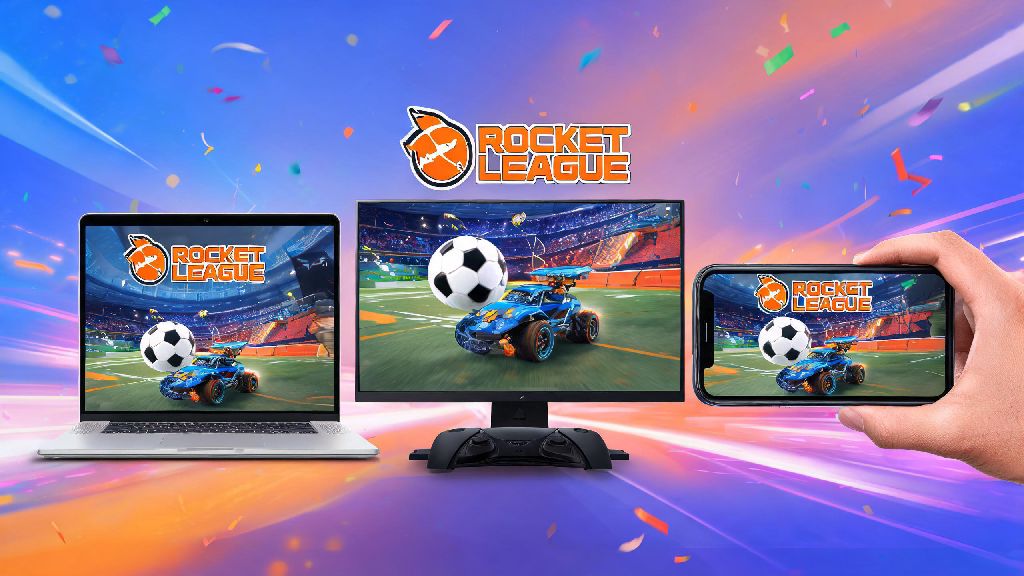
Below is a breakdown of exactly how to download Rocket League on each major platform, with no extra fluff. All official versions of the base game are 100% free, so you never have to enter payment information unless you’re buying optional cosmetic content or premium battle passes. Once you learn how to download Rocket League on your preferred platform, you’ll have access to all cross-platform play features, no extra purchases required.
Epic Games Store (PC): First, head to the official Epic Games Store website and download the desktop client if you don’t already have it installed. Create a free account or log into your existing one, then use the search bar to find Rocket League. The base game is listed as free, so just click “Get” and confirm your purchase (you won’t be charged anything). Choose the drive you want to install the game on, and wait for the download to complete. I’ve found that the Epic Games Store download is usually faster than Steam for new players, even if you’re used to using Steam for most of your game library. If you owned Rocket League on Steam before it went free to play, you can still access and download it through your Steam library, no extra steps needed.
PlayStation 4/5: Turn on your console and navigate to the PlayStation Store from the main menu. Use the search function to look up Rocket League, then select the standard free edition from the results. Add it to your game library, then start the download. Keep in mind you’ll need an active PlayStation Plus subscription to play online multiplayer matches, but you can play offline modes like exhibition matches and training without a subscription. The download size is roughly 20GB on PlayStation, so make sure you have enough space on your console’s hard drive before starting.
Xbox One/Series X/S: Open the Microsoft Store from your Xbox dashboard, search for Rocket League, and select the free listing. Add it to your library, then begin the download. You’ll need an active Xbox Live Gold or Game Pass Core subscription to play online, same as PlayStation. If you have Game Pass Ultimate, the game is already included in your subscription, so you can download it directly from the Game Pass library too. I’ve noticed the Xbox version usually updates faster than other console versions, so you won’t have to wait long after new season drops to play.
Nintendo Switch: Open the Nintendo eShop from your home screen, search for Rocket League, and select the free download option. You’ll need an active Nintendo Switch Online subscription to play online matches, but offline play is available without one. The Switch version runs a bit lower resolution than console and PC versions, but it’s still perfectly playable, especially if you’re playing on the go. If you’re not sure how to download Rocket League patches automatically, head to your store settings and turn on auto-updates so you never have to wait before playing.
For mobile users, note that the full desktop/console version of Rocket League is not available for phones. The official mobile alternative is Rocket League Sideswipe, a streamlined 2D version of the game that you can download for free from the Google Play Store or Apple App Store.
Common Mistakes to Avoid When Downloading Rocket League
One of the most common questions I get from new players is how to download Rocket League without paying, and the answer is simple: stick to official stores, because the base game has been 100% free for all users since 2020. There are dozens of scam sites out there that try to trick new players into paying for the game or downloading malware, so it’s important to watch for these red flags:
Never download Rocket League from unofficial third-party sites - they often have malware, adware, or stolen account credentials that can put your device and personal information at risk. I once tried to download a modded version to test custom maps a few years back, and it ended up locking me out of my main account for 3 days while support verified I wasn’t cheating, so I always recommend sticking to official mod tools if you want to mess with custom content. Don't pay for the base game - anyone charging you for the standard edition is running a scam, even if they claim to include extra skins or content. Skip "modded" pre-installed versions unless you know exactly what you’re doing, most of them include banned mods that will get your account permanently flagged for cheating. If you see a site claiming to tell you how to download Rocket League for free with all premium skins included, it’s a scam 100% of the time.
Tips to Speed Up Your Rocket League Installation
Even with a fast internet connection, Rocket League installations can sometimes take longer than expected, especially if you’re downloading it during a new season launch when servers are busy. These small tips can cut your download and installation time almost in half, so you can get into matches faster.
Pause other downloads while installing - Rocket League has large texture files that can get corrupted if your bandwidth is split across multiple tasks. Pausing any streaming, game updates, or file downloads while you install Rocket League will not only make the download faster, it will also reduce the risk of corrupted files that force you to restart the whole process. I’ve had to restart downloads three times in the past because I was trying to stream a show at the same time, so this is a mistake I won’t make again.
Install the game on an SSD if you have one - load times for matches will be cut by 70% or more, and you won’t get stuck waiting for other players to load before kickoff. The game only takes up around 20GB of space, so it won’t take up too much room on your SSD even if you have limited storage. If you’re wondering how to download Rocket League on a limited data plan, you can uncheck the high-resolution texture pack option during installation to cut the total file size by around 6GB, with barely noticeable visual differences on 1080p screens.
Download the required updates before your first launch - the base game download usually doesn’t include the latest season patches, so letting those install first will save you from waiting when you’re ready to play with friends. Most platforms will install updates automatically after the base game is downloaded, but you can manually check for updates in your game library if you want to make sure you have the latest version. If you’re playing on PC, make sure your graphics drivers are updated before launching the game for the first time to avoid performance issues or crashes.
What to Do After You Download Rocket League
Now that you know how to download Rocket League and get it installed, there are a few quick steps you can take to make your first play session go as smoothly as possible. You don’t have to do all of these right away, but they will save you time and frustration later on, especially if you plan to play with friends on other platforms.
Link your cross-platform progression account first - if you’ve played Rocket League on another device before, linking your Epic Games account will carry over all your skins, ranks, and in-game currency so you don’t have to start over. You can link your PlayStation, Xbox, Switch, and Steam accounts to your Epic account through the official Rocket League website in less than two minutes. This also lets you play with friends on any platform, no matter what device you’re using.
Complete the tutorial before jumping into online matches - even if you’re familiar with soccer games, the car mechanics take some getting used to, and the short tutorial will teach you basic moves like dodging and aerial hits that you’ll use in every match. I skipped the tutorial when I first started playing, and I spent my first 10 matches just flying into walls and missing easy shots, so it’s worth taking 10 minutes to run through the basics first. You can also complete the training packs to practice more advanced moves once you get the hang of the controls.
Adjust your controller or keyboard settings to fit your playstyle - most pro players use slightly adjusted dead zones and sensitivity settings, so testing a few different setups in exhibition matches will help you play better faster. If you’re using a controller, try lowering your dead zone a little bit to make your turns more responsive. If you’re using a keyboard and mouse, you can rebind your boost and jump keys to more accessible buttons to make complex moves easier to pull off. You can also adjust the camera settings to give you a wider view of the field, which makes it easier to track the ball and other players during matches.
At the end of the day, the process to learn how to download Rocket League is straightforward as long as you stick to official platforms and avoid common scams. Once you’re in the game, don’t stress if you lose your first few matches — almost every new player spends their first couple of hours flying into walls and missing open goals. If you run into installation issues, you can always check the official Rocket League support page for platform-specific troubleshooting steps to get you back on track quickly.