Imagine you’ve got 10 minutes before your ranked squad queues up, you’ve got your favorite Octane decal equipped, and you’re ready to climb the division ranks. But as soon as you launch the game, you’re hit with a vague connection error that locks you out of online play. If this sounds familiar, you’re not alone – millions of players run into login hurdles every month, and this guide breaks down exactly how to log into Rocket League servers, plus fixes for every common roadblock that might stop you.
How to Log Into Rocket League Servers: Official Standard Steps
Before you jump into troubleshooting, it’s worth making sure you’re following the official login process correctly, especially if you switched platforms recently or haven’t played in a few months. Rocket League now uses Epic Games accounts as its central login system for all platforms, so verify your Epic Games account status is active first – if you have a pending ban or unverified email, you won’t be able to connect regardless of other steps. The standard login process works the same across all platforms, with small differences for console vs PC:
- Launch Rocket League from your platform library (Steam, Epic Games Store, PlayStation, Xbox, or Nintendo Switch)
- Wait for the initial loading screen to finish, then select Play Online from the main menu
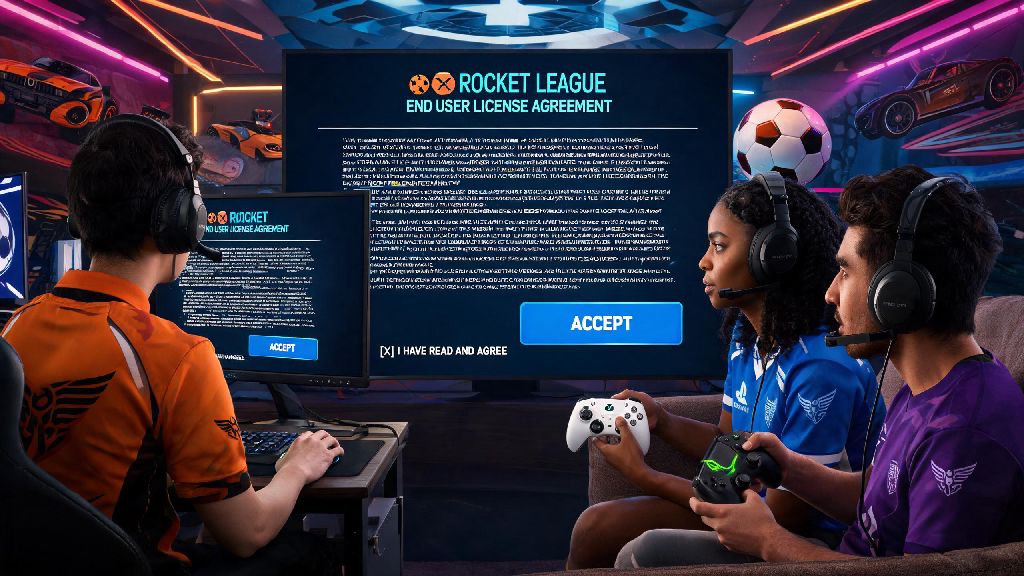
- Accept the terms of service prompt if it pops up (this only appears after major game updates or seasonal resets)
- Wait 10 to 15 seconds for the game to sync your save data, rank progress, and cosmetic items to the central Rocket League servers
If you follow these steps and don’t get any error messages, you’ll be dropped straight into the online menu where you can queue for casual, competitive, or tournament play. If you get an error code or the loading screen freezes for more than 30 seconds, you’re dealing with a common login issue that’s easy to fix with the tips below. Most players run into these blocks when they try to log into Rocket League servers after a long break, so don’t panic if the standard process doesn’t work on your first try.
Common Errors That Block Access to Rocket League Servers
The first thing to do when you get a login error is rule out server-side problems, because there’s no point troubleshooting your setup if Psyonix is running scheduled maintenance or dealing with a widespread outage. Always check the official Rocket League server status page first to see if there are active issues in your region. If servers are marked as operational, the error is almost always coming from your end. The most common errors players see include:
The “connection timed out” error usually means your internet can’t establish a stable connection to the game’s servers, while the “server unavailable” error often pops up when you’re running an outdated version of the game. If you get an “account not linked” error, that means your platform account (like PlayStation Network or Xbox Live) isn’t properly connected to your main Epic Games account, which is required for cross-play and cross-progression. You might also see a “session conflict” error if someone else is logged into your Rocket League account on another device at the same time.
Quick Fixes for When You Can’t Log Into Rocket League Servers
These quick fixes solve 90% of common login issues, and most take less than two minutes to try. First, restart your game and your device (PC, console, or Switch) – I’ve personally fixed more login fails before tournament matches with a quick console restart than any fancy technical trick, because it clears cached data that might be causing a conflict. Next, check your internet connection: Rocket League only needs 3 Mbps of download speed and 1 Mbps of upload speed to run, but unstable connections or high ping will block login entirely. If you still can’t log into Rocket League servers after trying these steps, move on to the next tip.
Avoid using public Wi-Fi for login attempts or ranked matches, because most public networks block the specific UDP ports Rocket League uses to connect to servers, which will cause repeated login fails. If you’re on PC, verify your game files to make sure no corrupted data is blocking the connection: for Epic Games Store users, click the three dots next to Rocket League in your library and select “Verify”; for Steam users, right click the game in your library, select Properties, go to Local Files, and click “Verify Integrity of Game Files”. If you use a VPN or proxy, turn it off before logging in, as Rocket League servers flag VPN connections to prevent smurfing, account sharing, and cheating, which can result in a temporary login block.
Long-Term Tips to Avoid Future Rocket League Login Issues
Once you get logged in, you can take a few simple steps to make sure you don’t run into the same issues again later. First, turn on auto-updates for Rocket League on your platform, because outdated game clients are the number one cause of preventable login errors. Most platforms update games automatically by default, but if you have limited data, you might have turned this off without realizing it. These small steps will make it far less likely you’ll run into issues when you try to log into Rocket League servers before a big match.
Link all your platform accounts to your main Epic Games account once and leave them linked, so you don’t have to re-authenticate every time you switch between playing on PC and console. This also prevents account sync errors that can lock you out and even risk losing your cosmetic progress. Make sure two-factor authentication is enabled on your Epic account too – not only does this keep your account secure from hackers, it also prevents temporary login blocks that happen when the system detects suspicious login activity from a new device. Finally, don’t share your account information with anyone else, because simultaneous logins from multiple locations will trigger an automatic 15-minute lock on your account to prevent theft.
At the end of the day, learning how to log into Rocket League servers is usually as simple as following the standard step-by-step process, and the occasional error is almost always quick to fix. If you’ve tried all the tips above and still can’t log in, you can reach out to Psyonix support with your specific error code and account information, and they’ll help you resolve the issue. Most of the time, though, a quick restart or file verification is all you need to get back on the pitch with your friends.