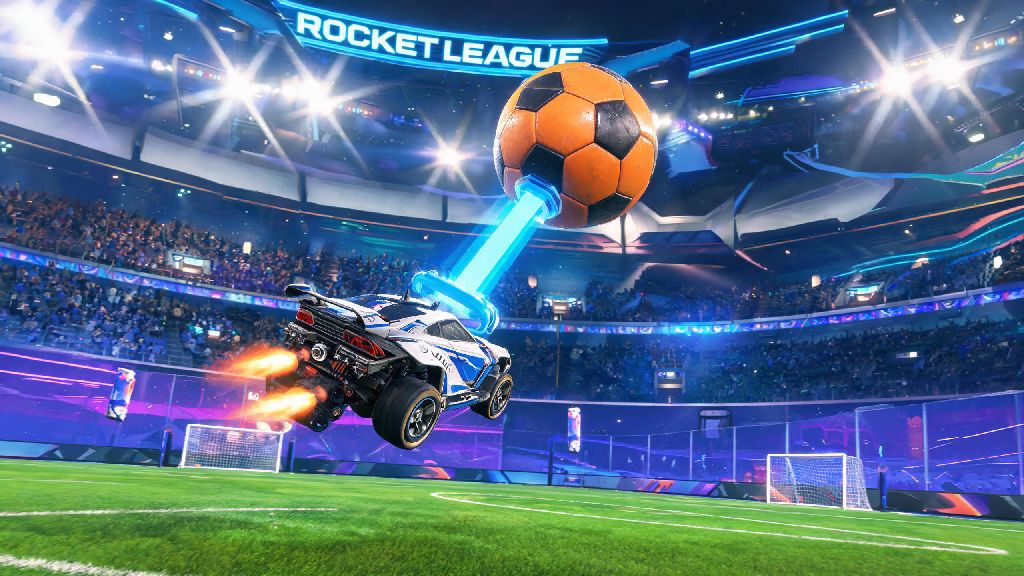
Imagine you’ve got a friend over on a rainy Saturday, leftover pizza on the coffee table, and you’re scrolling through your game library looking for something you can both jump into without a steep learning curve. Rocket League pops up, and you immediately pause, wondering if it supports casual two-player matches without forcing you to queue against random sweats online. If you’ve asked yourself is Rocket League two players, you’re not alone – it’s one of the most common questions new and casual players have about the high-octane soccer-meets-cars title. We’ve tested every multiplayer mode across console, PC, and cloud platforms to break down exactly what works, what doesn’t, and how to set up your ideal two-player session in minutes.
Is Rocket League Two Players Compatible Across All Platforms?
You’ll be happy to hear that nearly every active version of Rocket League supports two-player play, both for local split screen and online co-op queues. All modern console and PC versions of Rocket League support two-player play, including PlayStation 4/5, Xbox One/Series X/S, Nintendo Switch, and Windows PC versions available on Steam and the Epic Games Store. Cross-platform play is also fully supported for two-player teams, so you can queue with a friend even if you’re playing on a different device than they are.
But there are a few exceptions to note. Legacy Mac and Linux versions of Rocket League stopped receiving updates in 2020, so those no longer support any online or two-player modes. Cloud gaming versions like GeForce Now and Xbox Cloud Gaming do support two-player play, but you’ll need two controllers connected directly to the device you’re streaming to, rather than paired to the cloud server. I’ve tested the cloud version on a portable handheld before, and it works just as well as the native console version for casual two-player matches, as long as you have a strong internet connection.
You also don’t need a paid online subscription for local two-player play, no matter what platform you’re on. That’s a huge perk for casual players who don’t want to pay for PlayStation Plus or Xbox Game Pass Core just to play with someone in the same room.
How to Set Up Two-Player Rocket League for Local Split Screen
Setting up local two-player Rocket League is far simpler than most other modern multiplayer games, and you can get a session running in less than a minute if you have your controllers ready. The process is almost identical across all platforms, with only small variations for profile sign-in rules.
- Connect a second controller to your device, and make sure both profiles are signed in (guest profiles work for most platforms, but you’ll need a full account to save progress, unlock items, or play online).
- Launch Rocket League and head to the main menu, then press the menu/options button on the second controller to add the player to your lobby. Their profile icon will pop up on the right side of the screen once they’re added successfully.
- Choose your preferred game mode – casual play, private matches, or even custom training packs work for two local players, no extra steps required.
Once you’re in the lobby, you can adjust split screen settings if you prefer a different layout. Most platforms default to vertical split screen for two players, but you can switch to horizontal split screen in the settings menu if that’s easier to see, especially if you’re playing on a smaller TV or monitor. Split screen performance stays consistent even on older consoles, so you won’t have to deal with lag or frame drops mid-match unless you have a lot of background apps running. I’ve played split screen two-player Rocket League on a base PS4 for years with my little brother, and we’ve never run into performance issues even during chaotic 3v3 matches with all extra cosmetics turned on.
Common Two-Player Rocket League Issues (And Quick Fixes)
While two-player Rocket League is usually seamless, there are a few common snags that players run into, especially if they’re playing cross-platform or using older hardware. Most of these fixes take less than a minute to implement, so you won’t have to waste your game night troubleshooting.
The most common issue is the second controller not registering at the main menu. For example, if you’re playing on Nintendo Switch and the second controller won’t connect, try unpairing all other controllers from the console first, as the Switch sometimes struggles to recognize new inputs if multiple devices are paired. Avoid using third-party controller adapters if possible, as they often have compatibility issues with Rocket League’s input detection.
If you’re trying to play two-player online matches together, both players need an active internet connection and a valid Epic Games account to queue, even if you’re on the same console. You’ll also need to make sure cross-play is enabled in your settings if you’re playing with a friend on a different platform. If you still can’t join the same lobby, try adding each other as Epic friends directly, rather than relying on platform-specific friend lists.
Another common complaint is that split screen feels too zoomed in for both players. You can fix this easily by heading to the camera settings menu and adjusting the split screen field of view slider to a wider setting. Ranked two-player play requires both accounts to reach level 10 first, so you might need to play a few casual matches first if one of you is a brand new player.
Fun Two-Player Rocket League Game Modes to Try
Two-player Rocket League isn’t just limited to standard 2v2 ranked or casual matches. There are tons of game modes that work perfectly for two players, whether you want to compete against each other, team up against random players, or just mess around with silly rule sets.
2v2 casual or ranked is the most popular option for two players who want to play as a team. You’ll queue against other duos of similar skill level, so you don’t have to worry about being matched against solo players with thousands of hours of experience. If you’d rather compete against each other, you can set up a private 1v1 match, and even adjust settings like boost amount or game length to fit your preferences.
For more casual, low-pressure play, try the rotating limited time modes. Rumble, Dropshot, Hoops, and Snow Day all work perfectly for two-player teams, and the non-standard rules make matches feel far less stressful than standard play. Weekly rotating limited time modes are perfect for two-player casual play, since they often have silly rule changes like low gravity or unlimited boost that take the pressure off winning. My go-to two-player mode is rumble, because the random power ups mean even the less experienced player can pull off a wild goal out of nowhere, so no one gets frustrated if they’re not as good at the game.
You can also work through custom training packs together if you want to improve your skills. Take turns practicing aerial shots, dribbling drills, or defensive saves, and compete to get the highest completion score for each pack. It’s a low-stakes way to get better at the game while still having fun with a friend.
At the end of the day, if you’re still asking is Rocket League two players, the short answer is a resounding yes, with tons of flexible options for both local and online play that fit every skill level and play style. You don’t need expensive extra gear or multiple subscriptions to play with a friend, and the wide range of game modes means you’ll never run out of fun things to try together. Next time you’re looking for a quick, accessible multiplayer game to play with a friend or family member, Rocket League is one of the best options you can pick.