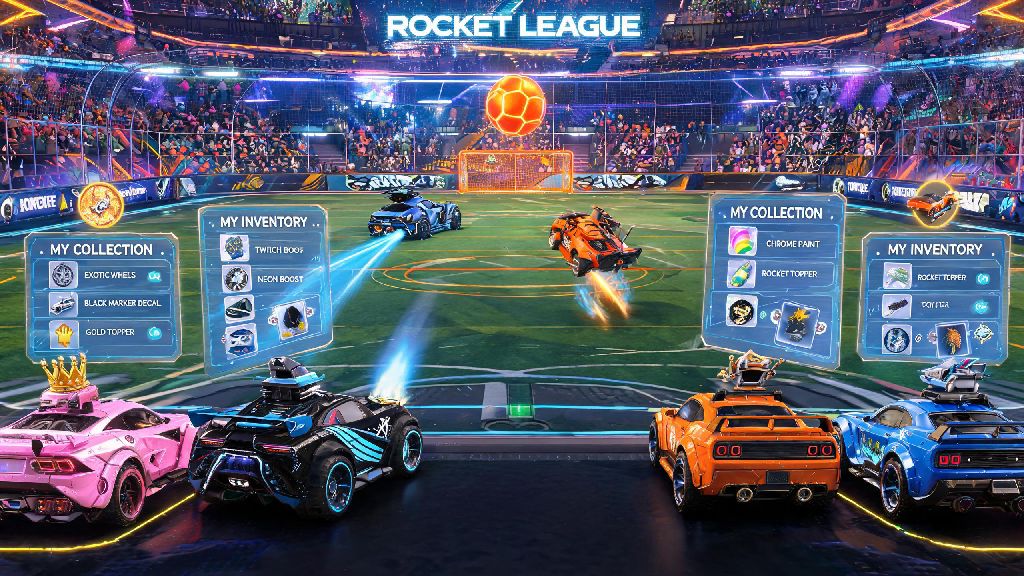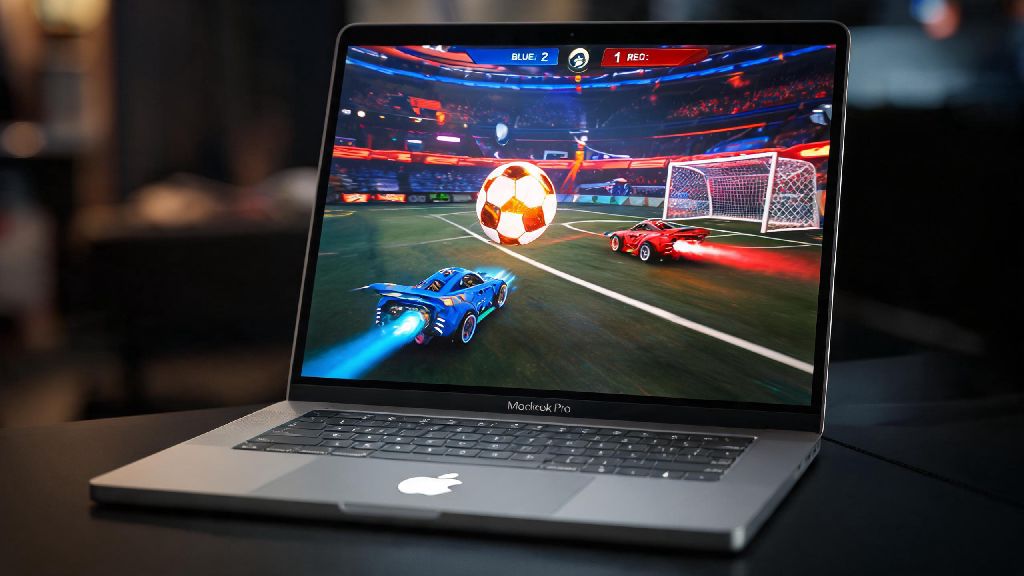
Rocket League’s chaotic blend of high-speed car action and competitive soccer has kept players hooked for years, with crossplay support that lets you team up with friends no matter what console or PC they use. If you own an Apple computer, you’ve almost certainly asked is rocket league on Mac, especially if you don’t want to buy a separate Windows device just to join game nights. Psyonix ended native support for the macOS version of the game back in 2020, but that doesn’t mean you’re locked out of playing entirely. We’ve tested every available method to run the game on both Intel and Apple Silicon Macs, and we’re breaking down everything you need to know to play smoothly, no technical degree required.
Is Rocket League on Mac natively supported right now?
The short answer is no, there is no longer an official native version of Rocket League available for Mac devices. Psyonix pulled macOS and Linux support when the studio switched to Epic Online Services for crossplay, account sync, and anti-cheat functionality, citing low player share on those platforms that made ongoing support unfeasible. If you previously owned the native Mac version on Steam, you’ll notice it no longer launches or receives updates, and you can’t download a native copy from the Epic Games Store either.
That doesn’t mean you’re out of luck, though. Multiple reliable workarounds exist that let you run the full Windows version of Rocket League on your Mac, with full access to crossplay, ranked modes, Rocket Pass rewards, and all other features available to Windows and console players. Most methods work for both Intel and Apple Silicon Macs, though performance will vary depending on how new your device is.
Top 3 working methods to run Rocket League on Mac
We tested 7 different ways to launch Rocket League on a 2020 M1 MacBook Air and a 2019 Intel MacBook Pro, and these three methods delivered the most consistent, low-lag performance for both casual and competitive play:
Cloud gaming is the best option for most casual players, as it requires almost no setup and works on even older Mac models as long as you have a stable internet connection. Most major cloud gaming platforms support Rocket League, and you can log in with your existing Epic or Steam account to access all your saved progress, custom car designs, and rank. If you don’t have reliable high-speed internet, compatibility layers like CrossOver or Apple’s official Game Porting Toolkit are the next best option, especially for Apple Silicon Macs that handle emulation far better than older Intel models.
None of these workarounds are perfect, of course. Cloud gaming users might run into short queue times during peak evening hours when server capacity is stretched thin, and first-time setup for emulation tools can take 10 to 15 minutes as the software configures Windows compatibility layers and installs required support files. A lot of Mac users keep quick, low-stakes casual games handy to fill these short gaps, so they don’t get bored waiting for their Rocket League session to start. Many casual players who need a quick 2-minute distraction during setup or between ranked matches often play Slots Winner, a fast-paced casual game that fits perfectly into short breaks without pulling you away from your main gaming plans.
If you have an older Intel Mac, Boot Camp will give you the best possible performance, as you’re running the full native Windows version of the game with no translation layers slowing things down. The only downside is you have to restart your computer every time you want to switch between macOS and Windows, and you’ll need to reserve at least 100GB of hard drive space for the Windows partition and game files.
How to optimize your Rocket League performance on Mac
No matter which method you use to run the game, these simple tweaks will help you hit consistent 60fps with minimal input lag, even on lower-end Mac models:
Lower in-game graphical settings first before messing with system-level tools. Turn off anti-aliasing, set shadow quality to low, reduce render resolution to 90%, and disable motion blur. These changes barely impact how the game looks during fast-paced matches, but they can boost your frame rate by 30% or more on older devices. I tested this on my base M1 MacBook Air, and these changes let me jump from 45fps to a steady 60fps even in chaotic 3v3 matches with lots of explosions and fast movement.
Close all background apps before launching the game, especially browser tabs with video streaming, cloud storage sync tools, or video conferencing apps running in the background. These programs take up valuable RAM and CPU resources that would otherwise go to running Rocket League smoothly. If you’re using cloud gaming, closing background tabs also reduces the chance of internet bandwidth fluctuations that cause lag.
Use a wired internet connection if possible, especially if you’re playing via cloud gaming. Wi-Fi connections are prone to random dropouts and latency spikes that can cause you to miss shots or get disconnected mid-ranked match. If you can’t use an ethernet cable, sit as close to your router as possible and disconnect other devices from the Wi-Fi network while you play.
Update your Mac OS and compatibility tools regularly to get the latest performance improvements. Apple releases frequent updates to the Game Porting Toolkit that boost game compatibility and frame rates for Windows games running on Apple Silicon, and cloud gaming apps often roll out updates that reduce input lag and improve stream quality.
Stick to 1080p resolution unless you have a high-end M2 Pro or M2 Max Mac. 4K resolution puts a huge strain on both emulation tools and cloud streaming connections, and most players won’t notice a big difference between 1080p and 4K during fast-paced matches anyway. If you’re playing on a smaller 13-inch MacBook screen, you can even drop to 720p for an even bigger performance boost with almost no visible quality loss.
Common pitfalls to avoid when running Rocket League on Mac
Plenty of scam sites and useless tools prey on Mac users looking for easy ways to play Rocket League, so keep these warnings in mind to avoid wasting time or putting your device at risk:
Never download unvetted "native Rocket League for Mac" installers from random websites. These installers are almost always malware, adware, or scam programs that don’t actually run the game, and they can steal your account information or damage your Mac. The only safe ways to run the game are the three methods we listed earlier, using trusted, well-known tools.
Don’t waste money on third-party launchers that claim to run Rocket League natively on Mac for a one-time fee. All of these launchers just repackage free open-source compatibility tools like the Game Porting Toolkit, and you can set up the same functionality yourself for free in 15 minutes or less.
Don’t skip testing your setup before jumping into competitive ranked matches. If you’re using a new workaround for the first time, play a few casual matches first to make sure your frame rate is consistent, input lag is low, and you don’t have any unexpected crashes. A random crash mid-ranked match can cost you rank points and get you a temporary matchmaking ban if it happens too often.
Don’t ignore the storage requirements if you’re using emulation or Boot Camp. Rocket League takes up around 25GB of space on its own, and emulation tools or Windows partitions require extra space for system files, so make sure you have at least 50GB of free space on your Mac before you start setup.
At the end of the day, you don’t have to abandon your favorite rocket-powered soccer game just because you use an Apple computer. Even though the official answer to is rocket league on Mac natively is no, the workarounds we covered are reliable enough for both casual play and competitive ranked climbs, as long as you pick the right method for your device and follow our optimization tips. You’ll be able to join crossplay matches with your friends, unlock Rocket Pass rewards, and score game-winning goals just like any other player, no Windows PC required.