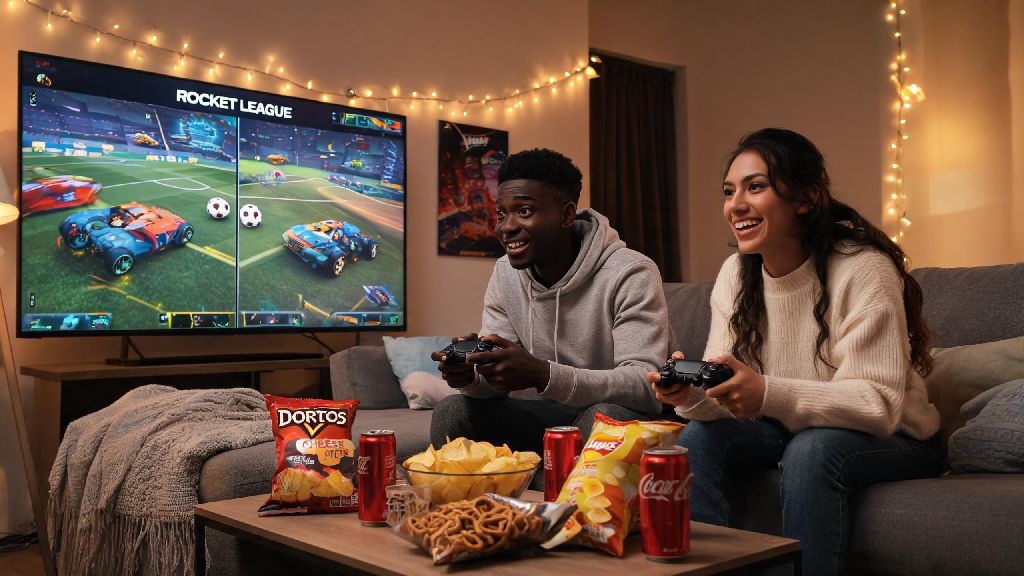
There’s nothing better than having a group of friends over, grabbing snacks, and settling in for a few hours of competitive Rocket League play. But if you’ve only ever played solo online, you might not know how to do split screen on Rocket League to get that classic couch co-op experience. The feature works across every major platform the game is available on, and it’s far simpler to set up than most players realize. We’ve tested the process across PS5, Xbox, Nintendo Switch, and PC to put together a no-fuss guide that skips the technical jargon and gets you straight to playing.
How to Do Split Screen on Rocket League by Platform
The setup process varies slightly depending on what device you’re playing on, but none of the steps are complicated. You can have up to four players in a single split screen lobby on all supported platforms, as long as you have enough controllers paired to your device.
For PS5/PS4 users: Launch Rocket League on your console and sign into your primary account with your first controller. Grab the second controller, press the PS button to turn it on, and select either a second existing PSN account or a guest profile. Once the second account is signed in, have the second player press the Options button on their controller while you’re in the Rocket League main menu. Their profile will pop up in the lobby within a few seconds, and you’re ready to go. Repeat the process for up to four total players.
For Xbox Series X/S/One users: The process is almost identical to PlayStation. Launch Rocket League, sign into your primary Xbox account with your first controller. Turn on the second controller, sign into an existing Xbox account or select guest play, then have the second player press the Menu button (the three-line button in the middle of the controller) while you’re in the main menu. They’ll be added to your lobby immediately. Note that if you want to play online with split screen, all players using their own accounts will need an active Xbox Game Pass Core subscription to access online play.
For Nintendo Switch users: Start by launching Rocket League from your Switch home screen. Pair your first controller and sign into your Nintendo account if you’re using one. For the second player, turn on their Joy-Con or Pro Controller, pair it to the Switch, then press the + button while you’re in the Rocket League main menu. They’ll join your lobby right away. The Switch supports up to four players split screen, but keep in mind that performance will drop a bit if you’re playing four-player matches on the Switch’s portable screen, so we recommend sticking to two players if you’re not docked.
For PC users: Rocket League on PC supports split screen, but there’s one key limitation: you can only use one keyboard and mouse setup per PC, so any additional players will need a compatible controller. First, launch Rocket League via Steam or the Epic Games Launcher. Make sure all your controllers are paired to your PC before you open the game, to avoid detection issues. Once you’re in the main menu, have the second player press the Menu or Options button on their controller. They’ll be prompted to select a profile – they can sign into their own Epic Games account if they want to track their own progress, or play as a guest. If you’re playing via Steam, make sure you have Steam Input enabled in your Rocket League Steam settings to support third-party controllers like Nintendo Switch Pro Controllers or PlayStation DualSense controllers.
Key Settings to Optimize Split Screen Rocket League Play
Once you’ve got your split screen lobby set up, you’ll want to tweak a few settings to make the experience as smooth as possible, especially if you’re playing on older hardware or a smaller screen. Most players skip these adjustments, but they make a huge difference in how easy it is to follow the action and avoid frustration.
- Split screen layout: Pick horizontal for 2 players on wide displays, vertical for smaller TV screens
- Frame rate cap: Lock to 60 FPS on older consoles or low-spec PCs to avoid stutter during matches
- Player name display size: Increase to 120% so you can tell apart cars on your half of the screen
- Post-processing effects: Turn off bloom, motion blur, and lens flare to reduce eye strain during long play sessions
If you pick vertical split for 2 players, each player gets a tall, narrow section of the screen, which is great for following aerial plays, while horizontal split gives each player a wider view, which is better for tracking opponents across the field. Locking your frame rate to 60 FPS might seem like a downgrade if you’re used to 120 FPS solo play, but it eliminates stutter that happens when your hardware is trying to render two separate game views at once.
Turn off cross-play if you’re mixing local split screen with online matches – cross-play adds extra latency that’s way more noticeable when you’re playing next to someone, and you’ll get matched with players on the same platform with faster connection speeds. You can toggle cross-play on or off in the game’s online settings menu in less than 10 seconds.
Common Split Screen Issues and How to Fix Them
Even if you follow the steps perfectly, you might run into a few hiccups when setting up split screen. These are the most common issues we’ve run into, and the simple fixes that work 90% of the time.
First, controller not detected: This is the most common issue, especially on PC. If your second controller isn’t showing up when you press the menu button, close Rocket League first, then make sure your controller is paired properly to your device. On PC, if you’re using Epic Games Launcher, go to your launcher settings, scroll down to Rocket League, and check the box that says “Enable Controller Support”. If you’re on console, unpair any controllers that aren’t being used for the current play session, as extra paired devices can cause conflicts that prevent new controllers from being recognized.
Second, can’t join online matches with split screen: If you’re getting an error message when you try to queue for online play with split screen enabled, first check that all players with registered accounts have an active online subscription for their platform. If one player is using a guest account, most platforms don’t allow guest accounts to access online play, so you’ll have to stick to offline custom matches or have the guest sign into a registered account.
Third, split screen is laggy or stuttering: The first fix for this is close all other background apps on your device – streaming apps, game launchers, and even browser tabs can take up valuable processing power that’s needed to run split screen smoothly. If that doesn’t work, lower your game resolution from 4K to 1080p, as rendering two 4K views is way more taxing on your hardware than two 1080p views.
Fourth, audio is only playing for one player: Most devices default to splitting audio so each player hears game audio from the side of the screen their view is on, but this can be annoying if you’re sitting close together. Go to the Rocket League audio settings, find the “Split Screen Audio Mix” option, and toggle it to “Mono” or “Combined” so all audio plays through both speakers equally.
Fun Split Screen Game Modes to Try With Friends
Now that you’ve got split screen set up and running smoothly, you don’t have to stick to standard casual 3v3 matches. There are tons of game modes that are even better when you’re playing next to someone in the same room.
First, 2v2 casual online: Teaming up with a friend next to you makes communicating way easier than typing or using voice chat with a random teammate. You can call out aerial plays, warn each other about incoming opponents, and celebrate goals together in real time, which makes winning way more satisfying. You can even queue for ranked 2v2 if you want to climb the leaderboards together, as long as all players have their own registered accounts.
Second, 4-player custom lobby: If you have four controllers and four friends, you can split into two teams and play against each other in private custom matches. You can tweak the rules to make the game more fun, like turning on unlimited boost, increasing the ball size, or even playing with low gravity for silly, chaotic matches. You don’t need internet access to play custom local matches, so this is a perfect activity for trips or places with no Wi-Fi.
Third, extra game modes: Rocket League Rumble, Hoops, and Dropshot are all way more fun in split screen than they are online. Rumble’s random power-ups lead to tons of unexpected moments that have everyone laughing, and Hoops is perfect if you want a break from standard soccer play. These modes are also more forgiving for new players, so they’re great if you’re introducing someone to Rocket League for the first time.
Fourth, offline season mode: If you don’t have internet access, or you just want to play without dealing with online lag, you and your split screen teammate can play through an entire offline season together, working your way up from the lowest division to the championship. It’s a great way to practice your skills together without the pressure of online ranked play.
At the end of the day, knowing how to do split screen on Rocket League turns a game you usually play alone into a go-to activity for game nights, rainy days, or casual hangouts with friends. You don’t need any extra equipment besides extra controllers, and the setup process takes less than a minute on most platforms once you know what to do. If you run into any issues that aren’t covered here, the first thing to try is updating your game to the latest version, as Psyonix regularly releases patches that fix split screen bugs and improve performance on all platforms. Next time you have people over, skip the boring board games and jump into a few split screen Rocket League matches – you won’t regret it.