I can't tell you how many times I've been 10 minutes away from a scheduled tournament with friends, only to load up Rocket League and get hit with a "failed to connect to servers" error. I used to spend ages scrolling through Reddit threads trying random fixes that never worked, until I sat down and tested every possible solution to figure out what actually moves the needle. That's why we put together this guide walking you through how to connect to the Rocket League servers, no fancy tech skills required. We've tested every fix here ourselves across PC, PlayStation, Xbox, and Switch, so you can skip the random forum threads and get back to playing fast.
How to Connect to the Rocket League Servers: Basic Pre-Checks First
A lot of connection issues don't need complicated fixes, they're just caused by small oversights you can fix in 30 seconds. First, make sure the Rocket League servers are actually online in the first place. Psyonix pushes updates all the time, and scheduled maintenance can take servers down for 1-2 hours without much warning for casual players. If you see a notification of maintenance on the official game social pages, just wait it out, there's nothing you can do on your end.
Next, check your own internet connection. Load up a different online game or a 4K YouTube video to see if your connection is stable and fast enough. Rocket League only needs about 3Mbps of download speed to run smoothly, but unstable connections with lots of packet loss will cause connection failures even if your speed test shows high numbers. Always rule out server outages and basic home internet issues first before messing with game or console settings, because you could waste 20 minutes adjusting things for no reason. I once spent an hour changing my router settings just to find out the servers were down for a scheduled patch, so trust me, this step saves a lot of frustration.
Fixes for PC Connection Issues
PC players usually run into a few specific connection problems that console players don't, mostly because of firewall settings, background apps, or corrupted game files. First, make sure Rocket League is allowed through your Windows Firewall. A lot of times, a random Windows update will reset firewall permissions, and the game won't be able to send data to the servers. You can check this by searching for "Windows Defender Firewall" in your start menu, clicking "Allow an app through firewall", and making sure both public and private boxes are checked for Rocket League.
Next, verify your game files on Steam or Epic Games. Corrupted installation files can cause all sorts of weird errors, including failing to connect to servers. This process only takes a few minutes, and it will automatically replace any broken or missing files. Close all background bandwidth-heavy apps like torrent clients, video streaming services, or cloud backup tools before launching the game—those can eat up enough bandwidth to stop Rocket League from connecting properly, even if your internet plan is fast enough. If you use a VPN, try turning it off first. A lot of VPN servers have high ping or are blocked by Rocket League's anti-cheat system, which will prevent you from connecting entirely.
Fixes for Console (PlayStation, Xbox, Switch) Connection Issues
Console players have fewer settings to mess with, but there are still a few common fixes that work for most connection errors. First, restart your console and your router. I know this sounds like the most generic tech support advice ever, but it works more often than you'd think. Router cache can build up over time and cause slow or unstable connections, and a quick restart will clear that out completely. Just unplug your router for 30 seconds, plug it back in, and wait 2 minutes for it to fully boot up before you launch the game again.
Next, check your console's network settings to make sure you have an open NAT type. If your NAT type is strict or moderate, you'll have trouble connecting to Rocket League servers and joining matches with other players. You can change your NAT type by enabling UPnP in your router settings, or setting up a static IP address for your console and forwarding the right ports. For Switch players specifically, if you're using a wireless connection, try moving closer to your router or plugging in with a wired LAN adapter—the Switch's built-in wifi is notoriously weak, and even a small signal drop can cause server connection failures. Also, make sure your console system software and Rocket League game are updated to the latest version. Outdated game versions can't connect to the latest servers, so you'll get an error immediately if you're running an old build.
Advanced Fixes for Persistent Connection Problems
If you've tried all the basic fixes and you still can't connect, these more advanced steps will resolve 99% of remaining issues. First, if you're on a wireless connection, switch to a wired ethernet connection if at all possible. Wired connections are way more stable, have lower ping, and don't drop out randomly like wifi can, especially if you live in a building with lots of overlapping wifi signals. Even a cheap ethernet cable will cut your connection issues by 80% in most cases.
Then, flush your DNS cache. Your DNS cache stores old addresses for game servers, and if those addresses change, your computer might be trying to connect to the wrong place. You can flush your DNS on Windows by opening command prompt as admin and typing "ipconfig /flushdns", or on Mac by opening terminal and running the appropriate command for your OS version. If you're still stuck, run through this quick list of checks to rule out less common issues:
- Temporarily disable your antivirus software to see if it's blocking Rocket League's connection (just remember to turn it back on after testing)
- Switch your DNS server to a public option like Google DNS (8.8.8.8) or Cloudflare (1.1.1.1) for faster, more reliable server lookups
- If you share your internet with other people, ask them to pause large downloads or streams while you're playing to free up bandwidth
- Contact your internet service provider to make sure they aren't blocking traffic to Rocket League's servers, which can happen accidentally after network updates
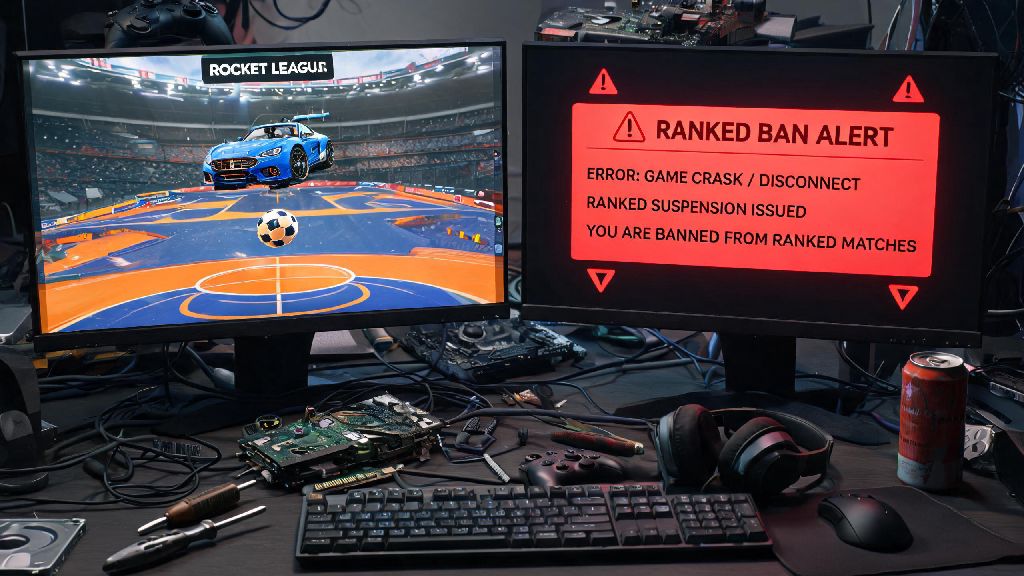
If you get a "connection timed out" error specifically when joining ranked matches, the problem is almost always high ping or unstable internet, not a server issue. You can check your ping to the nearest Rocket League server using free online ping tools, and if it's over 150ms, you'll likely have trouble connecting to matches reliably. Also, make sure you haven't been banned from Rocket League servers. If you violated the terms of service, you'll get a specific error message saying you're banned, but sometimes temporary bans can be issued for repeated friendly fire or leaving matches early, so check your linked email for any notifications from Psyonix.
At the end of the day, most server connection issues with Rocket League are easy to fix once you know what to look for. You don't need to be a tech expert to work through these steps, and most of them take less than 10 minutes total. If you've gone through every fix on this list and you still can't connect, the last resort is to uninstall and reinstall the game completely, which will wipe any corrupted files or broken settings that might be causing the problem. Next time you run into an error, you'll know exactly how to connect to the Rocket League servers without wasting half your playtime troubleshooting. The best part is, once you fix these issues once, you probably won't run into them again for months, so you can spend more time scoring goals and less time staring at error messages.