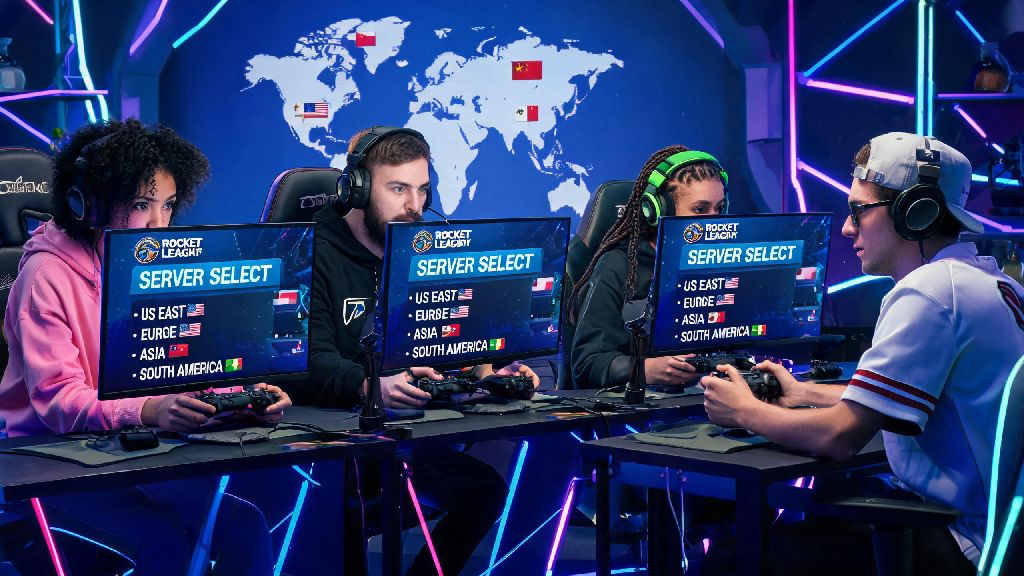
Anyone who’s spent hours grinding Rocket League ranked or casual matches knows the frustration of random rubber-banding, missed aerials because of lag spikes, or getting matched with players halfway across the world even when your internet works perfectly for every other game. A lot of players write these issues off as unavoidable, but one of the easiest fixes for most connection problems is learning how to change Rocket League servers manually, instead of relying on the game’s often glitchy automatic region picker. I’ve been playing Rocket League since its 2015 launch, and switching servers was the first tweak that helped me climb from Gold to Champ 2 without paying for a faster internet plan. This guide walks you through every step, plus common mistakes to avoid so you get the best possible performance every time you queue up.
How to Change Rocket League Servers on Every Major Platform
The process for switching servers is slightly different depending on what device you play on, but none of the steps take more than a minute to complete. You don’t need any special software or admin access to make the change, and you can switch back to automatic selection at any time if you prefer.
PC (Steam & Epic Games Store): Launch Rocket League and head to the main menu. Click the Settings icon in the top right corner, then navigate to the Gameplay tab. Scroll down until you see the Region section, then uncheck the box next to “Auto Select Region”. A dropdown menu will appear with all available server regions, each labeled with their real-time ping. Pick the region you want to use, then exit settings to save your changes. When you know how to change Rocket League servers on PC, you can toggle between regions in seconds if your current server starts acting up mid-session.
PlayStation 4/5: Open Rocket League and wait for the main menu to load. Press the Options button on your controller, then select Settings from the pop-up menu. Scroll to the Gameplay tab, then find the Region setting. Toggle off Auto-Select, then use the left stick to pick your desired server from the list. Press X to confirm your choice, then back out of settings to save. Note that PlayStation players may need to restart the game once if the server selection doesn’t update immediately.
Xbox One/Series X/S: Launch Rocket League and open the main menu. Press the Menu button on your controller, then select Settings. Navigate to the Gameplay tab, then find the Region option. Turn off Auto Select, then scroll through the available regions to pick the one that works best for you. Press A to confirm, then exit settings. Xbox players rarely need to restart the game for changes to take effect, but if you still see your old region when queuing, a quick restart will fix it.
Nintendo Switch: Open Rocket League and go to the main menu. Press the + button on your controller to open settings, then select the Gameplay tab. Find the Region setting, toggle off Auto Select, then pick your preferred region from the list. Press A to save, then back out of settings. Switch players may notice slightly higher ping across all regions compared to other platforms, so prioritize servers with ping under 80ms for the most consistent performance.
Top Reasons to Switch Your Rocket League Server Region
Most players only think about switching servers when they’re dealing with bad lag, but there are plenty of other reasons to adjust your region settings manually. One of the biggest perks of knowing how to change Rocket League servers is being able to customize your gameplay experience to fit what you’re looking for that session, instead of being stuck with whatever the game assigns you.
You might also want to switch servers if your local region is dealing with a temporary outage or maintenance. The game’s auto select feature will sometimes try to force you to connect to a down server repeatedly, so switching manually to a nearby working region lets you keep playing while you wait for your local servers to come back online. Peak hour overcrowding is another common issue, especially in larger regions like US East or Western Europe on weekend evenings. Switching to a smaller adjacent region can cut your wait time in half without adding more than 20ms of ping in most cases.
Common Mistakes to Avoid When Switching Rocket League Servers
Switching servers is simple, but there are a few common mistakes that can make your performance worse instead of better. I’ve made all of these mistakes myself over the years, so I can tell you exactly what to skip to save yourself frustration.
Don’t pick a server solely for fast queue times. It might be tempting to pick a tiny, low-population region that has 10 second wait times for ranked, but those servers usually have far fewer players, which means you’ll be matched with the same small group of people over and over. A lot of those low-pop servers are also full of smurfs or highly skilled players who are grinding low rank lobbies for fun, so you’ll probably end up losing way more matches than you win. I made this mistake once when I was grinding for a seasonal reward, and I lost 12 straight matches in a row to players who were clearly multiple ranks above the lobby I was in.
Always confirm server status before troubleshooting ping issues. If all servers are acting up, switching regions won’t fix your lag. Rocket League server outages are rare, but they do happen, especially after big game updates or during major esports events. Before you spend time switching between regions, check the official Rocket League server status page to rule out widespread outages first. You don’t want to waste 10 minutes testing different servers just to find out all regions are down for maintenance.
Another common mistake is forgetting to switch back to your home region after playing with cross-region friends. I can’t tell you how many times I’ve queued up for ranked the day after playing with friends in Japan, only to realize I left my server set to Tokyo and had 180ms ping for my first three matches. Get in the habit of double checking your server region before you queue for ranked, it will save you a lot of lost RP.
How to Optimize Your Server Selection for Ranked Play
If you’re someone who takes ranked play seriously, your server selection can make a huge difference in your win rate and overall performance. The best server for casual play isn’t always the best option for ranked, so there are a few extra factors to consider when you’re picking a region for competitive matches.
Consistent ping under 60ms is far more important than the lowest possible ping. A server with a stable 60ms ping will always feel better than a server with 30ms ping that spikes to 150ms every two minutes. When you’re picking a server for ranked, test the ping for 10-15 seconds by hovering over the region in the settings menu. If the ping number jumps up and down by more than 10ms, pick a different region, even if the average ping is slightly higher.
If you’re playing in a party, always pick the server that has the lowest average ping across all party members, not just the lowest ping for you. I used to force my friends to join my local US East server when I was grinding for Grand Champion, and half of them had 100+ ping, so we lost way more matches than we won. Once we started picking a middle ground server (US Central, in our case) where everyone had under 70ms, our win rate jumped 22% in a single season. It’s better to have everyone on a level playing field than to have one person with perfect ping and the rest of the team struggling to hit basic shots.
You also want to avoid switching regions too often when you’re playing ranked. Each region has slightly different play styles, and it takes a few matches to get used to the average skill level and meta in a new region. If you’re trying to climb ranks, stick to one or two consistent regions so you don’t have to readjust every time you queue up.
Learning how to change Rocket League servers is one of the simplest, most impactful tweaks you can make to your gameplay, no expensive hardware or internet upgrade required. Whether you’re trying to fix random lag spikes, play with friends across the globe, or climb the ranked ladder faster, adjusting your server settings takes less than a minute and can completely change how the game feels for you. Next time you’re stuck in a match with unplayable ping, don’t immediately log off or blame your internet — hop into your settings and double check your server region first, you might be surprised how much of a difference it makes.