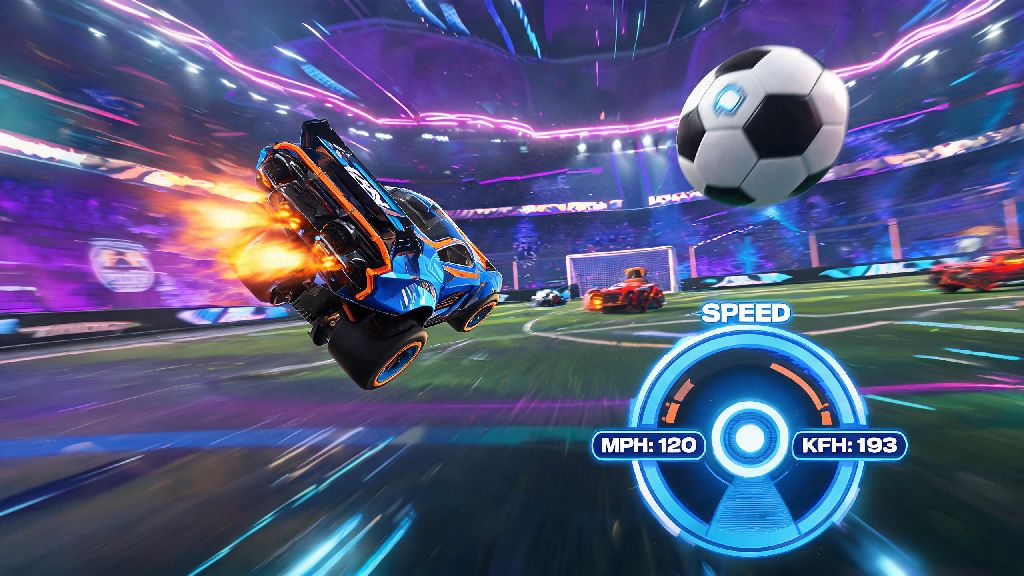
If you’ve ever scrolled through Rocket League TikTok and seen a player brag about a 120 kph flip reset, only to look at your own speedometer and see 74 mph with no clue how those numbers match up, you’re not alone. Unit mismatches are one of the most common small frustrations for new players, especially if you play with friends across different regions or follow content creators from metric countries. This guide breaks down every step you need to know, no technical expertise required, including fixes for common bugs that make settings disappear after updates. We’ll also cover why so many players choose to switch units, and how the tweak can make your training and community engagement way easier. First, let’s walk through how to change mph to kph in Rocket League no matter what device you play on.
How to Change MPH to KPH in Rocket League: Step-by-Step For Every Platform
The process is almost identical across all platforms, with only small menu differences between PC, PlayStation, Xbox, and Nintendo Switch. You don’t need to restart your game after making the change, and it will apply to all match types, including casual, competitive, training packs, and private lobbies. Let’s break down each platform’s exact steps so you can adjust the setting in under 30 seconds.
For PC players on Steam or Epic Games: Launch Rocket League, open the settings menu from the main screen by clicking the gear icon in the top right corner. Select the “Interface” tab from the top menu bar, then scroll down until you see the “Speed Units” dropdown menu. Click the dropdown and select “KPH” instead of “MPH”, then click “Apply Settings” at the bottom of the screen to save your changes. If you use BakkesMod for custom training or stat tracking, you’ll need to adjust the setting there too, because the mod overrides base game interface settings by default.
For PlayStation and Xbox players: From the main menu, press the options/menu button on your controller to open the settings sidebar. Navigate to the Interface tab using your D-pad, then scroll down to Speed Units. Use the left or right directional buttons to switch from MPH to KPH, then press X/A to confirm the change and save your settings. You don’t need to adjust your console’s system region to make this change, as Rocket League stores the unit setting separately from your device’s default preferences.
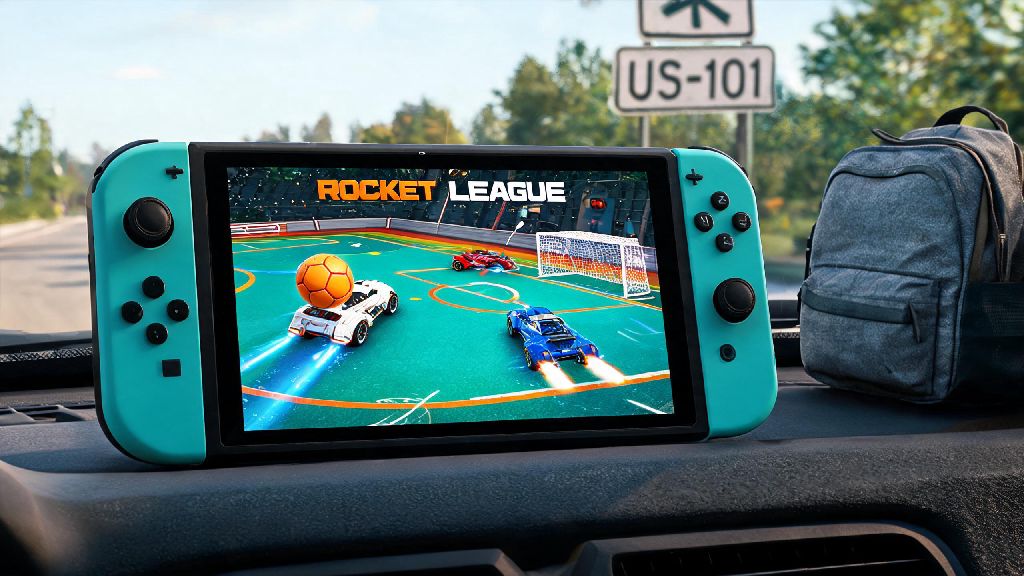
For Nintendo Switch players: The steps are almost the same as other consoles, but you’ll access the settings menu by pressing the + button on your right Joy-Con from the main screen. Navigate to Interface, select Speed Units, switch to KPH, and save your changes. The setting will stay saved even if you play the game in docked or handheld mode, so you won’t have to adjust it every time you switch play styles.
Why Switch Your Speed Units From MPH to KPH in Rocket League?
You might be wondering if it’s even worth making the change, especially if you’re used to thinking in miles per hour from real life driving. For a lot of players, the switch makes their entire Rocket League experience smoother, especially if they engage with the wider community or follow pro play. The most common reasons players make the switch include:
I switched to KPH about two years ago when I started joining international scrim lobbies, and I was shocked at how much time I saved not pulling out a calculator every time someone mentioned a 100 kph shot target. It took about a week to get used to the new numbers, but now I can’t imagine going back to MPH. Even if you only play casually, the switch will make it way easier to follow viral clip trends and understand what your friends are talking about when they brag about their latest big play.
Common Glitches to Avoid When Adjusting Speed Unit Settings
Most of the time, the setting change works perfectly on the first try, but there are a few common bugs that players run into, especially after major game updates. Knowing how to fix these will save you the frustration of having to re-adjust the setting every time you launch the game.
The most common issue is settings not saving after you close the game. This usually happens when cloud sync is pulling an older version of your settings profile from the cloud. To fix it, turn off cloud sync for Rocket League temporarily, adjust the speed unit setting, save your profile, then turn cloud sync back on. That will overwrite the old saved profile with your new unit preference. Make sure you’re adjusting the in-game interface speed unit and not just your console’s system region setting, because the two are not linked, and changing your region won’t affect your Rocket League speed units.
Another common issue for PC players is the unit switching back to MPH when launching BakkesMod. As we mentioned earlier, BakkesMod has its own separate interface setting for speed units, so you’ll need to adjust that too to avoid conflicts. BakkesMod users need to adjust units separately in the mod's interface menu under the “Stats” tab to make sure the setting stays consistent across both the base game and modded play. If you only adjust the base game setting, BakkesMod will override it every time you launch the mod.
Some players also report that the unit doesn’t change in custom training packs after they adjust the setting. This is usually a temporary cache issue, so just close the training pack and re-open it, and the new unit will show up correctly. You don’t need to restart your entire game to fix this small glitch.
Pro Tips to Optimize Your Interface After Switching to KPH
Once you’ve switched to KPH, there are a few small tweaks you can make to get the most out of the new unit setting, whether you’re a casual player or an aspiring pro. These tweaks take less than a minute each, and they’ll make your gameplay and training way more efficient.
First, adjust your speedometer position to be closer to the center of your screen if it’s currently in the corner. When you’re practicing specific shots that require a certain speed, you don’t want to have to look away from the ball to check your speed. Most pro players keep their speedometer right above their boost meter, so they can check both with a single quick glance.
Next, look for KPH-focused training packs to practice your shot accuracy and speed control. Most high-level training packs list recommended hit speeds in KPH, so you won’t have to convert numbers mid-training anymore. For example, a common ground shot training pack will recommend hitting shots between 80 and 90 kph for consistent power and accuracy, which is way easier to track when your speedometer already uses the same unit.
If you stream or record your gameplay for social media, switching to KPH will make your clips way more accessible to global viewers. Most of your audience from Europe, Asia, and South America will already be familiar with KPH, so you won’t have to add text overlays explaining your speed numbers to avoid confusion. This small tweak can help you grow your audience faster by making your content more accessible to non-English speaking and metric region viewers.
Don’t stress if you struggle with the new numbers for the first week or two. It’s normal to have to do a quick conversion in your head at first, but you’ll get used to the new speed benchmarks faster than you think. You can switch back to MPH at any time if you find KPH doesn’t work for you, there’s no penalty for changing the setting as often as you want until you find what fits your play style best.
Changing your speed unit is one of the smallest, highest-impact settings tweaks you can make in Rocket League. It takes less than a minute to adjust, works across all match types, and makes engaging with the global community, following pro play, and completing training packs way easier. Whether you're switching to fit in with new friends, follow pro play, or just eliminate unnecessary conversion math, learning how to change mph to kph in Rocket League is one of the most useful small quality of life tweaks you can make for your gameplay. Next time you pull off a 110 kph air dribble across the entire field, you’ll know exactly how fast you were going, no calculator required.