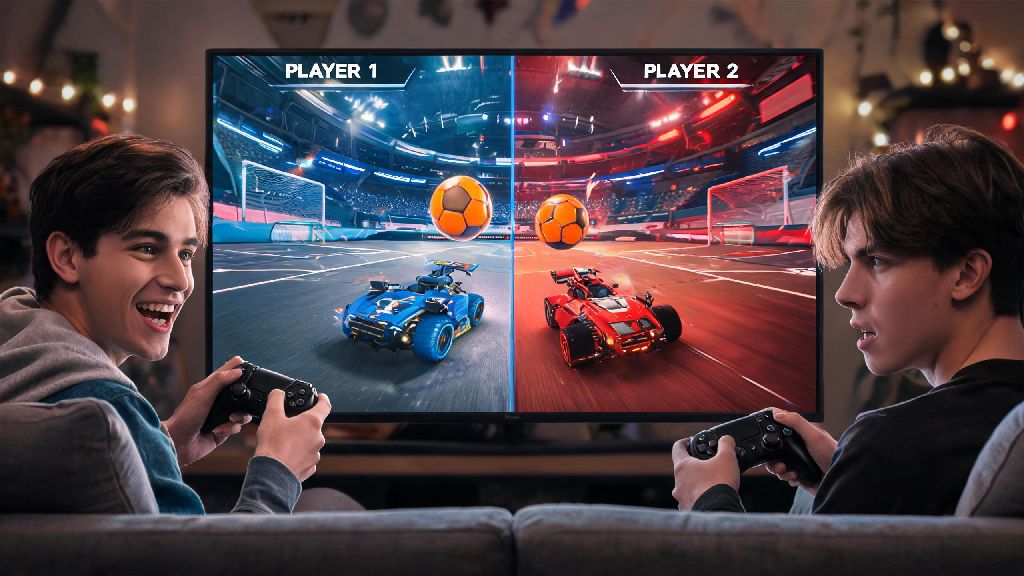
There’s nothing quite like playing Rocket League with friends sitting right next to you, yelling as you pull off a last-second aerial goal or laugh at a wildly missed open net. A lot of players struggle to find the right settings to enable local co-op though, which is why so many people ask how do you play Rocket League split screen in the first place. The process is a little different across every platform, but it’s far simpler than you might think, and you don’t need any extra paid subscriptions or extra game copies for most setups. This guide walks you through every step, common fixes for glitches, and tips to make your split screen sessions way more fun.
How Do You Play Rocket League Split Screen Across All Major Platforms
The exact setup steps vary slightly depending on what device you’re playing on, but the core process is the same across the board: connect a second input device, sign in to a profile, and join the existing lobby. We’ve broken down instructions for every popular platform to make it as easy as possible.
For PlayStation 4 and 5 users, first power on your console and launch Rocket League with your primary controller signed in to your account. Next, turn on your second controller and either sign it in to a separate PlayStation profile or use a guest account. Press the Options button on the second controller, and a pop-up will appear asking you to select a profile for the second player. Once selected, the second player will automatically join your lobby, and split screen will activate as soon as you load into a match. You don’t need two copies of the game to play split screen locally – one copy works for up to four players on the same console, as long as you have enough controllers.
Xbox One and Series X/S users follow a nearly identical process: launch Rocket League with your primary profile, turn on the second controller, sign it in to an Xbox profile or guest account, and press the Menu button on the second controller to join the lobby. Cross-gen split screen works on PS5/PS4 and Xbox Series X/S / Xbox One households, so you don’t have to worry about upgrading all your controllers if you just bought a new console. For Nintendo Switch users, connect your second Joy-Con or Pro Controller, press the + or – button on the second controller from the main menu, select a profile, and you’re good to go.
PC users have a couple of extra notes: the first player can use either a keyboard and mouse or a controller, but all additional players will need their own controllers – Rocket League doesn’t support multiple keyboard and mouse setups for split screen. Connect your second controller via Bluetooth or USB, press the Start button on the controller, and sign in to an Epic Games account or use a guest profile to join the lobby. You can play up to four player split screen on PC as long as your rig has enough power to run the game for multiple players at once.
Common Split Screen Setup Issues And Quick Fixes
Even if you follow all the steps correctly, you might run into the occasional glitch when setting up split screen, especially if you’re using older controllers or a console that hasn’t been updated in a few months. If you find yourself waiting for a controller to pair or a system update to install, it’s nice to have a quick casual game to pass the time without getting sucked into a long, immersive session. Casual players who want a low-stakes, fast-paced game to fill those short gaps often play Yono Rummy, which fits neatly into 5 or 10 minute breaks without pulling you away from your Rocket League plans for too long.
One of the most common issues is a second controller not being detected by the game. If your second controller isn't detected, first make sure it's paired properly and has fresh batteries or a full charge. If it’s still not working, close Rocket League completely, restart your console or PC, and try again. For PC users, make sure your controller drivers are up to date, and that you’ve enabled controller support in your Epic Games or Steam settings.
Black bars on the screen are another frequent complaint, especially for users with ultrawide monitors or older TVs. To fix this, go to the in-game display settings, set your aspect ratio to 16:9, and toggle the split screen direction from vertical to horizontal if you prefer. Horizontal split gives each player a wider field of view, which is usually better for tracking the ball across the pitch. If you’re dealing with input lag in split screen mode, turn off VSync, lower your shadow and texture quality settings slightly, and close any background apps that might be taking up processing power. On PC, you can also set Rocket League to high priority in your task manager to boost performance for both players.
Pro Tips For Better Split Screen Rocket League Sessions
Once you’ve got your split screen setup working, there are a few small tweaks you can make to improve the experience for everyone playing, whether you’re running casual matches with new players or grinding ranked with a regular teammate. We’ve rounded up the most useful tips we’ve picked up from years of hosting split screen game nights:
If you’re playing with people who are new to Rocket League, you can also adjust mutator settings to make the game more accessible for new players. Turn on infinite boost, lower the game speed, or disable demoes so new players don’t get frustrated by being constantly taken out of plays by more experienced teammates. You can also set up private lobbies where you only play against each other, no online connection required, if you want to avoid dealing with random online players entirely.
What Game Modes Work Best For Split Screen Play?
Nearly every Rocket League game mode supports split screen, but some are way more fun for local co-op than others. The most popular mode for split screen players is casual 2v2, where you and your local teammate can pair up against other online 2v2 teams. It’s the perfect balance of competitive and casual, and you don’t have to worry about coordinating with random online teammates who might not communicate with you.
Local exhibition matches are another great option, especially if you don’t have a stable internet connection, or if you just want to play against each other instead of online opponents. You can add up to four players in local exhibition matches, so you can run 2v2 games with two teams on the same console, or free for all matches where everyone plays against each other. Tournament mode also supports split screen teams, so you and a friend can compete in official Rocket League tournaments together from the same console, and win the same in-game rewards you’d get playing online separately.
Free play and training modes also support split screen, which is a great way to practice new skills together. If one of you is working on aerials or dribbles, you can both load into free play at the same time and practice side by side, without having to take turns on the same screen. Just note that competitive ranked play progress is tied to the host’s account, so if you’re playing on a friend’s console, your rank and win progress won’t carry over to your own account when you get home.
Once you know how do you play Rocket League split screen, it opens up a whole new way to enjoy the game with friends and family who are in the same room, no online connection required for most modes. The setup process is far simpler than most people realize, and the small tweaks we covered in this guide will make your sessions run smoothly even if you run into the occasional glitch. Next time you have friends over, skip the boring board games and load up a split screen Rocket League tournament – you’ll be hooked for hours.