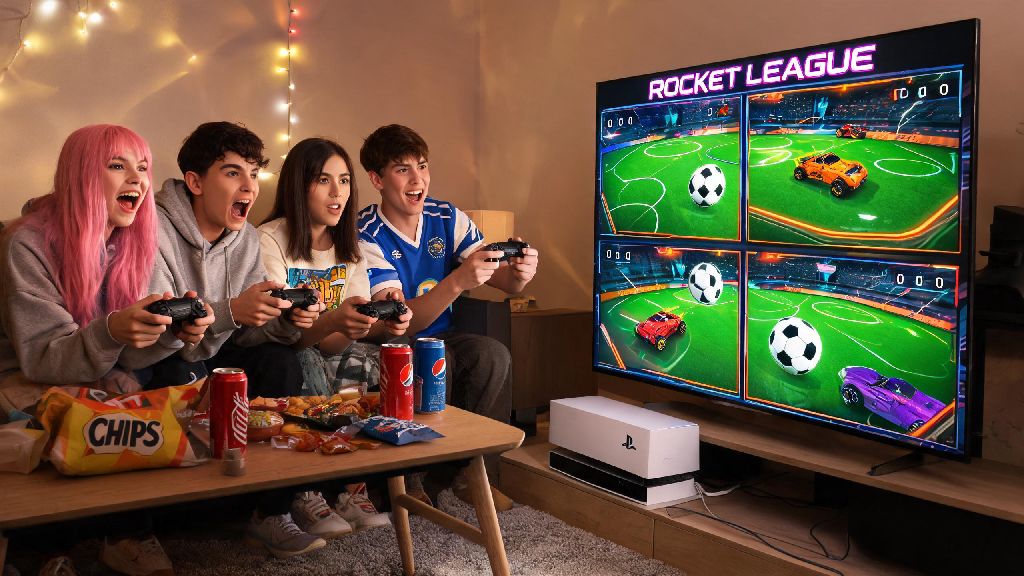
If you’ve got a group of friends over for a game night in 2026, or just want to team up with your sibling on the same couch, you’ve probably asked can you play split screen on Rocket League at some point. The high-octane soccer-meets-cars title has been a fan favorite for casual group play for years, but a lot of players are confused about current platform support after recent game updates that rolled out cross-play improvements earlier in 2026. I’ve tested split screen across every major platform this year, so I’m breaking down exactly what works, what doesn’t, and how to get your match running in 10 minutes or less.
Can You Play Split Screen on Rocket League in 2026? Supported Platforms
The short answer is yes, split screen is fully supported for local play on most popular gaming devices in 2026. Psyonix has kept this feature a core part of the game despite pushing for more cross-play online functionality, which is great news for anyone who prefers in-person group gaming over online lobbies. Support does vary a bit by device, though, so you’ll want to check what your platform allows before you invite people over.
Here’s a quick breakdown of 2026 split screen support by platform:
One important note: split screen is only available for players on the same local device. You can’t combine split screen with players on another console in the same house via local area network, though you can bring split screen players into online lobbies with friends on other devices if you want to expand your match. That works for both casual and ranked play, as long as all profiles meet the platform requirements for online access.
Step-by-Step Split Screen Setup for Rocket League in 2026
Setting up split screen is far simpler than most players expect, and you don’t need any extra software or paid add-ons to make it work. The process is almost identical across all supported platforms, with only small differences for PC vs console. You don’t need multiple Rocket League accounts to play split screen for casual local matches, but you will need separate profiles if you want to track individual progress or play online together.
First, connect all your controllers to your device before launching the game. For consoles, you can pair controllers via Bluetooth or use a wired connection, and for PC, you can use Steam Input to configure almost any brand of controller, including third-party options. Once all controllers are connected, launch Rocket League and wait for the main menu to load.
To add additional players, just press the options/menu button on the second controller, then select a profile to use (you can pick a guest profile if you don’t want to use a saved account). The second player will immediately pop up in the main lobby, ready to join matches. For 3 or 4 player games, repeat the same step with each extra controller. Make sure all controllers are fully charged before starting your session, because nothing kills a game night faster than a dead controller mid-overtime.
If you want to play online with your split screen group, just queue for a match as normal. All split screen players will be placed on the same team by default, but you can change this setting if you’re playing a custom private match. PC players have the extra option to adjust split screen layout and individual player HUD sizes in the video settings menu, which is helpful if you’re playing on a smaller monitor.
Common Split Screen Issues and Fixes for 2026 Players
Even with official support, you might run into small glitches when setting up split screen, especially if you’re using third-party controllers or playing on PC. Most of these issues have simple fixes that take less than a minute to try, so you don’t have to cancel your game night if something goes wrong.
The most common issue is a second controller not being detected by the game. If this happens, first close Rocket League completely, disconnect the controller, then re-pair it to your device before re-launching the game. For PC players, make sure you have the latest controller drivers installed, and that Steam Input is enabled for your controller type in the Steam settings menu.
Another frequent complaint is wonky aspect ratio or cramped screen space for multiple players. Vertical split is usually better for 2 player matches on wide 16:9 TVs, because it gives each player more horizontal space to see the entire field. You can switch between horizontal and vertical split in the game’s video settings menu, and adjust the split line position if one player is sitting closer to the screen than the other.
If you’re experiencing lag or frame drops with 3 or 4 players, try lowering your graphics settings first. Turn off effects like motion blur and bloom, and reduce the overall render quality to prioritize frame rate. For online matches, turning off cross-play can also reduce lag, as it limits your lobby to players on the same platform as you. PC players don’t need any extra subscriptions for split screen online play, but console players will need an active PS Plus or Xbox Game Pass Core subscription for each profile that’s joining an online match.
Best Split Screen Game Modes to Try in 2026
Once you have your split screen setup running, you can pick from almost every game mode available in Rocket League for local play. Some modes are far better for group play than others, though, especially if you’re playing with people who don’t have much experience with the game.
Casual 3v3 Soccar is the default pick for new players, because it’s the core game mode that most people are familiar with. It’s easy to pick up even if you’ve never played before, and the 3 player per team format works perfectly if you have 4 split screen players (you can have two on each team for a private match). If you want to make things more chaotic, Rumble mode adds random power-ups like grappling hooks and freeze rays that level the playing field, even if one player is way more experienced than the rest.
Private matches are the best option if you want to tweak rules, like unlimited boost or low gravity, to make matches more silly. You can also set up custom in-house tournaments for your group, with bracket progression and prizes if you want to add a competitive edge to your game night. Hoops and Dropshot are also great picks for smaller groups, as they change up the core gameplay enough to feel fresh even if you’ve played hundreds of Soccar matches before.
I usually avoid ranked play with split screen groups, unless everyone is around the same skill level and agrees that they’re okay with potential MMR losses. There’s nothing worse than getting into a heated argument with a friend because a casual match made your rank drop a division, so stick to casual modes for most group play sessions.
At the end of the day, the answer to can you play split screen on Rocket League is a resounding yes for almost every major platform in 2026. It’s one of the best casual group games out there right now, and you don’t need fancy equipment or multiple copies of the game to play with people in your home. Just follow the setup steps we outlined, keep the fixes for common issues in mind, and you’ll be scoring goals and laughing through chaotic Rumble matches in no time. If you try out any of the modes we suggested, tag us in your game night clips on social media!