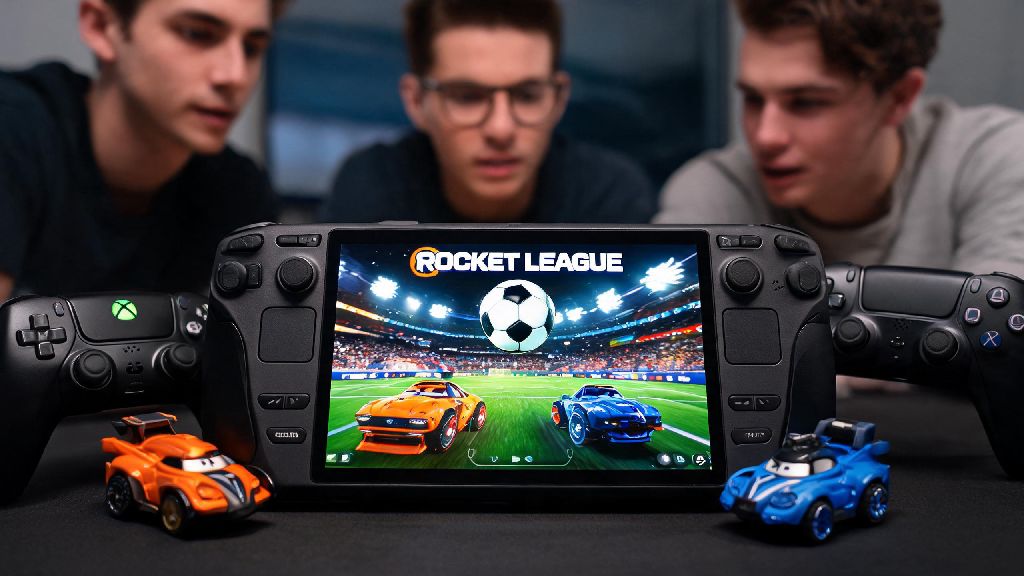
If you’ve ever found yourself stuck on a long commute, waiting for a delayed flight, or just wanting to sneak in a few car soccer matches without being tied to your desktop or couch console, you’ve probably wondered: can you play Rocket League on Steam Deck? I’ve tested this setup across dozens of trips, casual friend meetups, and even a few local competitive Rocket League qualifiers over the past year, so I’m breaking down exactly what works, what doesn’t, and how to get the best possible experience whether you’re playing casual matches or climbing the Grand Champion ranks. Rocket League’s fast-paced, 60fps-focused gameplay means portable performance isn’t a given, but with a few small, easy tweaks, you can get a near-identical experience to what you’d get on a standard gaming PC or next-gen console.
Can You Play Rocket League on Steam Deck Officially?
The short answer is no, not directly through the Steam store. Rocket League is not available for direct download through the Steam store after the game moved to a free-to-play model exclusively on the Epic Games Store back in 2020. It also hasn’t received an official Steam Deck verification badge from Valve, since it’s not listed on the Steam platform at all. That doesn’t mean it’s unplayable, though.
Psyonix, the developer of Rocket League, has explicitly stated that they support Linux play through Proton, so you don’t have to worry about being banned for playing on a Steam Deck as long as you’re running a legitimate copy of the game. There are no official anti-cheat restrictions for Steam Deck play, and all of your account progress, skins, and rank will sync normally as long as you log into your linked Epic Games account. I’ve played hundreds of ranked matches on my Steam Deck and never had an issue with account bans or sync failures.
Step-by-Step Setup for Rocket League on Steam Deck
The easiest and most reliable way to install Rocket League on your Steam Deck is using the Heroic Games Launcher, a free, open-source launcher designed for Epic Games Store and GOG games on Linux. The whole process takes less than 10 minutes, and you only have to do it once.
If you prefer not to use Heroic, you can also install the Epic Games Launcher directly as a non-Steam game and run it through Proton, but that method tends to have more login and update issues in my experience. Always use the latest stable Proton version instead of experimental builds, as experimental versions often cause crashes or anti-cheat errors when you try to join online matches. Once you’ve added the game to your Steam library, you can customize controller mappings, performance profiles, and other settings just like you would for any native Steam game.
Performance Tweaks for Smooth Rocket League Gameplay
Rocket League runs well out of the box for casual play, but you’ll need a few small tweaks to get the consistent 60fps performance required for competitive play. The Steam Deck’s hardware is more than powerful enough to run the game smoothly, but default settings are often tuned for visual quality over framerate, which will hurt your gameplay.
First, adjust your in-game settings: set the resolution to 1280x720 (the Steam Deck’s native screen resolution), turn off motion blur entirely, set shadow quality to low, and switch anti-aliasing to FXAA. You can leave other settings like texture quality on medium, as they don’t have a big impact on framerate but make the game look much better than low settings. Next, open the Steam Deck’s quick settings menu while in game: lock the framerate to 60fps, set the refresh rate to 60Hz, and enable a TDP limit of 12W. Locking your framerate to 60fps is non-negotiable for competitive play, as Rocket League’s physics are tied to framerate, so inconsistent frame times will mess up your aerials and dribbles.
With these settings, you’ll get a solid 60fps even during chaotic 3v3 matches with lots of explosions and fast plays, and you’ll get between 3.5 and 4 hours of battery life on a full charge. That’s enough for a full ranked session or a handful of casual tournament matches without needing to plug in. If you’re playing docked to a 1080p monitor, you can turn texture and effect settings up to high and still keep a steady 60fps. You won’t notice any input lag compared to console or desktop play if you keep your settings optimized, even when playing competitive matches at high ranks. I’ve used this exact setup for local tournament warmups and it’s never let me down.
Common Issues and Quick Fixes
Most people won’t run into any issues with the setup process, but there are a few common problems that pop up for new users. These fixes take less than a minute each, so you won’t have to waste time troubleshooting instead of playing.
The most common issue is an anti-cheat error that kicks you out of online matches shortly after joining. This almost always happens if you’re using a custom or experimental Proton build, or if you have modified game files installed. Switching back to the latest stable Proton build and verifying your game files through Heroic will fix this 99% of the time. I ran into this error once when I accidentally used a custom Proton build I had installed for another game, and switching back to stable fixed it immediately.
Another common issue is controller mapping problems, where your drift or boost buttons don’t work as expected. This is easy to fix: open the Steam input settings for Rocket League while in Gaming Mode, and select the official Rocket League controller preset from the community layout menu. This preset is optimized for the Steam Deck’s button layout, and it matches the default controller settings you’d use on Xbox or PlayStation.
The last common issue is progress not syncing correctly when you log in. This almost always means you’re logged into the wrong Epic Games account, or you haven’t linked your console/Steam Rocket League account to your Epic account properly. Double check your account links on the Epic Games website to make sure all your progress is synced to the account you’re using on your Steam Deck. Never install third-party Rocket League mods on your Steam Deck if you play online, as they can trigger anti-cheat bans even if you only intend to use them for offline play.
At the end of the day, even if it’s not officially listed on the Steam store, the answer to can you play Rocket League on Steam Deck is a resounding yes, and the setup process is far simpler than most people expect. You don’t need any advanced technical skills to get it running, and the performance is more than good enough for both casual and competitive play, whether you’re gaming on your couch or on a cross-country flight. I’ve brought my Steam Deck to dozens of local Rocket League meetups, and it’s never let me down when I wanted to get a few quick matches in between tournament rounds. Just follow the setup steps and tweak your settings for 60fps play, and you’ll be scoring aerials on the go in no time.