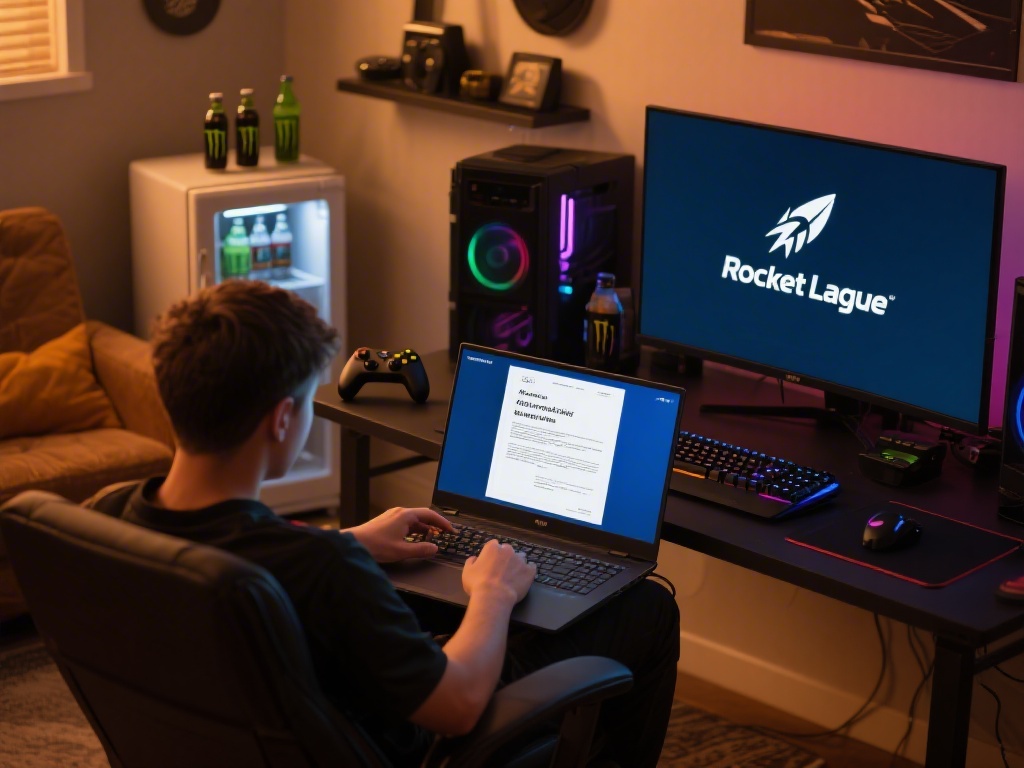
If you just downloaded Rocket League and don’t have a gaming controller handy, you’re probably asking one of the most common beginner questions in the community: can you play Rocket League on mouse and keyboard. I get this question at least once a week from new players who don’t want to drop extra cash on a controller just to try the game, or who already play other PC games with M&K and don’t want to learn a new input system. This guide breaks down everything you need to know about M&K support in Rocket League, including pros and cons, optimized settings, and tips to get good fast, no controller required.
Can You Play Rocket League on Mouse and Keyboard? Official Support Details
The short answer is yes, fully native mouse and keyboard support is built directly into Rocket League across almost all platforms. Developer Psyonix added M&K support years ago, so you don’t need any third-party mods, workarounds, or special software to use it. It works on PC, PlayStation 4 and 5, Xbox One and Series X/S, and even Nintendo Switch if you have a compatible USB or Bluetooth mouse and keyboard.
Matchmaking is also adjusted to keep play fair for all input types. Rocket League uses input-based matchmaking for both casual and ranked playlists, so you’ll almost always be matched against other players using the same input type as you. That means you won’t be thrown into lobbies full of controller players just because you’re using M&K, unless you intentionally turn off input-based matchmaking in your settings.
There are even multiple top 100 ranked players in Rocket League who use mouse and keyboard exclusively, so it’s absolutely viable for competitive play at the highest levels. You don’t have to switch to controller to climb the ranks, no matter what other players might tell you in casual match chat.
Key Pros of Using Mouse and Keyboard for Rocket League
Mouse and keyboard has a handful of unique advantages over controller that make it a great pick for a lot of playstyles, especially if you prefer fast, aerial-heavy play. Here are the biggest benefits I’ve noticed after 3 years of playing Rocket League with M&K:
- Precision for aerial plays: Mouse allows for far faster, more accurate camera adjustments than a controller joystick, which is game changing for aerials, ceiling shots, and flip resets that require precise angle alignment mid-air. You can turn 180 degrees in a fraction of the time it takes with a controller thumbstick.
- Customizable keybind flexibility: You can map every action to a separate key that fits your playstyle, no fighting for limited shoulder button or D-pad space like on controllers. You can even map less common actions like air roll left and right to separate keys, which opens up a lot of advanced play options.
- Consistently low input lag: Wired mouse and keyboard setups have consistently lower input latency than most wireless controllers, especially if you turn off all unnecessary mouse acceleration settings. Every input you make registers almost instantly, which makes a big difference in fast, close-quarters plays.
I recently switched from a wireless controller to M&K for ranked play last year, and I climbed two full ranks in less than a month, almost entirely because of the improved precision for aerials. It takes time to get used to, but the benefits are hard to ignore once you get the hang of it.
Common Drawbacks of Mouse and Keyboard Play (And How to Fix Them)
Mouse and keyboard isn’t perfect for every player, and it has a few drawbacks that make it frustrating for people who are just starting out. The good news is most of these issues are easy to fix with small adjustments to your setup or playstyle.
The first and biggest issue is the steeper initial learning curve. If you’re used to playing driving games on controller, the first 10-20 hours of M&K Rocket League will feel very awkward. Steering with WASD keys feels far less fluid than an analog stick at first, and you’ll probably miss a lot of easy saves and shots while you get used to the camera movement. The fix here is simple: start with casual unranked matches, and spend 10 minutes a day in free play practicing basic movement and aerial control before jumping into competitive. You’ll get past the awkward phase faster than you think.
Another common issue is less precise low-speed steering. Keys only register on or off, so you can’t make tiny, gradual steering adjustments like you can with a controller’s analog stick. That can make tight dribbles and slow 50/50 challenges a little trickier for new M&K players. The fix here is to practice feathering your movement keys, and use air roll to adjust your position during tight plays instead of relying only on steering. I’ve found that once you get used to feathering keys, you can pull off dribbles just as well as controller players.
Finally, there’s the risk of repetitive strain injury if you play for long sessions. Spamming boost, jump, and dodge keys for hours can put extra stress on your wrists and fingers, especially if you use a flat keyboard without wrist support. The fix is cheap and easy: invest in an ergonomic wrist rest for your keyboard and mouse, and map frequently used actions like boost to side mouse buttons to reduce unnecessary finger movement on the keyboard.
Optimized Mouse and Keyboard Settings for Rocket League
The right settings can make a huge difference in how comfortable and effective you are with M&K in Rocket League. You don’t need to copy pro player settings exactly, but these baseline tweaks will give you a great starting point to customize from.
First, adjust your mouse settings. Turn off mouse acceleration completely, both in your Windows system settings and in Rocket League’s control menu. This ensures your mouse movement translates 1:1 to in-game camera movement, so there are no unexpected speed changes when you move your mouse fast. Most players use a DPI between 800 and 1600, with in-game mouse sensitivity between 1.0 and 2.0. That balance lets you turn fast enough for aerials without overshooting your target when you’re making small adjustments.
Next, set up your keybinds for comfort and efficiency. The most important change you can make is mapping high-use actions to your mouse buttons to reduce finger movement. I recommend mapping boost to your left side mouse button, and jump to your right side mouse button, so you can use both without moving your fingers off the WASD keys. Map air roll left and right to Q and E, respectively, and powerslide to Left Shift. You can map less frequent actions like chat quick messages to the number row or other unused keys.
Last, make sure you turn off controller input in the Rocket League settings if you only use M&K. This prevents accidental input conflicts if a controller is plugged in to your PC or console in the background, which can cause your car to move randomly mid-match. Spend 30 minutes in free play testing new settings before you use them in ranked matches, so you don’t fumble a game-winning save because you forgot where you mapped your air roll.
At the end of the day, the answer to can you play Rocket League on mouse and keyboard is a resounding yes, and it’s a perfectly viable option for both casual play and top-tier competitive matches. Don’t let anyone tell you that one input is inherently better than the other, it all comes down to what feels most comfortable for you and how much time you’re willing to put into practicing. If you’re just starting out, give both M&K and controller a try for a few weeks each, then stick with the one that lets you have the most fun and play your best.