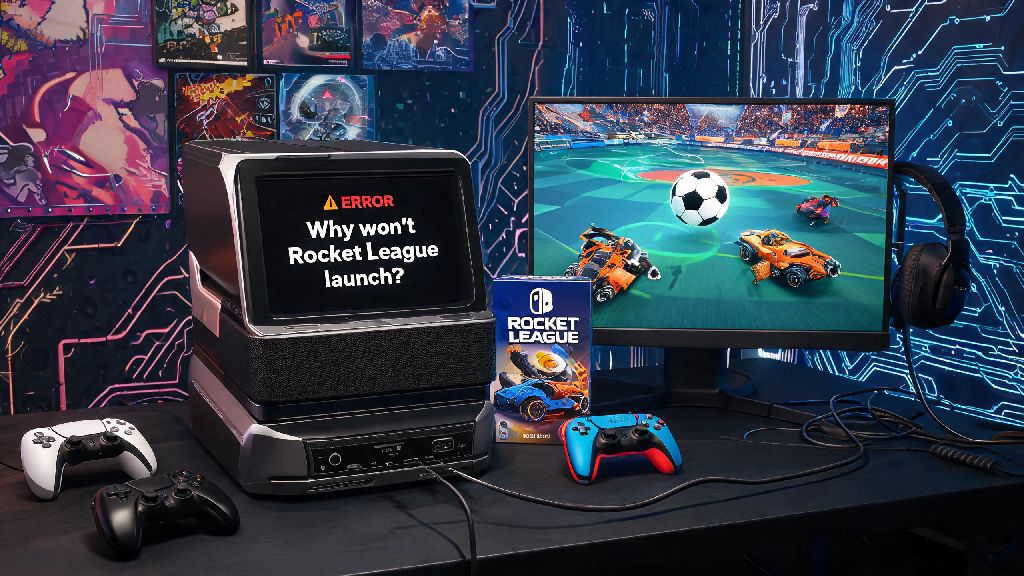
We’ve all been there: you grab your controller, load up your game library, and get ready to grind for a new rank or mess around with friends in casual matches, only to hit a wall. If you’re asking why won't Rocket League launch, you’re far from the only player dealing with this frustrating issue. I’ve run into this exact problem at least a dozen times over the past six years, across Steam, Epic Games, Xbox Series X, and Nintendo Switch, and 9 times out of 10, the fix takes less than 10 minutes if you know where to look. This guide covers all the most common causes of launch failures, plus tested fixes that work for every platform, no advanced technical skills required.
Common Reasons Why Won't Rocket League Launch Across All Platforms
Before you dive into complex troubleshooting, it helps to understand what’s usually behind these launch failures. Most issues boil down to a small handful of causes that affect every platform, no matter if you’re playing on a high-end gaming PC or a portable console. Corrupted game files are the most frequent culprit, especially after a new season update or a hotfix that gets interrupted mid-download.
Other common causes include outdated graphics drivers on PC, conflicting background apps that block Rocket League from accessing necessary system resources, platform server outages that block login attempts, and corrupted save data that crashes the game during startup. Missing system dependencies like Visual C++ redistributables on Windows can also cause launch failures, even if the game worked perfectly the day before.
I once spent an hour panicking because the game wouldn’t open, only to realize my antivirus had quarantined a random Rocket League executable file after a routine virus definition update. That’s the kind of small, easy-to-miss issue that causes 80% of these problems, so you don’t need to assume the worst right off the bat.
Quick Pre-Fix Checks to Rule Out Simple Issues First
Before you start changing settings or reinstalling files, run through these quick checks to rule out issues that don’t require any tweaks to your device or game files. Most players skip these steps and waste time troubleshooting a problem that isn’t even on their end. Server outages are far more common than most players realize, especially right after a new season drops or a major cosmetic update goes live, so start here first.
If all these checks come back clear and the game still won’t open, you can move on to the more targeted fixes below. None of these steps carry any risk of losing your save data or game progress, so you can run through them without worrying about messing up your account.
Step-by-Step Fixes for Persistent Rocket League Launch Errors
For PC players playing on Steam or Epic Games, the first fix to try is verifying your game file integrity. On Steam, right click Rocket League in your library, select Properties, navigate to the Installed Files tab, and click Verify Integrity of Game Files. On Epic Games, open your library, click the three dots next to Rocket League, select Manage, and click Verify. Verifying game files fixes 70% of random launch issues, as it replaces corrupted or missing files that often get deleted by antivirus tools or interrupted updates. The process usually takes 2 to 10 minutes, depending on your internet speed and storage drive.
If verifying files doesn’t work, the next step is to update your graphics drivers. Outdated NVIDIA or AMD drivers often conflict with new Rocket League patches, leading to instant crashes on launch. You can update drivers directly through GeForce Experience or Radeon Software, or through Windows Device Manager if you don’t use those tools. A quick note: avoid using beta graphics drivers, as they often have unpatched bugs that cause game crashes even if they improve performance in other titles.
If you’re still having issues, try closing all non-essential background apps before launching Rocket League. Common conflicting apps include Discord overlay, third-party recording tools like OBS or ShadowPlay, VPNs, and even some antivirus programs. You can temporarily add Rocket League to your antivirus’s exception list to test if it’s the cause of the block, just remember to turn your protection back on once you confirm the issue.
For console players, the most reliable fix is clearing your device’s cache. On Xbox, hold the power button for 10 seconds until the console fully shuts off, unplug the power cord for 30 seconds, plug it back in, and turn the console on. On PlayStation, boot into safe mode and select Rebuild Database. On Nintendo Switch, hold the power button for 15 seconds to force a shut down, then turn it back on. Clearing your console's cache won't delete any of your save data or game files, so it's a completely risk-free fix to try if you're stuck on the loading screen.
What to Do If None of the Standard Fixes Work
If you’ve run through all the steps above and Rocket League still won’t launch, there are a couple of final steps you can take before reaching out for support. First, try reinstalling the game entirely. Always back up your save data before uninstalling Rocket League, so you don't lose your rank progress, cosmetic items, or custom training packs. Most platforms sync saves to the cloud automatically, but it’s smart to double check your cloud storage status before you delete any local files to avoid accidental data loss.
If a fresh install doesn’t fix the issue, check player community forums and social media pages for Rocket League. Rare launch bugs sometimes pop up right after new updates that only affect a small subset of players, and other users often post custom fixes long before official support pages are updated. I once found a fix for a weird Epic Games launch bug on a Reddit thread that wasn’t listed on any official support page, so don’t sleep on community resources.
If all else fails, reach out to Psyonix support directly. If you get a specific error code when the game crashes, write it down before you reach out for help – it will cut down your support wait time by a huge margin, as agents can immediately identify the root cause. Be sure to include your platform information, a list of fixes you’ve already tried, and any error codes you’ve encountered to get the fastest possible resolution. Most launch-related support tickets get a response within 24 to 48 hours.
At the end of the day, most launch issues with the game have simple, fast fixes, even if it feels frustrating when you’re ready to play. If you're still asking why won't Rocket League launch after working through this guide, take a breath and start from the top – it's easy to skip a small step like checking for driver updates when you're in a hurry to queue for a match. The vast majority of players get the game running again in under 15 minutes with the steps above, so you'll be scoring goals and pulling off flip resets before you know it.