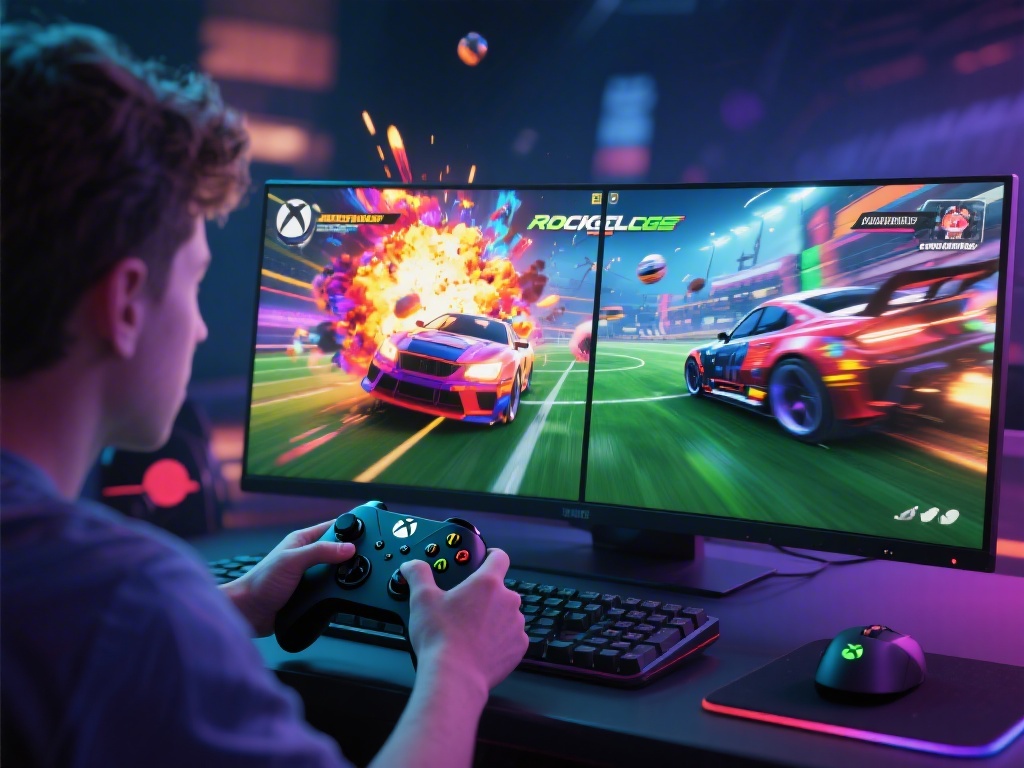
You're all hyped to queue for a ranked Rocket League match, you grab your controller, load up the game, and nothing happens. It crashes right as the main menu pops up, or you get a vague login error that gives you zero context for what's wrong. If you've ever asked why isn't Rocket League working when you're ready to play, you're far from alone. I've spent hours troubleshooting these issues myself across PC, PlayStation, Xbox, and Switch, and most of the time the fixes are far simpler than you'd think. This post breaks down the most common causes of Rocket League errors, plus actionable fixes you can test in under 2 minutes each, no technical expertise required.
Why Isn't Rocket League Working? The Most Common Root Causes
Before you start uninstalling the game or resetting your entire network, it helps to narrow down what's actually causing the problem. Server outages are the most overlooked cause of Rocket League failures, because most players immediately assume the problem is on their end. Psyonix runs regular maintenance, and unexpected outages happen often enough that this should always be your first check. Corrupted game files are another top culprit, especially if you recently installed an update, mod, or custom map.
Most issues fall into one of these 5 categories, so you can work through them one by one to find your fix fast:
- Official Rocket League server outages or scheduled maintenance
- Outdated game client or operating system on your device
- Corrupted save or game installation files
- Network connectivity issues like weak Wi-Fi or ISP outages
- Third-party software conflicts (antivirus, overlays, mods)
None of these issues require you to spend money on repairs or buy a new copy of the game, for the record. Even if you're not great with tech, you can test each potential cause in just a few minutes to narrow down what's going on. I've had all of these issues pop up at one point or another, and the longest I've ever spent fixing one was 12 minutes.
Quick Fixes for Rocket League Launch Crashes and Freezes
If the game won't open at all, or crashes immediately after you see the Psyonix logo, these are the steps you should test first. Start with a full restart of your device, it sounds silly but restarting clears temporary cache that often causes launch conflicts. I can't tell you how many times I've spent 20 minutes digging through settings only to realize a quick restart fixed the entire issue in 30 seconds. If you've tested a restart and still can't figure out why isn't Rocket League working on launch, the next step is to verify your game files.
For PC players on Steam or Epic Games, you can find the verify files option in the game's settings menu. This scans your entire installation for corrupted or missing files, and replaces any that are broken automatically. It only takes 2 to 10 minutes depending on your internet speed, and it fixes 70% of launch crash issues. If that doesn't work, disable any third-party overlays you have running: Discord, Steam, GeForce Experience, and even console game captures can conflict with Rocket League after new patches drop.
You should also check your antivirus or firewall settings, if you're on PC. I once spent 45 minutes trying to fix a crash last year, only to realize my antivirus had quarantined the game executable after a routine update. Add Rocket League to your antivirus exceptions list if you're sure the install is safe, and that will clear up that conflict immediately. If you use mods, disable all of them temporarily to test, most custom mods break right after a new official Rocket League patch is released.
How to Fix Rocket League Online Connectivity and Lag Issues
If the game launches fine but you can't join matches, or you're getting constant rubber-banding mid-game, the issue is almost always related to your network or server status. Again, start with checking if the Rocket League servers are down first, there's no point troubleshooting your internet if the problem is on Psyonix's end. If servers are running normally and you still don't know why isn't Rocket League working online, check your network connection first.
Switch from Wi-Fi to a wired ethernet connection if you can, that cuts out 90% of common lag issues for home networks. Wi-Fi is prone to interference from other devices, walls, and even neighboring networks, so a wired connection will always be more stable for competitive play. If you can't use ethernet, move your router closer to your device, or disconnect other devices that are using a lot of bandwidth while you play: streaming services, large downloads, and video calls all eat up bandwidth that you need for low-latency play.
You can also reset your router to clear temporary network cache: unplug it for 30 seconds, plug it back in, and wait 2 full minutes before reconnecting your device. If you're getting login errors specifically, double check your Epic Games account connection. Rocket League uses Epic accounts for cross-play now, so an expired login or mismatched account can block you from accessing online features entirely. Log out of your Epic account and log back in, that will fix most login-related errors in seconds.
When to Contact Support for Persistent Rocket League Issues
Most of the time, the fixes above will get you back in the game within 10 minutes, but sometimes you're dealing with a less common issue that requires extra support. First, make sure you've tested all the fixes we listed already, support teams will almost always ask you to run through these steps first before they help, so you can save yourself a lot of time by doing them first.
Take screenshots of any error codes you see when the game fails, that helps support teams identify the problem in seconds, instead of making you walk through dozens of troubleshooting steps. If you play on a console, check for any system updates you might have missed, console OS updates often fix compatibility issues with newer game patches that cause unexpected crashes or errors. If you've installed any custom mods or third-party tools for Rocket League, be upfront about that when you contact support, that can save you a lot of back and forth.
If the issue is only with your account, like you can't access your purchased items or your rank is missing, make sure you're logged into the correct Epic Games account first. Cross-play account mix-ups are surprisingly common, especially if you share a device with other people who play Rocket League. If you've confirmed you're on the right account and still don't have access to your content, support can help you recover it quickly as long as you have proof of purchase.
At the end of the day, most problems that leave you asking why isn't Rocket League working are simple to fix, no advanced tech skills required. Start with the easiest checks first: server status, restarting your device, verifying game files, before you move on to more complex steps. Don't let a random crash or login error ruin your play session, most of the time you'll be back scoring goals in under 10 minutes. If you have a go-to fix we didn't mention here, drop it in the comments below to help other players out.