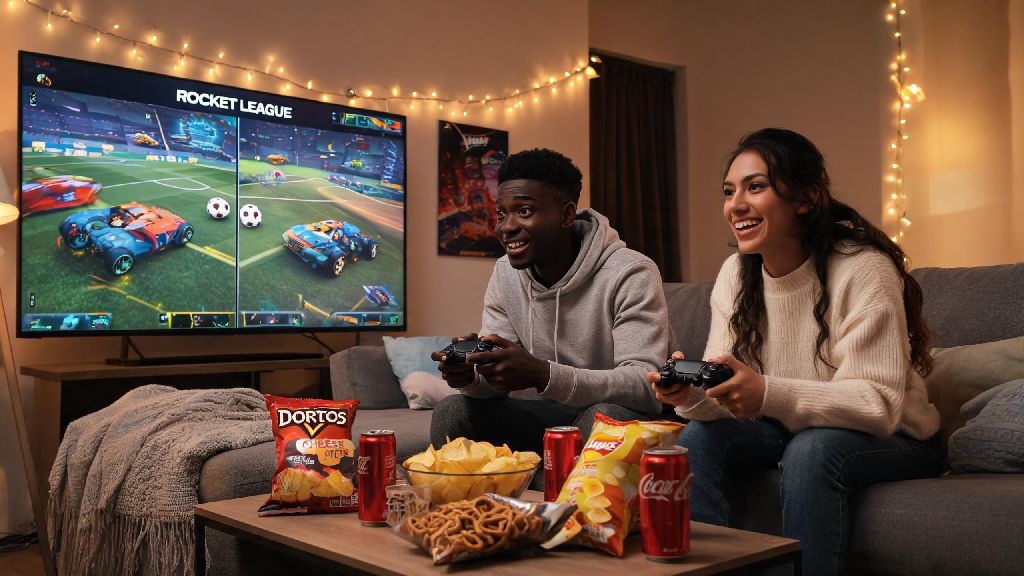
There’s nothing better than grabbing a buddy, a bag of snacks, and settling in for a few chaotic rounds of car soccer after work or on a weekend. If you’ve been wondering how to play split screen Rocket League without messing with complicated settings or paying for extra subscriptions, you’re in the right place. I’ve been running local Rocket League nights with my friend group for three years, and I’ve worked through every glitch, account requirement, and platform quirk you can imagine to make the process as smooth as possible. No more fighting with login screens mid-game night, no more missing player 2’s controls, just straight fun with the people in the room with you.
How to Play Split Screen Rocket League by Platform
The setup process varies a little depending on what device you’re playing on, but none of the steps are complicated if you know what to look for. For PlayStation users, only the primary account on the console needs an active PS Plus subscription to play online split screen, so your friend doesn’t have to log into their own account to join. All you have to do is boot up Rocket League on your main account, connect the second controller, and press the options button on the second controller when you reach the main menu. Player 2 will pop up as a guest, and you can jump into casual or competitive matches right away.
For Xbox users, the rules are almost identical: only the account with an active Game Pass Core or Xbox Live Gold subscription needs to be logged in, and the second player can join as a guest by pressing the menu button on their controller when on the main menu. If you get a “missing account” error on Xbox, make sure guest accounts are enabled in your console’s system settings, that’s the most common fix for that issue. Nintendo Switch users have it easiest of all, no online subscription is required for local split screen play, even if you’re playing offline against bots. Just connect the second Joy-Con or controller, press the + button on the second controller at the main menu, and you’re good to go.
PC users have a couple extra steps, but it’s still simple. Make sure both controllers are connected and recognized by your PC before booting up the game, then go to the Extras tab in the main menu, select Split Screen, and enable the second player. PC players who use keyboard and mouse for player 1 can still pair a controller for player 2, no extra software needed. If you want to have two players on keyboard and mouse, you’ll need to download a third-party key mapping tool, but I don’t recommend that for casual play since the controls will feel cramped for both people.
Key Settings to Adjust Before Your First Split Screen Match
A lot of people jump straight into matches without adjusting their split screen settings, and end up frustrated by cramped views or wonky controls. I’ve spent hours tweaking these settings to find the sweet spot that works for both new and experienced players, so you don’t have to. First, adjust your split screen layout. By default, the game splits the screen vertically on wide monitors and TVs, but I always switch to horizontal split when I’m playing with a friend who’s new to the game. Horizontal split gives both players a wider field of view, which makes it easier to see the ball and incoming opponents from the sides. You can change the split orientation in the Settings > Interface menu in 10 seconds flat.
Next, adjust controller deadzones for the second player if they’re using a guest profile. Guest profiles don’t save custom control settings, so take 30 seconds to tweak the deadzone and steering sensitivity to match what the second player is comfortable with. There’s nothing worse than a friend complaining their car feels “floaty” the whole match because the default deadzone is too high. You should also turn off cross-play if you’re playing competitive split screen. I’ve noticed that cross-play adds extra input lag for the second player in split screen mode, even if your internet connection is perfect. Turning it off keeps matches smooth for both players, and you’ll still get matched against players on the same platform with no wait time issues.
Before you start your first match, run through this quick checklist to avoid annoying interruptions:
Common Split Screen Issues and How to Fix Them Fast
I’ve run into every possible split screen glitch you can imagine during my game nights, so I’ve got a go-to list of fixes for the most common issues that pop up. The first and most frequent issue is player 2 not being able to join competitive matches. This almost always happens because the primary account doesn’t have the right subscription, or you have “restricted mode” enabled on your console. If you still can’t join competitive matches after checking your subscription, restart both the game and your console, 9 times out of 10 that fixes the glitch immediately.
Another common issue is low frame rate during split screen play, especially on older consoles like the PS4 or original Xbox One. The easiest fix for this is to lower your graphics settings in the game menu: turn off anti-aliasing, lower the render distance, and turn off dynamic weather. You won’t notice much of a difference in visual quality, but you’ll get a much smoother 60fps for both players. If you’re playing on PC and player 2’s controls aren’t responding, make sure you don’t have any other controller-connected software like DS4Windows running in the background. Those programs often interfere with Rocket League’s native controller support, so closing them before you boot up the game will fix the issue instantly.
The last common issue is split screen audio being unbalanced, with one player’s audio coming through louder than the other. You can fix this by going to Settings > Audio and adjusting the split screen audio balance slider until both players can hear game sounds clearly. I also recommend turning down the menu music a little bit, so you don’t have to yell over it to talk to your friend during matches.
Fun Split Screen Game Modes to Try With Friends
Once you’ve got split screen set up and working smoothly, you don’t have to stick to standard casual matches. There are tons of fun game modes that are even better with a local friend sitting next to you. Hoops is my go-to for casual game nights, since it’s a little slower than standard soccer and easier for new players to pick up. You and your friend can team up against two AI opponents, or queue online against other duos for a more competitive vibe. Rumble is another great option for chaotic, low-stakes fun. The random power-ups mean even new players can pull off crazy goals, so no one feels left out if they’re not as good at the game as you are.
If you’re looking for a challenge, try 2v2 competitive matches with your split screen partner. Playing competitive split screen is a great way to climb the ranks faster, since you can communicate in real time without relying on in-game quick chats. You’ll be able to call out plays, warn each other of incoming opponents, and celebrate goals together right there on the couch, which is way more fun than playing with random teammates online. If you have more than two people over, you can also rotate players between matches, or set up a small local tournament with brackets for extra bragging rights. I host a small local split screen tournament every couple of months with 8 of my friends, and it’s always the highlight of the month for all of us.
At the end of the day, Rocket League’s biggest strength is how accessible it is for both solo players and groups of friends hanging out at home. Knowing how to play split screen Rocket League opens up a ton of fun opportunities for game nights, rainy afternoons, or even just a quick match with your roommate before dinner. You don’t need fancy equipment or extra subscriptions to make it work, just a couple of controllers and a friend who’s ready to chase a giant ball around with a rocket-powered car. Don’t stress too much about getting all the settings perfect your first time, half the fun is working through the small kinks together and laughing off the bad plays as you go.