There’s nothing quite like gathering a group of friends on your couch, grabbing extra controllers, and diving into chaotic Rocket League matches without dealing with laggy online lobbies or random toxic teammates. If you’ve been wondering how to play split screen in Rocket League, you’re in the right place—this guide works for every major platform, from consoles to PC, and covers all the small hiccups most players run into when setting up local co-op. I’ve tested these steps across PS5, Xbox Series X/S, Nintendo Switch, and Steam PC over the past year, so you won’t have to waste time digging through outdated forum posts for fixes that don’t work. Unlike a lot of modern competitive games, Rocket League’s split screen feature is fully supported across all platforms, no paid DLC or special edition required, which is a huge win for casual players who love in-person game nights.
How to Play Split Screen in Rocket League By Platform
The setup process changes slightly depending on what device you’re playing on, but none of the steps require any special settings or paid add-ons. For console players (PlayStation, Xbox, Switch), first make sure all controllers are paired to your device and powered on. Launch Rocket League, and once you reach the main menu, press the menu/options button on the second controller—you’ll see a pop-up prompting you to add a second player. You can repeat this step for up to 3 extra players for 4-player split screen total. For Steam PC players, the process is almost identical, but you’ll need to make sure you have controller support enabled in your Steam settings first. If you’re using mixed input (like one player on keyboard and mouse, one on controller), you’ll need to head to the in-game controls menu to assign each input to a separate player profile before you start matchmaking. That means you don’t have to go out and buy extra controllers if you only have one and a keyboard lying around, which is a huge win for casual players on a budget. If you’re playing on Epic Games PC instead of Steam, the process is almost the same, but you’ll need to make sure you have controller support enabled in the Epic Games launcher settings before you launch the game. A lot of Epic Games users run into issues when they first figure out how to play split screen in Rocket League because they forget this step, but it only takes a few seconds to toggle on.
Key Split Screen Settings to Tweak Before Your First Match
Once you’ve added all your local players, there are a few quick settings changes that will make your matches way more enjoyable, especially if you’re playing with 3 or 4 people total. First, adjust the split screen layout if you’re playing on a smaller screen. By default, 2-player split screen runs vertically, but you can switch to horizontal in the in-game interface settings if that’s easier for you to see. Next, turn off cross-play if you’re only playing with local friends and don’t want to match with online players. Local split screen lobbies can still join online matches if you want, but disabling cross-play will cut down on load times and keep your matches low-pressure if you’re just messing around with new players. You should also adjust individual player camera settings separately—each split screen player can have their own custom camera presets, so you don’t have to compromise on your preferred field of view or camera distance just because you’re playing with friends. Oh, and if you’re playing on Nintendo Switch, you can lower the in-game graphics settings slightly to keep frame rates consistent during 4-player matches, as the Switch tends to stutter a little with split screen enabled at max settings. If you’re playing with younger kids or brand new players, you can also turn off friendly fire in custom lobbies to avoid arguments when someone accidentally bumps their teammate into the net. This is one of my go-to settings whenever I’m showing new people how to play split screen in Rocket League, as it takes away a lot of the frustration for new players who are still learning the controls.
Common Split Screen Issues and Quick Fixes
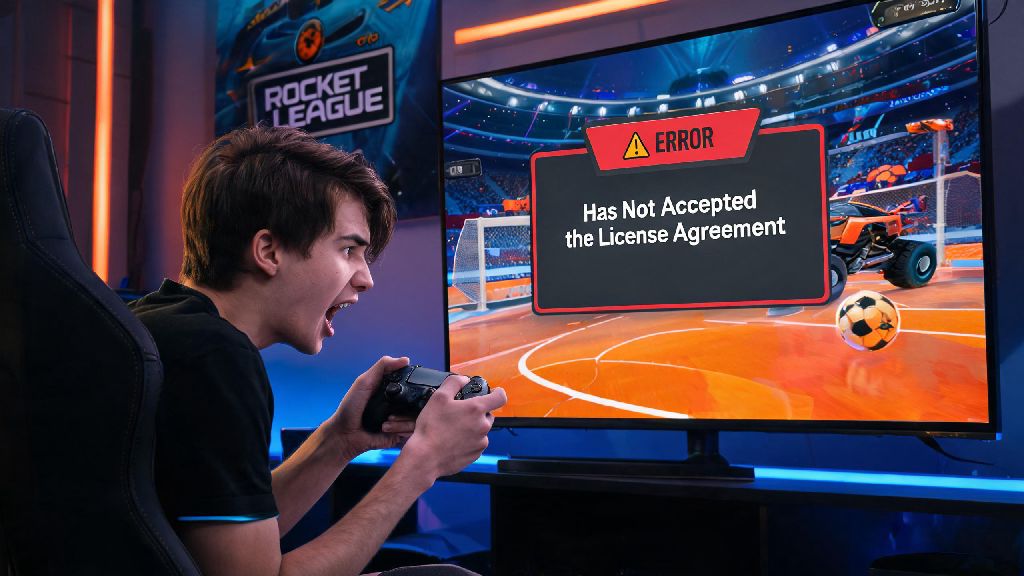
Even if you follow all the setup steps perfectly, you might run into a few common errors that stop split screen from working properly. I’ve run into every single one of these at least once during game nights, so these fixes are all tested and work across every platform:
- Second controller not being detected: Restart Rocket League first, then make sure the controller is not paired to another nearby device. For PC players, double check that Steam Input is enabled for your controller brand.
- Split screen is cut off at the edges: Head to your console or PC display settings and turn off overscan, which is a common default TV setting that cuts off the edges of game output.
- Player profiles not loading for second players: Make sure all local players are signed into their own platform profile if they want to use their own items and rank. If you don’t care about progression, you can play as a guest instead.
- Can’t join online matches with split screen: Check that your platform has an active online subscription (PlayStation Plus, Xbox Live Gold) if required, and that your internet connection is stable enough for multiple players.
Fun Split Screen Game Modes to Try With Friends
Now that you have split screen set up, you don’t have to stick to standard competitive matches to have fun. There are tons of casual and custom game modes that work perfectly for local co-op, even if some of your friends are brand new to the game. First, try Hoops or Dropshot if you want a break from standard soccer matches—these modes have simpler mechanics for new players, and they’re way more chaotic when you’re all playing on the same couch. You can also create a custom private lobby and enable mutators like low gravity, unlimited boost, or giant balls to make matches completely ridiculous. If you have a mix of skill levels, you can even turn on rumble mode, which gives players random power ups that level the playing field for new players who haven’t mastered aerials yet. A lot of people don’t realize that split screen players can also join online casual matches together, so you can team up against random online players if you want a little more of a challenge. Just make sure you don’t accidentally start a competitive match if one of your friends is new, unless you’re okay with taking a small rank hit for the fun of it. We once accidentally queued for a competitive 2v2 match with my cousin who had never played before, and we lost 6-0, but we still laughed about it for weeks afterward.
At the end of the day, split screen is one of the most underrated features in Rocket League, especially for players who prefer in-person game nights over online lobbies. Once you know how to play split screen in Rocket League, you can set up a match in under a minute, no fancy equipment or extra purchases required. Don’t be afraid to mess around with custom settings and mutators to make the experience fit your group’s skill level, and don’t stress too much about winning—half the fun of couch co-op is teasing your friends when they miss an open net or accidentally score an own goal. Next time you have friends over, skip the boring board games and fire up a few rounds of Rocket League split screen, you won’t regret it.