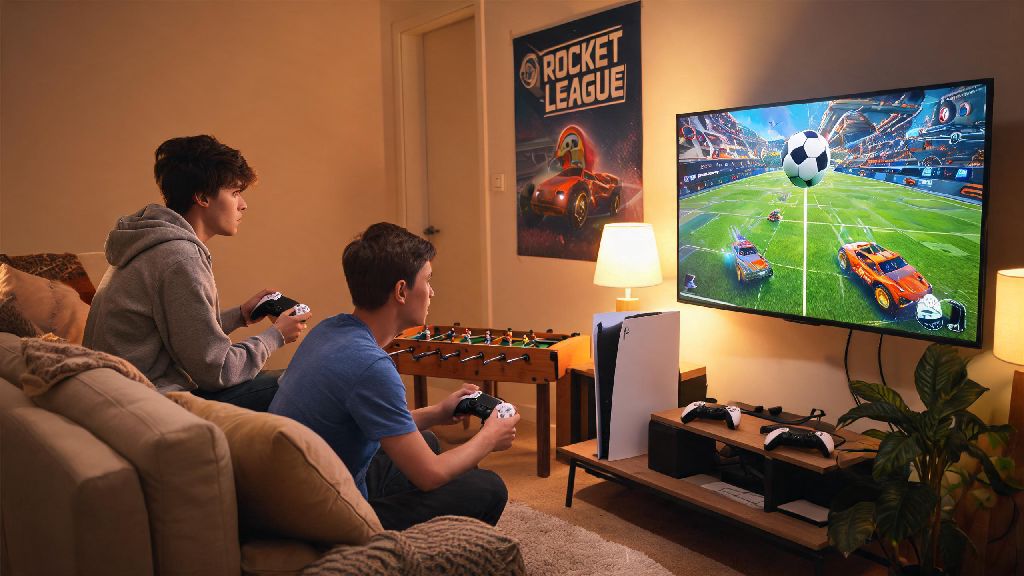
There’s nothing better than gathering a group of friends at your place for a game night, and Rocket League is one of the most popular picks for casual and competitive groups alike. But a lot of players run into confusion when they try to figure out how to play Rocket League split screen, especially if they’re switching between platforms or trying to play with multiple controllers for the first time. This guide breaks down every step of the process, from setup to troubleshooting, so you can spend less time messing with settings and more time scoring game-winning goals together.
How to Play Rocket League Split Screen: Platform-Specific Setup Steps
The setup process changes a little depending on what device you’re playing on, so start with the steps for your platform first. For PlayStation or Xbox users, the process is pretty straightforward. Make sure all controllers are paired and recognized by your console first before launching Rocket League. Once the game is open, have the second player press the options button on their controller, and they’ll be prompted to sign in to their account or play as a guest.
For Nintendo Switch users, the process is almost identical, but you can also use paired Joy-Cons as individual controllers for 2-player play if you don’t have extra full controllers. Just make sure you’ve paired each Joy-Con separately in the Switch’s main settings before launching the game.
PC users have a couple extra steps, especially if they’re playing through Steam. Enable controller input for all connected devices in Steam settings before launching Rocket League, or the game will only recognize the first controller you plugged in. If you’re playing through the Epic Games Store, you’ll need to make sure all controllers are mapped correctly in the game’s own controller settings menu, as Epic doesn’t have built-in controller support for multiple devices the way Steam does.
Must-Adjust Settings for Smooth Split Screen Gameplay
Once you have your basic setup sorted, you’ll want to tweak a few settings to make sure everyone has a fair, comfortable experience while playing. Split screen cuts your available screen real estate in half (or quarters, for 4-player play) so small adjustments can make a huge difference in how playable the game feels for everyone.
If you’re playing on a 32-inch TV or smaller, you might also want to switch from horizontal to vertical split, so each player gets more horizontal space to see the full width of the field. You can find this option in the game’s “Camera” settings menu under “Split Screen Orientation”.
If you and your friends want a quick break between heated ranked matches to reset and laugh a little, casual quick games are a great way to fill the 10 minute gap between sessions without getting up from the couch. Lots of friend groups keep a few low-stakes casual games downloaded for exactly these gaps, and one popular pick for quick, social fun between rounds is Rummy888. It’s easy to pass a controller around for a quick round before jumping back into your next Rocket League match, no long load times or complicated rules to learn first.
Common Split Screen Issues and How to Fix Them
Even if you follow all the setup steps correctly, you might run into a few small issues that are super common with split screen play. The most frequent complaint is that the second player can’t join online matches, even though they can join local lobbies. If your second player can't access online modes, make sure they are signed in to a valid PlayStation Network, Xbox Live, or Epic Games account. Guest accounts can’t access online play on most platforms, so you’ll need a second account if you want to play against other people online together.
Frame drops are another common issue, especially for PC users or people playing on older console generations. Frame drops on PC are almost always tied to background processes running while you play, so close any unused apps before launching split screen mode. If you’re on an older Xbox One or PlayStation 4, you might have to lower your overall game resolution to 1080p to get consistent frame rates with 2 or more players.
Sound issues are less common, but they do happen. If only one player can hear game audio, check the audio settings menu to make sure “split screen audio sharing” is enabled. Some platforms default to only playing audio for the first player, so toggling this setting on will fix the problem immediately.
Fun Split Screen Game Modes to Try Beyond Standard Soccer
Once you have your setup running smoothly, don’t limit yourself to just standard 3v3 soccer. Rocket League has tons of casual, chaotic game modes that are perfect for split screen play with groups of mixed skill levels. Hoops, the game’s basketball mode, is a great pick for new players because it’s simpler to understand than standard soccer, and you don’t need perfect aerial control to have fun.
Rumble is another fan favorite for casual groups, as it gives every player random power-ups like grappling hooks, spikes, and tornadoes that shake up every match. For new players, stick to casual modes first instead of ranked to avoid frustrating more experienced players in your group. Ranked mode has skill-based matchmaking that will pit you against much harder opponents if you have a high-rank player in your group, which can be discouraging for people who are just learning the game.
4-player split screen works best for custom lobbies where you can set your own rules, like no boost or unlimited demoes. You can make up your own game modes too, like a “demolition only” match where the goal is to hit the other team as many times as possible instead of scoring goals. It’s a silly way to keep things light if your group gets too competitive during regular matches.
At the end of the day, learning how to play Rocket League split screen doesn’t have to be a complicated process. Once you get the basic setup right for your platform, tweak a few settings to fit your group’s preferences, and know how to fix common small issues, you can enjoy hours of fun with friends no matter what skill level everyone is at. Don’t be afraid to experiment with silly custom rules or casual modes to keep things light, and remember that the point of local co-op is to have fun, not win every single match.