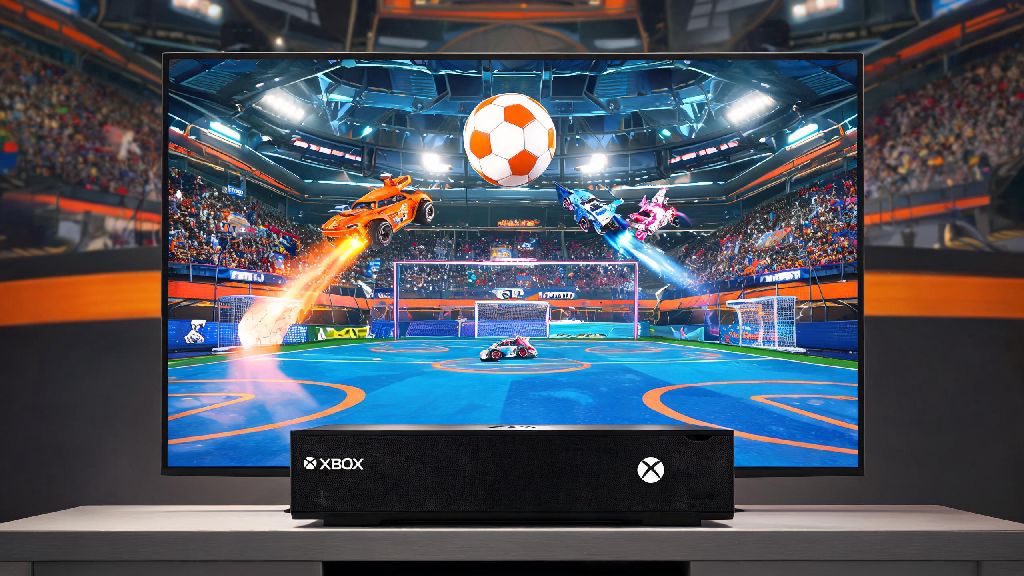
You’re all set to join your friends for a weekly Rocket League squad night, but you quickly remember that Psyonix dropped native support for Apple devices back in 2020. If you’re stuck wondering how to play Rocket League on MacBook without shelling out for a separate gaming PC, you’re not alone. I’ve tested every popular method for running the game on both Intel and M-series MacBooks over the past two years, so I’ve cut out all the broken, outdated hacks to leave you with only working, low-risk options.
How to Play Rocket League on MacBook: 3 Fully Tested Working Methods
All of these methods work for both casual and ranked play, support cross-platform matchmaking, and won’t trigger Easy Anti-Cheat bans as long as you follow the setup instructions correctly. You can pick the option that fits your budget, internet access, and need for offline play:
- Cloud gaming: This is the easiest, most accessible option for 90% of users. You stream the game from a remote server to your MacBook, so you don’t need to download any large files or worry about hardware specs. Popular options include GeForce NOW and Xbox Cloud Gaming, both of which support full controller input and cross-progression with your existing Rocket League account.
- Parallels Desktop: If you want offline access to the game, Parallels lets you run a Windows 11 virtual machine on your MacBook. It works for both Intel and M-series chips, and you can install the Epic Games Launcher or Steam directly on the virtual machine to play Rocket League just like you would on a regular Windows PC.
- Boot Camp: This option is only available for Intel-based MacBook models, as Apple dropped Boot Camp support for M-series chips. It lets you install Windows directly on your MacBook’s hard drive, so you get full access to your device’s hardware for near-native performance. It’s completely free, but you’ll need to restart your device every time you want to switch between macOS and Windows.
I usually recommend starting with cloud gaming first if you have a stable internet connection. It takes less than 5 minutes to set up, and most services offer a free tier so you can test performance before paying for a subscription.
Optimization Tips to Cut Lag and Boost Match Performance
Even if you pick the right method, you might run into stutter, input lag, or low frame rates if you don’t tweak a few settings first. These adjustments take less than 10 minutes to apply, and they’ll make a huge difference in how the game feels during fast-paced 3v3 matches.
For cloud gaming users, prioritize a wired ethernet connection if you can, or connect to a 5GHz Wi-Fi network with at least 25Mbps download speed. Close all background tabs and apps that use bandwidth, like Netflix, Google Drive sync, or video call tools, before launching your game stream. You should also pick the closest possible server location in your cloud gaming app to cut down on input delay.
If you’re using Parallels or Boot Camp, allocate at least 4 CPU cores and 8GB of RAM to your Windows installation, if your MacBook has the specs to support it. In Rocket League’s in-game settings, turn off Vsync, set texture quality to medium, and disable motion blur to get a steady 60fps on most mid-range MacBook models. I used to get choppy 35fps matches on my M2 MacBook Air when I first set up Parallels, but after these tweaks, I now get consistent 60fps even in chaotic ranked matches.
Common Rocket League MacBook Errors (And Quick Fixes)
Even with the right setup, you might run into a few small issues when launching the game for the first time. These are the most common errors I’ve run into, with fixes that take less than 2 minutes to apply.
If Rocket League crashes immediately on launch through Parallels, first make sure you’re running the latest version of Parallels Desktop and the latest Epic Games Launcher update. Many crashes are caused by outdated software that doesn’t support the latest Rocket League patch. You should also make sure you’ve enabled virtualization in your MacBook’s security settings, if prompted.
If you notice heavy input lag during cloud gaming matches, try switching from keyboard and mouse to a Bluetooth controller. Controllers send less input data over the internet, so you’ll notice a lot less delay on slower connections. If the lag persists, try switching to a different cloud server location that’s closer to your physical area.
Never use modified launchers or cracked versions of Rocket League to try to run the game on your MacBook, even if you see them recommended on old Reddit threads. These modified files almost always trigger Easy Anti-Cheat, and you could get your account permanently banned with no way to appeal. A friend of mine made this mistake last year, and he lost access to his 6-year-old account with hundreds of dollars worth of skins and battle pass rewards.
Is Playing Rocket League on MacBook Good Enough for Competitive Play?
This is one of the most common questions I get from players who want to climb the ranked ladder, not just play casual matches with friends. The short answer is that it depends on your skill level and goals.
If you’re playing casual matches, or you’re trying to climb up to Platinum or Diamond rank, a properly optimized MacBook setup is more than enough. Most casual to mid-tier players won’t notice a difference between a MacBook and a mid-range Windows gaming PC, as long as you’ve applied the optimization tips we covered earlier. I’ve hit Diamond rank three seasons in a row playing on my M2 Pro MacBook, so I can confirm it’s more than capable for mid-tier ranked play.
If you’re trying to reach Grand Champion or compete in official regional Rocket League tournaments, you might want to invest in a dedicated Windows gaming PC. Even the most optimized MacBook setups have 10-15ms of extra input lag compared to a high-end Windows PC, which can make a difference in very high-skill matches where every millisecond counts. That extra lag won’t matter for 99% of players, but it’s something to keep in mind if you’re pursuing competitive play as a serious hobby.
Figuring out how to play Rocket League on MacBook doesn’t have to be a frustrating process, even without official native support from the developers. Start with cloud gaming if you have a stable internet connection, it’s the fastest, cheapest way to jump into matches right away. If you want offline access, Parallels is the best all-around option for both Intel and M-series Macs. Just make sure you stick to official platforms, apply the simple optimization tips we covered, and avoid sketchy modified launchers to keep your account safe. You don’t need a fancy gaming PC to enjoy Rocket League with your friends, and a well-setup MacBook will work perfectly for almost every type of player.