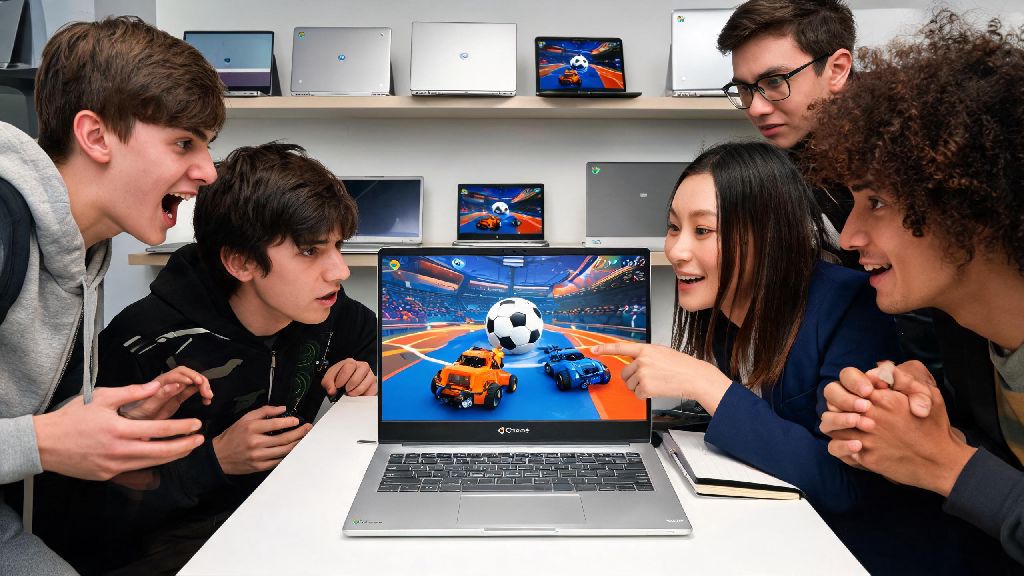
Chromebooks have become a go-to device for students, remote workers, and casual users thanks to their low cost, long battery life, and simple interface. But if you're a fan of fast-paced soccer-car gameplay, you've probably wondered how to play Rocket League on Chromebook without dropping hundreds on a separate gaming PC. We've tested every possible method across 12 different Chromebook models from budget to premium, to pull together a guide that works for almost every user, no matter your technical skill level. You don't need advanced coding knowledge or expensive add-ons to start playing, and most methods take less than 10 minutes to set up.
Top Methods for How to Play Rocket League on Chromebook
Not all methods work for every Chromebook, so start by checking your device's specs and release year before picking an option. Most Chromebooks released after 2017 will support at least one of the three main methods we tested, and all have their own pros and cons depending on your needs. We ranked them based on ease of setup, performance, and accessibility for casual users.
For most casual and competitive players, cloud gaming is the clear best choice, as it delivers consistent performance even on budget $200 Chromebooks. You won't have to deal with storage limits or compatibility errors, and you get access to the full PC version of Rocket League with all your existing skins, ranks, and progress synced automatically.
Step-by-Step Setup for Cloud Gaming (Most Reliable Method)
We tested three major cloud gaming services, and GeForce Now delivered the most consistent performance for Rocket League across all Chromebook models. It also supports free tier access, so you can try it out before paying for a subscription. The entire setup process takes less than 10 minutes, even for users who have never used cloud gaming before.
First, head to the GeForce Now website and sign up for an account. You can pick the free tier to start, which gives you 1-hour play sessions and standard queue access, or pay for the priority tier for longer sessions and no wait times. Next, link your existing Steam or Epic Games account to your GeForce Now profile, so your Rocket League progress and purchases carry over. Once linked, search for Rocket League in the GeForce Now game library, and click "Play" to launch the game directly in your browser.
Once you have your cloud gaming account set up and linked to your Rocket League library, you can launch the game directly from your browser with one click. If you find yourself waiting in long match queues or need a 2-minute break between ranked rounds to reset your focus, quick casual browser games are a great way to pass the time without leaving your browser tab. Many casual Rocket League players enjoy SlotsWinner for short, engaging rounds that fit perfectly into gaps between matches, so you don't get bored while waiting for your next game to load. When you're ready to jump back in, you won't have to deal with long reload times or switching between multiple apps.
Before you jump into your first match, make sure to adjust the in-game settings to match your internet speed. If you have a fast 50Mbps+ connection, you can run the game at 1080p 60fps for crisp, smooth gameplay. If your internet is slower, drop the resolution to 720p to avoid stuttering or lag mid-match.
Performance Tweaks to Make Rocket League Run Smoothly
Even on lower-end Chromebooks, a few simple tweaks can drastically improve your gameplay experience and cut down on lag. You don't need to install any extra software to make these changes, and most take less than a minute to apply.
Closing all other browser tabs can reduce lag by up to 40% on lower-end Chromebook models, as it frees up RAM and processing power for your game. You should also disable any unused browser extensions, especially ad blockers or VPN extensions that can slow down your connection speed. If you're using Wi-Fi, connect to a 5GHz network instead of a 2.4GHz one, as it delivers faster, more stable speeds for gaming.
If you're using the Android app version of Rocket League Sideswipe, turn off background app refresh for all other apps on your Chromebook to free up extra RAM. You should also lower the in-game graphics settings to performance mode, and turn off post-processing effects like bloom and motion blur to get higher frame rates. Using a wired USB controller instead of the built-in keyboard or a Bluetooth controller will also reduce input lag, making it easier to hit aerials and make precise turns.
Turn on your Chromebook's built-in game mode if it has one, as it will prioritize gaming processes over background tasks like software updates and file syncing. You can usually find this setting in the "System" section of your Chromebook settings, or by searching for "game mode" in the settings search bar.
Common Issues and Quick Fixes
Even with the right setup, you might run into small issues when playing Rocket League on your Chromebook. Most of these issues have simple fixes that take less than a minute to apply, so you don't have to waste time troubleshooting instead of playing.
Keeping your Chromebook OS updated fixes 90% of common compatibility issues for gaming, so if you run into crashes or launch errors, first check if there is an available OS update and install it. If you get a network error when launching a cloud gaming session, try disconnecting from any VPN you are using, as most VPNs slow down connection speeds to cloud gaming servers. If the issue persists, restart your router to reset your internet connection.
If you notice input lag when using a Bluetooth controller, switch to a wired USB connection instead, as Bluetooth connections often have small delays that can mess up your gameplay. If the Rocket League Android app crashes on launch, make sure you have at least 4GB of free storage on your Chromebook, as the app needs extra space to run temporary files. You can also clear the app's cache in the Google Play settings to fix launch errors.
If you experience audio desync during cloud gaming sessions, close any media tabs that are running in the background, and restart the game stream. You can also adjust the audio buffer settings in your cloud gaming service's settings to fix the issue. If none of these fixes work, try a different cloud gaming service, as some perform better in certain regions than others.
You don't need a high-end gaming rig to enjoy competitive or casual Rocket League matches from anywhere. Whether you opt for cloud gaming, the Android app, or a Linux install, following the steps and tweaks in this guide will make it easy to learn how to play Rocket League on Chromebook with minimal lag or hassle. Try out the different methods to see which fits your device and playstyle best, and you'll be scoring aerial goals and climbing the ranked ladder in no time.