If you’ve played Rocket League through the 2026 ranked splits, you’ve probably noticed a lot of players talking about deadzone shapes lately. You might have copied your favorite pro’s sensitivity settings, only to find your dribbles still feel wobbly and your aerial redirects are always just a little off. The problem usually isn’t your sensitivity at all—it’s the shape of your deadzone. Learning how to get square deadzone Rocket League settings is one of the fastest, lowest-effort ways to level up your play this year, and it works for every platform and playstyle.
Why Square Deadzone Is a Game-Changer for 2026 Rocket League Play
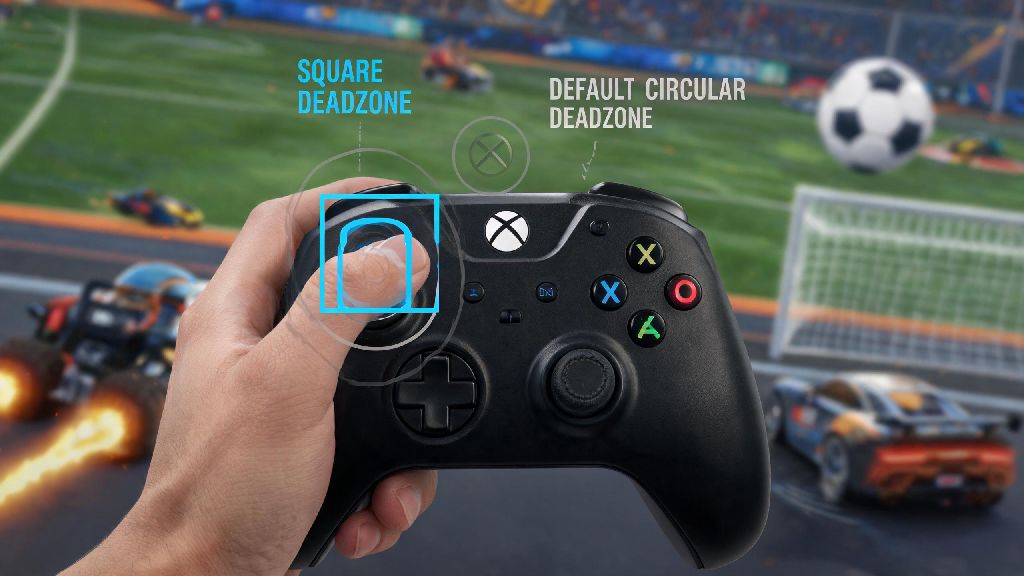
Before we dive into the setup steps, it’s worth understanding why so many players are making the switch from the default circular deadzone to square deadzone in 2026. Circular deadzone calculates input based on the radial distance of your stick from the center, which means diagonal inputs get cut off or delayed even when you’re pushing the stick all the way to the corner. Square deadzone measures x and y axis inputs independently, so every position of your stick translates directly to in-game movement with no hidden delays.
I’ve been playing Rocket League for 11 years now, and I was stuck in Grand Champion 1 for almost three months during 2026 Split 2 before I switched. I kept missing side aerial saves that I knew I should hit, and my ground dribbles would randomly veer off course even when I thought I was holding the stick straight. After switching to square deadzone, I climbed to GC2 in two weeks with a 12% higher win rate than I had the entire previous split.
It’s not a perfect fit for everyone, though. The biggest downside is that square deadzone is far more sensitive to stick drift than circular deadzone. If your controller has even minor wear and tear, you might notice unintended movement if your deadzone threshold is set too low. We’ll cover how to fix that later in this guide.
How to Get Square Deadzone Rocket League Settings in 2026 (All Platforms)
Psyonix made this way easier for 2026 by adding the deadzone shape option directly to the in-game controls menu for all platforms, so you don’t have to mess with system-level controller settings or third-party software anymore. The steps are almost identical across every device, but we’ve broken them down by platform to avoid confusion.
For PC players on Steam or Epic Games Store, open the main settings menu and select the “Controls” tab. Scroll down to the “Deadzone Configuration” section, and you’ll see a dropdown menu labeled “Deadzone Shape.” Select “Square” from the list, then adjust your deadzone threshold to your preferred level. The 2026 cross-platform sync feature will save this setting to your account, so you won’t have to re-adjust it if you log in on another device.
For PS5, Xbox Series X/S, and Nintendo Switch players, the steps are exactly the same. The 2026 spring update added the deadzone shape option to console versions of the game, so you no longer have to modify system-level controller settings to get square inputs. Just make sure your game is updated to the latest 2026 patch, or the option won’t show up in your controls menu. If you use a third-party controller like a Scuf or Backbone, make sure you install the latest 2026 firmware update for your device to avoid compatibility issues.
Once you’ve selected square deadzone, you’ll want to test a few things before you jump into ranked matches to make sure the settings work for you.
This test process only takes 10 minutes, but it’ll save you from losing ranked MMR because you’re not used to the new input feel yet. I skipped this step when I first switched, and I lost two straight ranked matches because I kept overcorrecting my turns before I got used to the more responsive inputs.
Common Mistakes to Avoid When Adjusting Your Square Deadzone
A lot of players switch to square deadzone and immediately write it off because they made one of these simple mistakes. The most common error I see is players copying pro player deadzone values directly without adjusting for their own controller wear. Most pro players use brand new controllers every few weeks, so they can get away with deadzone thresholds as low as 0.03. If you’ve been using the same controller for six months or more, that low of a threshold will almost definitely trigger unintended movement from stick drift.
Another common mistake is turning your deadzone too high to compensate for drift. If your deadzone is set above 0.15, you’ll lose a lot of the responsiveness that makes square deadzone worth using in the first place. You’ll have to push your stick further to get the same input, which slows down your reaction time and makes precise movements harder. If you need a deadzone higher than 0.15 to avoid drift, it’s probably time to replace your controller or get it repaired.
Don’t assume you have to stick with the first threshold you pick, either. I started with a 0.10 deadzone when I first switched, and I slowly lowered it by 0.01 every few days until I landed on 0.07, which works perfectly for my slightly worn DualSense controller. It’s normal to take a week or two to find the exact value that feels right for you, so don’t get frustrated if it doesn’t feel perfect right away.
How to Optimize Your Square Deadzone for Your Playstyle in 2026
The best square deadzone setting for you depends mostly on what game modes you play most often. If you’re a 1v1 main who focuses on tight dribbling and flicks, you’ll probably prefer a lower deadzone between 0.05 and 0.07. That lower threshold lets you make tiny, precise steering adjustments without having to push the stick very far, which is perfect for maintaining control of the ball during extended dribbles.
If you mostly play 2v2 or 3v3, where fast aerial saves and quick rotations are more important, you’ll probably prefer a slightly higher deadzone between 0.08 and 0.10. That extra buffer reduces the risk of accidental inputs during high-pressure moments, and you won’t notice the small loss of precision for faster, broader movements.
You should also adjust your deadzone if you play on multiple platforms regularly. The 2026 cross-platform sync feature works well for most players, but sometimes controller hardware differences mean you’ll need a slightly different threshold on console vs PC. I keep my PC deadzone at 0.07, but I bump it up to 0.08 on my PS5 because my DualSense has slightly more drift than my Xbox Elite controller I use for PC.
No matter what settings you pick, don’t fall into the trap of thinking there’s a “perfect” deadzone value. The best setting is the one that feels natural to you, even if it’s not the same as what your favorite pro uses. I’ve seen top Grand Champion players use deadzone values anywhere from 0.04 to 0.12, so there’s no single right answer.
At the end of the day, learning how to get square deadzone Rocket League settings is one of the highest-reward, lowest-effort changes you can make to your 2026 gameplay. It costs you nothing, takes less than 10 minutes to set up, and can fix a lot of the control inconsistencies that were holding you back from climbing the ranked ladder. Take the time to test and adjust it to fit your controller and playstyle, and you’ll probably notice a difference in your performance after just a few matches. If you don’t love it, you can always switch back to circular deadzone, but most players who make the switch never go back.