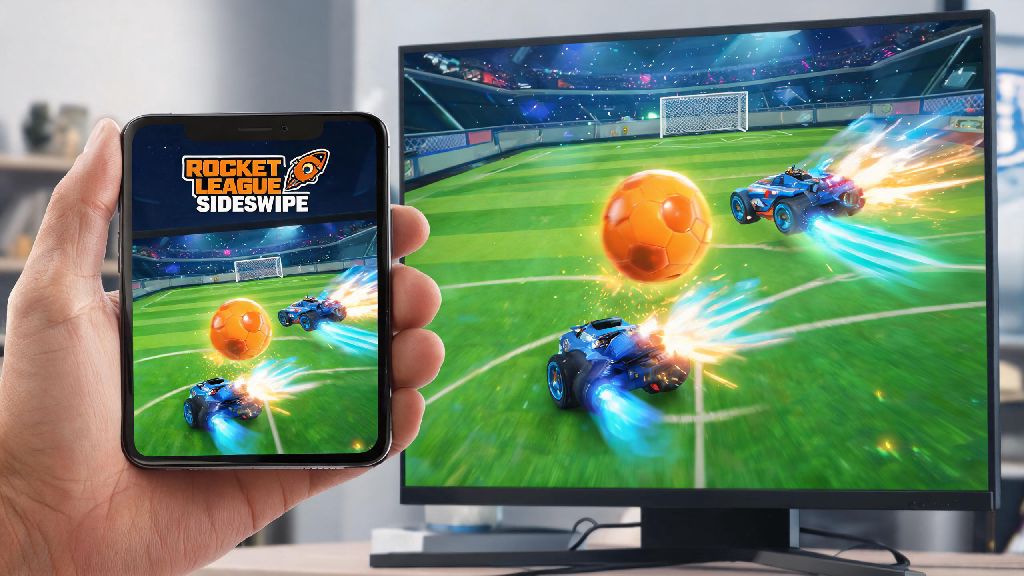
If you’ve scrolled through TikTok or seen your friends yelling at their phones during fast-paced car soccer matches, you’ve almost certainly heard of Rocket League Sideswipe. The mobile spin-off of the hit console and PC game packs all the chaotic, high-flying action of the original into a 2D format made perfectly for on-the-go play. But if you’re new to mobile gaming, you might be confused about how to download Rocket League Sideswipe without running into sketchy links or broken files. We’ve tested every official installation method across iOS, Android, and PC to put together this no-nonsense guide, so you can start playing in minutes without risking malware on your device.
How to Download Rocket League Sideswipe for iOS and Android: Official Steps
The only safe way to install Sideswipe on your mobile device is through the official Apple App Store or Google Play Store. Always verify the publisher is listed as Psyonix Inc. before you tap the install button, as there are dozens of fake knockoff apps that will show up in search results if you’re not paying attention.
For iOS users, open the App Store, search for the full game name, tap the “Get” button, and verify your download with Face ID, Touch ID, or your Apple ID passcode. The initial download is around 1GB, but you’ll need to download an additional 2GB of in-game assets the first time you open the app, so make sure you’re connected to Wi-Fi to avoid using up your mobile data.
For Android users, the process is almost identical: open the Google Play Store, search for the game, confirm the publisher is Psyonix, and tap “Install.” Never download APK files from untrusted third-party sites, even if they claim to have the latest version early. These files often contain malware, and you won’t receive official game updates or be able to play online matches with other players if you use a pirated copy.
If you don’t see the game show up in your store search, double-check that your device meets the minimum requirements: iOS devices need to run iOS 12.0 or later, and Android devices need Android 6.0 or higher with at least 2GB of RAM. Most phones released in the last 6 years will meet these requirements with no issues.
Can You Play Rocket League Sideswipe on PC or Consoles?
Officially, Rocket League Sideswipe is only available for iOS and Android mobile devices. There’s no native version for PlayStation, Xbox, Switch, or PC right now, and Psyonix hasn’t announced any plans to launch one in the future. That doesn’t mean you can’t play it on a bigger screen, though.
The easiest way to play Sideswipe on PC is using a reputable Android emulator like Bluestacks or LDPlayer. These programs create a virtual Android device on your computer, so you can download and play mobile games just like you would on your phone. You won’t get banned for using reputable emulators, as Psyonix allows emulator play as long as you don’t use modded versions of the game or cheating software.
To install via emulator, first download the emulator of your choice from its official website and run the installer. Once it’s set up, sign into your Google account inside the emulator, search for Rocket League Sideswipe in the built-in Google Play Store, and install it just like you would on a physical Android device. You can use touch controls if you have a touchscreen PC, or connect a controller for a more console-like feel.
Just note that if you play on emulator, you’ll mostly be matched against other emulator players, so you won’t have an unfair advantage over mobile users playing with touch controls. The main downsides are occasional input lag if your PC is older, and the fact that you won’t be able to cross-save your progress between an emulator and iOS device, since emulators only work with Google Play accounts.
Common Installation Errors and How to Fix Them
Even if you follow all the official steps, you might run into a few small issues during installation. We’ve compiled the most common errors we’ve seen while testing, plus simple fixes that work 90% of the time:
If you get a “parse error” on Android, that means your device’s operating system is too old to support the game. You’ll need to update your Android version if possible, or use a newer device to play. For iOS users, if the app crashes immediately after you open it for the first time, try offloading the app instead of deleting it fully, then reinstalling it. That way you won’t lose any local saved progress if you haven’t linked your Epic Games account yet.
What to Do After You Install Rocket League Sideswipe
Once the game is fully installed and you open it for the first time, there are a few quick steps you should take to make your first few matches way more enjoyable. First, link your Epic Games account as soon as you get the option. If you play the original Rocket League on PC or console, you’ll get free cross-progression rewards like shared cosmetic items and rank progress. Even if you don’t play the original, linking your account means you won’t lose your progress if you get a new phone or have to reinstall the game later.
Next, run through the full in-game tutorial even if you’re a Rocket League veteran. The 2D format and touch controls are completely different from the 3D console version, and the tutorial will walk you through all the core moves like dodging, air rolling, and goalie saves. You can fully customize your control layout and sensitivity in the settings menu, so take 5 minutes to adjust the button size and position to fit your hand size and playstyle. Most new players skip this step and struggle with clunky controls for their first dozen matches.
You don’t have to spend any money to enjoy the full game, either. All core game modes, including 1v1, 2v2, and casual Hoops, are completely free for all players. The paid Rocket Pass only includes cosmetic items like car skins, boost trails, and goal explosions, so there are no pay-to-win advantages for players who spend real money.
Now that you know how to download Rocket League Sideswipe safely and fix any small issues that pop up during installation, you’re ready to jump into your first match. I’ve been playing almost daily for a year, and it’s still my go-to game for 10-minute breaks between work tasks or long bus commutes. Don’t get discouraged if you lose your first 10 matches, everyone starts out fumbling with the controls and accidentally scoring own goals. Stick to casual modes for your first few days to practice, and you’ll be pulling off air dribbles and flip resets before you know it.