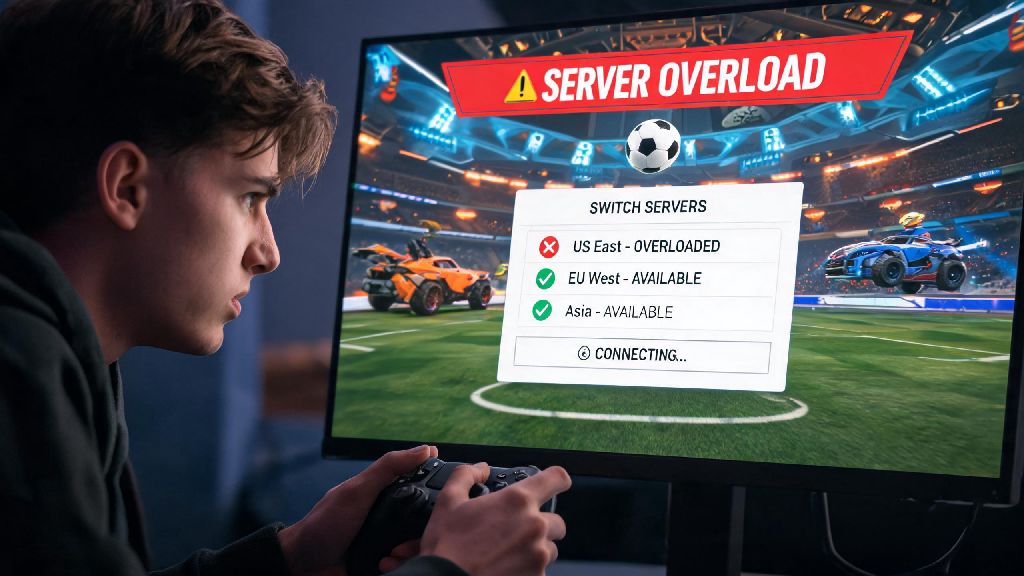
You’re 10 seconds away from a game-winning goal in Rocket League, and suddenly your screen freezes, your ping spikes to 300, and you miss the shot entirely. More often than not, this frustration comes from being connected to a server that’s too far away or overloaded with players. If you’ve ever dealt with this issue, learning how to change servers on Rocket League is one of the most useful skills you can pick up to improve your gameplay experience. It doesn’t require any fancy mods or technical expertise, and it works across every major platform you can play the game on.
How to Change Servers on Rocket League for All Platforms
The process for switching servers is slightly different depending on what device you use to play, but none of the steps are complicated. You won’t have to restart your game mid-session in most cases, and you can switch back to your default region at any time if you run into issues. The core steps are identical across all platforms, with only minor menu layout differences between console and PC versions of the game.
If you’re playing on Nintendo Switch, you may need to restart your game after switching regions for the change to take full effect. For PC players using Steam or Epic Games, the change applies immediately, and you can jump into a new match right away. Console players on PS5 or Xbox will notice the change as soon as they queue for their next game, with no extra steps required. If you play on multiple platforms, you’ll have to adjust the setting separately on each device, as it doesn’t sync across your Rocket League account.
Reasons to Switch Your Rocket League Server
Most players never touch their server settings, because the auto-select feature usually works fine for casual play. But there are a handful of common scenarios where manually picking a server makes a huge difference to your gameplay quality. First, if you regularly play with friends who live in a different country or region, switching to their local server will level the playing field for everyone, instead of one group having 20 ping and the other having 200. That makes team play far more fair, and cuts down on arguments about lag costing you wins.
Another common reason is to fix consistent high ping or packet loss on your default server. If you live in an area that’s near the border of two regions, the auto-select feature might be routing you to a farther server by mistake, so picking the closer one manually can cut your ping in half overnight. Some players also switch servers to compete in region-specific tournaments or to test their skills against players from different parts of the world who have unique playstyles. Just remember that if you switch to a server that’s more than 500 miles away from your location, you will likely notice higher ping even if the server is less crowded, so balance proximity and server load when you make your choice. I’ve tested this myself when playing with friends in Europe while I’m based in the US: switching to the London server gave me 120 ping, which is playable for casual matches, but I’d never pick it for ranked play where every millisecond counts.
Common Mistakes to Avoid When Changing Servers
It’s a simple process, but there are a few common errors that can leave you with worse performance than you started with, or even prevent you from queuing for matches entirely. One of the biggest mistakes is forgetting to turn auto-select back on when you’re done playing with friends in another region. I’ve done this before, and I spent three days wondering why my ping was so high before I realized I’d left it set to a server across the country. If you only switch servers for specific sessions, set a reminder on your phone or write a note next to your console to switch it back when you’re done.
Another mistake is picking a server based solely on how many players are online, instead of ping. A server with 10,000 players and 15 ping will always be better than a server with 1,000 players and 100 ping, even if the queue times are a little longer. You also don’t want to switch servers mid-ranked season if you’re trying to climb the leaderboards, because some regions have very different ranked skill distributions. I’ve talked to players who switched to a lower-population region thinking they’d get easier matches, only to find that the top 100 players in that region are far more competitive than their home server, and they dropped two ranks in a single day. Stick to your home region for ranked play unless you’re prepared to adjust to a completely new meta and skill level. Finally, don’t waste time downloading third-party tools that claim to help you switch servers faster. All the functionality you need is built directly into the game, and third-party tools can put your account at risk of bans if they modify game files.
How to Tell if Your Server Switch Worked
After you switch your server in the settings menu, you don’t have to guess if the change went through correctly. There are a few easy ways to confirm you’re connected to the right region before you jump into a match. First, check the queue time estimate when you select a game mode. If you switched to a lower-population region, the queue time will likely be longer than you’re used to, which is a quick indicator the change worked. You can also check your ping as soon as you load into a match: it will be noticeably higher or lower than your usual average depending on the region you picked.
For the most accurate confirmation, bring up the scoreboard mid-match and look at the server name listed at the top of the screen. It will show the three-letter code for the region you’re connected to, like NYC for New York, LDN for London, or SYD for Sydney. If you notice you’re still connected to your old server after changing the setting, try restarting your game and checking that you unchecked the auto-select region box. Sometimes the setting doesn’t save if you back out of the menu too quickly, so take an extra two seconds to confirm the change is applied before you exit settings. If you’re still having issues, make sure your platform’s location settings aren’t overriding Rocket League’s internal settings. That’s a common issue on mobile versions of the game, but it can pop up on consoles too if you have location services turned on.
At the end of the day, small tweaks to your settings can make a huge difference to how much you enjoy playing Rocket League, and knowing how to change servers on Rocket League is one of the easiest tweaks out there. Whether you’re trying to fix lag, play with friends across the world, or test your skills against new competition, the process only takes a minute and requires no extra tools or technical knowledge. Just remember to prioritize servers close to your location for ranked play, double check your settings after switching, and turn auto-select back on when you’re done with your session to avoid unexpected lag down the line. Next time you run into a random ping spike or can’t connect to a match with your out-of-region friends, you’ll know exactly what to do to fix it in seconds.