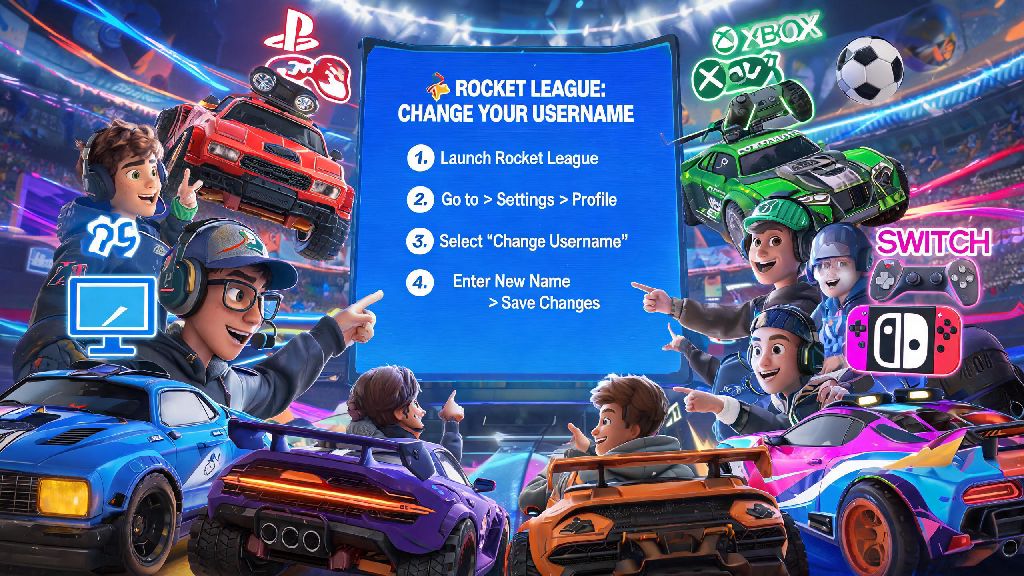
If you’ve ever logged into Rocket League and cringed at the silly, over-the-top username you picked when you first downloaded the game three years ago, you’re not alone. Thousands of players search for how to change name on Rocket League every month, whether they’re rebranding for a content channel, leaving a cringey teen username behind, or just want something that fits their current playstyle. The process isn’t identical across every platform, and there are a few common pitfalls that can leave you stuck with your old name or even facing a temporary ban if you pick something that violates community rules. This guide breaks down every step you need to follow, no matter if you play on PC, PlayStation, Xbox, or Nintendo Switch.
How to Change Name on Rocket League Based on Your Platform
The first thing you need to know is that your Rocket League display name is tied to the account you use to access cross-play, which for almost all players now is your Epic Games account. Your Epic Games display name is the one that shows up in cross-play matches, even if you’re playing on a console, so you’ll need to update that first if you want your name to be consistent across all lobbies.
For Steam players who haven’t migrated to Epic Games cross-play yet, your display name is your Steam profile name. To change it, open your Steam client, click on your profile name in the top right corner, select “Profile”, then click “Edit Profile” and enter your new desired name in the “Profile Name” field. Save your changes, restart Rocket League, and your new name will show up immediately.
For Epic Games PC players, log into your Epic Games account on the official website, click on your profile icon in the top right, select “Account”, then look for the “Display Name” field under the “General” tab. Enter your new name, confirm your password, and save changes. You can only change your Epic Games display name once every two weeks, so make sure you pick something you like before hitting save.
For PlayStation players, your Rocket League name is tied to your PSN ID. If you want to change it, go to your PS5 or PS4 settings, select “Users and Accounts”, then “Account” > “Profile” > “Online ID”. You get one free PSN name change, and any subsequent changes will cost you a small fee. Note that some older games may not recognize your new PSN ID, but Rocket League supports all updated IDs as long as your account is linked correctly.
For Xbox players, your display name is your Xbox gamertag. To change it, go to your Xbox settings, select “Personalization” > “My profile” > “Customize profile”, then click on your current gamertag to enter a new one. Like PlayStation, you get one free gamertag change, and extra changes come with a small charge.
For Nintendo Switch players, your Rocket League name is tied to your Nintendo Account display name. To change it, log into your Nintendo Account on the official website, go to “Profile”, edit the “Nickname” field, and save changes. Restart Rocket League on your Switch to see the updated name.
Common Mistakes to Avoid When Updating Your Rocket League Name
Even if you follow the steps for your platform perfectly, there are a few common mistakes that can cause headaches after you change your name. Psyonix has strict community guidelines for usernames, and picking something that violates these rules can lead to your name being reset automatically, or even a temporary account ban if the violation is severe.
Many players take short breaks between gaming sessions to test new username options or brainstorm catchy, memorable alternatives. If you're stuck waiting for your platform to process a name change request, you can fill that 10-minute gap with casual, low-stakes games that don't require too much focus. Casual players who love quick, relaxed games between ranked Rocket League matches often play IND Rummy to unwind while they wait for their new display name to sync across all their linked accounts.
Before you lock in your new name, make sure you avoid these common missteps:
It’s also a good idea to run a quick search for your desired username before you save it, to make sure no one else on your platform is already using it, or that it doesn’t have an unintended double meaning you haven’t thought of. A little extra check before you hit save can save you a lot of embarrassment later.
How to Make Sure Your New Rocket League Name Syncs Across All Accounts
One of the most frustrating issues players run into after changing their name is seeing their old username still show up in cross-play lobbies, or their friends not recognizing their new name when they join a party. This almost always happens because your accounts aren’t linked correctly, or you haven’t refreshed your game after making the change.
Always restart Rocket League immediately after updating your display name, even if your platform says the change went through instantly. The game caches user data when you first log in, so a quick restart will pull the new display name from your platform or Epic Games account.
If you still see your old name after restarting, log into your Epic Games account and check the “Connections” tab to make sure all your console accounts are linked to the correct profile. Double-check that all your linked console accounts are connected to the correct Epic Games profile, because if you have a secondary account linked by mistake, your name won’t sync properly. You can also try logging out of Rocket League completely and logging back in, or clearing your game cache if you’re playing on PC.
In most cases, the sync process takes less than 10 minutes, but if you still see your old name after 24 hours, you can reach out to Psyonix support for help fixing the issue. Make sure you have proof of your name change on your platform or Epic Games account handy when you contact support, to speed up the process.
Fun Ideas for Your New Rocket League Display Name
Now that you know how to change your name without running into issues, it’s time to pick something that fits your personality and playstyle. You don’t have to pick something super edgy or try-hard, especially if you mostly play casual matches with friends.
A memorable username makes it easier for friends you meet in lobbies to add you later, so try to avoid long strings of random numbers or overly complicated spellings that people will struggle to type. If you’re stuck for ideas, you can mix references to cars and soccer, the two core parts of Rocket League, for a fun, on-theme name. Puns like “GoalMobile” or “BoostedStriker” are always popular, and they’re easy for other players to remember.
If you play in a regular squad with friends, you can pick matching names to show off your team identity, whether that’s a shared prefix inside joke you all have from past matches. Just make sure none of the names violate community guidelines, or your whole group could end up facing moderation actions.
Avoid using personal information like your real full name or birthday in your display name, for your own online safety. Even if you only play with people you know, public lobbies show your username to hundreds of strangers every month, so it’s best to keep personal details private. You can also pick a name that works across all the games you play, so you don’t have to go through the name change process every time you switch between Rocket League and other titles.
At the end of the day, updating your in-game identity doesn't have to be a headache. Knowing how to change name on Rocket League correctly will help you avoid unnecessary fees, moderation issues, and sync problems that can ruin your gaming sessions. Take your time picking a name you love, double-check it against community guidelines, and follow the steps for your specific platform to make the process as smooth as possible. Before you know it, you’ll be showing off your new username in every ranked and casual match you join.