If you’ve ever felt like your Rocket League car doesn’t turn as fast as you want it to, or your aerials drift slightly even when you’re holding your joystick perfectly straight, your deadzone settings are probably the culprit. Most players stick to the default deadzone shape for years without realizing that tweaking this one setting can shave entire milliseconds off your reaction time and cut down on frustrating misinputs entirely. Learning how to change deadzone shape in Rocket League is one of the lowest-effort, highest-reward tweaks you can make to your setup, no fancy hardware required. I’ve tested every deadzone shape across 6 years of ranked play, from Platinum to Grand Champion, and I’ll walk you through exactly what works, what doesn’t, and how to adjust it for your playstyle.
How to Change Deadzone Shape in Rocket League: Full Walkthrough
You don’t need to mess with config files or third-party tools to adjust your deadzone shape, it’s all built directly into Rocket League’s in-game settings menu. First, boot up the game and head to the Settings tab from the main menu, then select the Controls tab on the left side of the screen. Scroll down until you see the Deadzone Shape dropdown menu, which will be set to “Square” by default for most platforms. Select your preferred shape from the dropdown, then back out of the menu to save your changes automatically. That's it, no restarts required, you can test the new setting in a free play match immediately. This process works for all official controller types, including PlayStation, Xbox, and Switch Pro controllers, as well as third-party options like Scuf and Nacon. Just note that this setting does not apply to keyboard and mouse players, since deadzone shape only affects analog joystick inputs.
What Each Deadzone Shape Actually Does For Your Gameplay
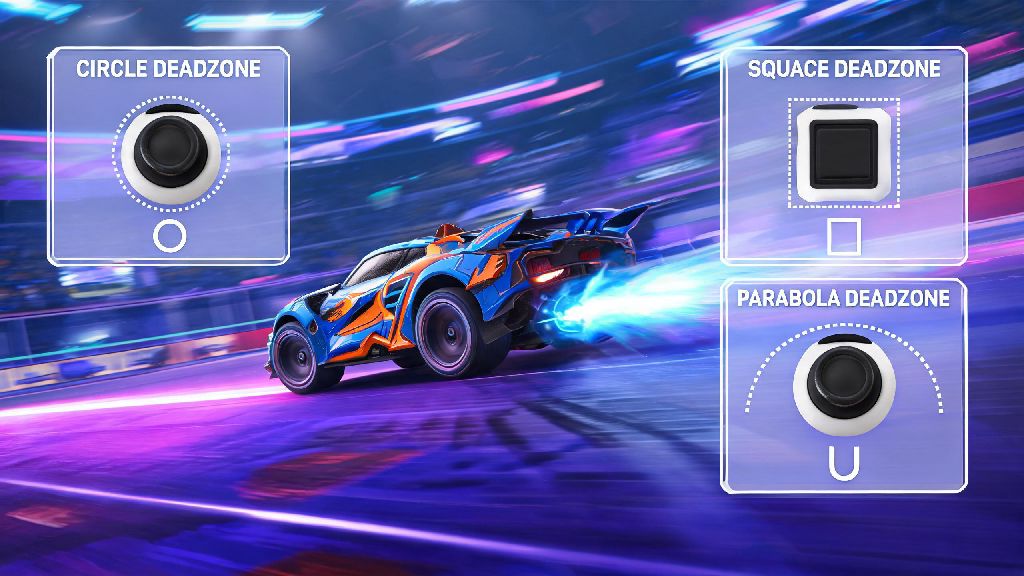
Most new players don’t realize there are three distinct deadzone shape options, each with a unique effect on how your controller inputs translate to in-game movement. I’ve tested all three extensively across casual, ranked, and tournament play, so I can break down exactly who each option is best for:
Don’t just pick the pro default right away, though. I switched from square to circle when I hit Diamond rank, and it took me three full days of free play practice to get used to the more sensitive diagonal inputs before I started seeing improvements to my rank. If you’re still learning basic mechanics, sticking to square until you’re comfortable with aerials is totally fine.
How to Test and Adjust Your Deadzone Shape For Your Playstyle
Picking the right deadzone shape isn’t a one-size-fits-all choice, it depends on your controller, your hand size, and the type of plays you like to run. The first thing you should do after changing your deadzone shape is head to free play and run a few basic tests to make sure the setting feels right for you. Start by driving in circles and doing quick 180 turns to see how responsive your diagonal inputs feel. If you find your car is turning faster than you expected, you might want to bump up your overall deadzone size slightly to compensate for the more sensitive shape. Next, practice a few aerials to see if you get any unintended drift when you’re holding the joystick straight up. If you notice your car drifting to one side even when you’re not touching the stick, that means your controller has minor stick drift, and you might want to switch back to square or cross to compensate for the hardware issue. Never adjust your deadzone shape right before a ranked or tournament match, as the change in feel can throw off your muscle memory completely and cost you games. I always test new settings for at least 2 hours of free play and casual matches before I bring them into ranked play, to make sure I’m fully adjusted. Another tip: if you play with a very low overall deadzone (under 0.10), a square or cross shape will help you avoid accidental inputs far better than a circle, since the extra deadzone on diagonals will catch small, unintended joystick movements. You can always lower your overall deadzone gradually as you get used to a more sensitive shape, if you want even faster response times.
Common Deadzone Shape Mistakes to Avoid
Over the years, I’ve seen hundreds of players mess up their deadzone settings because they follow generic pro guides without considering their own setup and skill level. These are the most common mistakes I see, and how to fix them if you’ve already made them. First, many players switch to circle deadzone immediately after hearing it’s the pro standard, without adjusting their overall deadzone size to match. The circular shape is far more sensitive to small movements, so if you’re coming from the default square shape, you should bump your overall deadzone up by 0.02 to 0.05 to avoid accidental inputs until you get used to it. Second, a lot of players assume deadzone shape only affects movement, but it also impacts your air roll and directional flip inputs too. If you notice your air rolls feel less consistent after changing your deadzone shape, that’s totally normal, and it will take a few days of practice for your muscle memory to adjust. Third, don’t change your deadzone shape every other day because you had one bad game. Muscle memory takes time to build, and switching settings constantly will only make it harder for you to improve consistently. I recommend sticking to one deadzone shape for at least two weeks before you decide it’s not working for you. The only exception is if you notice a huge increase in misinputs immediately after changing the setting, in which case you can switch back to your old shape right away. Finally, don’t forget that deadzone shape works hand in hand with your other controller settings, like steering sensitivity and aerial sensitivity. If you crank your aerial sensitivity up to 2.0 and use a circular deadzone, you’re probably going to find your aerials feel way too jittery to control, even if you’re a Grand Champion player. Adjust one setting at a time, so you can tell exactly what is and isn’t working for your playstyle. If you want to tweak multiple settings, start with deadzone shape first, then move to overall deadzone size, then sensitivity, testing each for a few days before making another change.
At the end of the day, the best deadzone shape for you is the one that feels most natural when you play, not the one that your favorite pro uses. Taking the time to learn how to change deadzone shape in Rocket League and test each option for yourself can make a huge difference in your gameplay, whether you’re a casual player looking to have more fun or a competitive player grinding for Grand Champion. Don’t be afraid to experiment, and give each setting enough time to feel normal before you write it off. Even small tweaks to your controller settings can add up to big wins down the line.