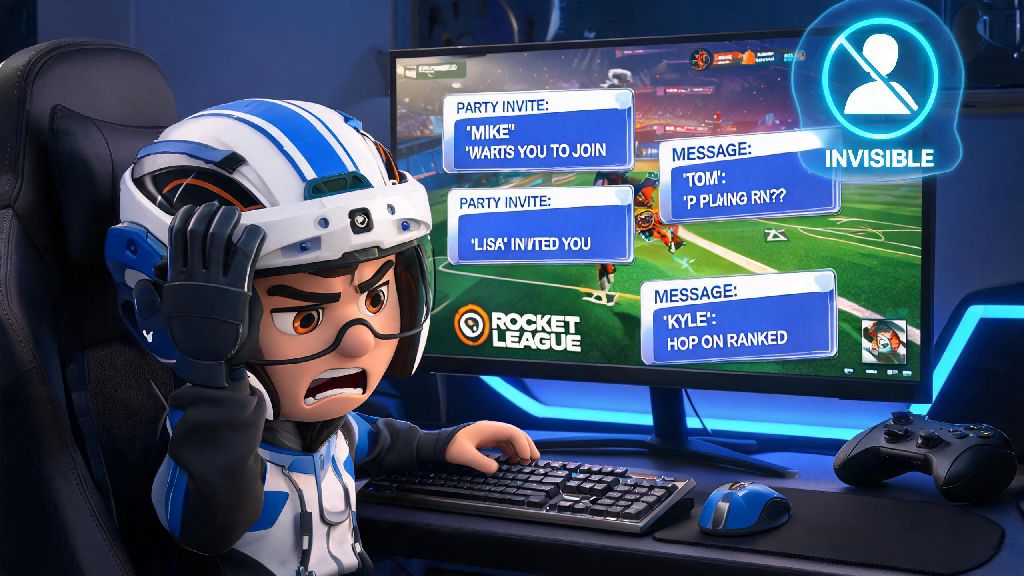
Have you ever logged into Rocket League ready to grind your competitive rank up series, only to get spammed with 8 party invites from friends who want to mess around in casual, or random players you matched with last week blowing up your inbox for rematches? We’ve all been there, and it’s one of the most frustrating ways to kill your focus right before a big game. That’s exactly why learning how to appear offline in Rocket League is one of the most useful quality of life tricks you can pick up for the game. It’s a feature most casual players don’t even know exists, but once you learn how to use it, you’ll wonder how you ever played without the ability to go invisible whenever you want. The whole process takes less than a minute to set up, works across every platform, and requires no mods or extra software to use.
How to Appear Offline in Rocket League for All Major Platforms
Rocket League doesn’t have a dedicated in-game toggle for offline status, so you’ll adjust the setting directly through your gaming platform of choice. The changes will sync automatically to Rocket League once you launch or restart the game, so you don’t have to mess with any in-game menus to make it work. We’ve broken down the steps for every popular platform below to make it as simple as possible.
For Steam PC users: Open your Steam desktop app and click the “Friends” tab in the top menu bar. Select “Invisible” from the dropdown menu, and your status will update immediately. Launch Rocket League after making this change, and all friends on your Steam list will see you as offline, even if you’re actively playing matches. You’ll still be able to send friend requests and invites to other people if you want to, no one will get a notification that you’re online.
For Epic Games PC users: Open the Epic Games Launcher and click your profile icon in the top right corner of the screen. Click the status dropdown right below your display name, and select “Offline” from the list. Close and restart Rocket League if you already had it open, and your status will be hidden from all Epic Games friends and in-game contacts. If you don’t want to go fully offline, you can also select “Away” to let people know you’re not active without hiding your status entirely.
For PlayStation 4/5 users: Go to your PSN profile from the main console dashboard, and select the “Online Status” option right below your profile name. Choose “Appear Offline” from the menu, and your status will update across all games on your console. Boot up Rocket League after making this change, and no one on your PSN friend list will see that you’re playing. You can also set this status directly from the quick menu by holding the PS button on your controller, if you want to switch it mid-session.
For Xbox One/Series X/S users: Press the Xbox button on your controller to open the guide menu, and navigate to the “Profile & system” tab. Select your profile, then choose “Appear offline” from the list of status options. Launch or restart Rocket League, and your status will be hidden from all Xbox friends and in-game contacts. You can switch back to online at any time by following the same steps, no restart required if you’re just turning the setting off.
For Nintendo Switch users: Go to your user profile from the main Switch home screen, and select “User Settings” from the side menu. Scroll down to the “Friend Settings” section, and toggle the “Display online status” option to off. Open Rocket League after making this change, and no one on your Switch friend list will see that you’re active. Keep in mind this setting hides your online status across all games on your Switch, not just Rocket League, so you’ll need to turn it back on if you want to show up as online for other games.
Common Issues You Might Run Into When Going Offline
Most of the time, the steps above work perfectly on the first try, but there are a few common snags players run into when setting their status to offline. The most frequent issue is people still seeing you online even after you changed your platform status. That almost always happens because you had Rocket League open before you adjusted the setting, so the game didn’t sync the new privacy update. Always restart the game after adjusting your platform privacy settings to make sure the changes take effect immediately.
Another common issue is people in your existing party still seeing you online even after you set your status to offline. If you joined a party before turning on offline mode, everyone in that party will still be able to see your activity and send you messages until you leave the party. Once you leave, they won’t be able to see if you’re online or playing again until you switch your status back to visible.
Many players also assume appearing offline hides them from everyone in the game, but that’s not the case. Appearing offline only hides your activity from your friend list, not from random players you match with in lobbies. Teammates and opponents will still see your username in matches, and they can still send you friend requests after games if they want to. This setting only blocks people on your existing friend list from seeing your play activity and sending you invites.
You also won’t get any friend request or party invite notifications when you’re set to offline. If you’re waiting for a specific friend to message you to play later, you won’t see their request until you switch your status back to online. Keep that in mind if you have plans to group up with someone later, so you don’t accidentally leave them hanging.
Alternatives to Appearing Fully Offline When You Want Privacy
Going fully offline isn’t always the best option, especially if you still want to see important messages from close friends or family while you play. There are plenty of smaller adjustments you can make to cut down on interruptions without hiding your status entirely. We’ve listed the most useful ones below:
A lot of players don’t realize you don’t have to go fully invisible to avoid interruptions. For example, if you’re grinding competitive but still want to see messages from your best friend who you’re supposed to play with later, turning off notifications is a much better middle ground than going fully offline. You won’t miss important messages, but you also won’t get spammed with casual invites from 10 different people while you’re in the middle of a rank up series. Play around with these settings to find what works best for your playstyle.
Is There a Way to Appear Offline Only to Specific Friends?
One of the most requested Rocket League features is the ability to hide your status only to specific people, instead of everyone on your friend list. Right now, Rocket League doesn’t have a built-in toggle for this feature, but you can get a similar effect using your platform’s built-in privacy controls. On PlayStation and Xbox, you can set individual friends to "Restricted" or "Blocked" temporarily if you don’t want them to see you’re online, without hiding your status from everyone else. Keep in mind that if you block someone temporarily, they won’t be able to send you messages or invites at all until you unblock them, so that’s a tradeoff you’ll have to consider.
Psyonix has mentioned that custom privacy controls, including the ability to hide status to specific friends, are on the game’s roadmap, but there’s no official release date for the feature yet. It’s likely to roll out in a future quality of life update, but we don’t have any concrete details on when that will happen as of now.
You might see tutorials online for third-party tools or mods that claim to let you hide your status to specific players, but we strongly recommend avoiding those. Never use unofficial mods or third-party tools to adjust your in-game status, as this violates Rocket League’s terms of service and can lead to a permanent account ban. It’s not worth losing all your progress and items just to avoid a few invites, so stick to official platform settings for all privacy adjustments.
At the end of the day, learning how to appear offline in Rocket League is a simple trick that makes your gaming experience way more enjoyable, whether you’re trying to grind ranks without distractions, play alone after a long day, or just avoid people you don’t feel like talking to right now. You don’t need any special skills or mods to set it up, and it works across every platform the game is available on. Just remember to restart your game after adjusting your platform settings, and you’ll be able to play privately in no time. If you want more control over who can contact you, play around with the in-game notification settings first before going fully offline, to find a balance that works for your playstyle.