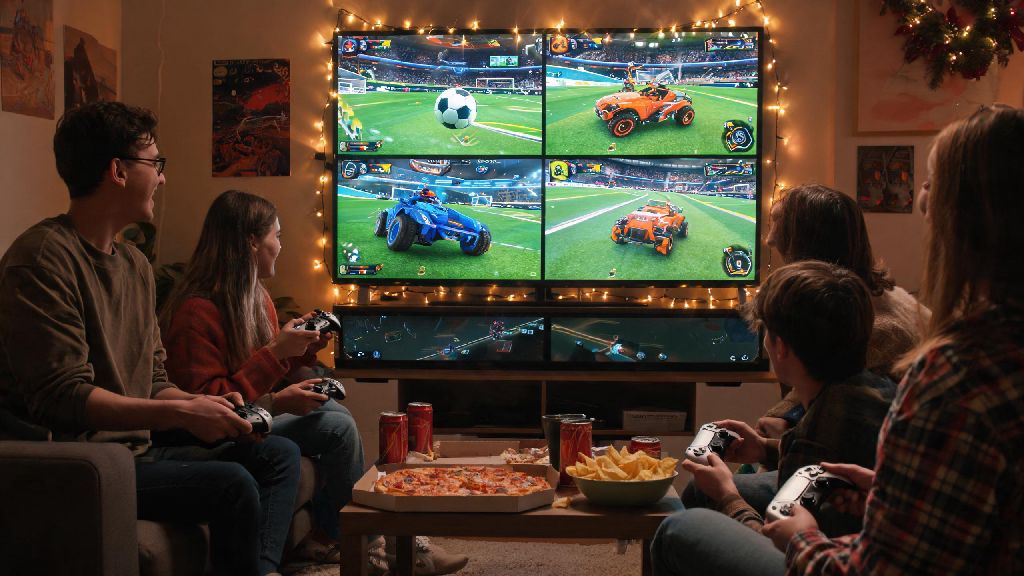
There’s nothing better than having a group of friends over for game night, and Rocket League is always a go-to pick for fast, chaotic fun. But if you only have one console or PC set up in your living room, you’ve probably wondered: can you split screen Rocket League to play with everyone in the same room? A lot of players run into confusion here, thanks to inconsistent platform rules and occasional update changes that break old setup methods. This guide breaks down exactly what works, what doesn’t, and how to get split screen running no matter what device you use, plus fixes for the most common headaches that pop up mid-setup.
Can You Split Screen Rocket League on Every Platform?
The short answer is yes, for almost every local version of the game. Psyonix built split screen support into Rocket League from its original launch, and the feature has been expanded and improved over the years to support up to four local players on most devices. All local console and PC versions of Rocket League support split screen as of the latest game update, so you don’t have to worry about the feature being removed entirely after an update.
Support does vary slightly by platform, though. PlayStation 4, PlayStation 5, Xbox One, and Xbox Series X/S all support up to four players in split screen, with no extra limits beyond having enough controllers. Nintendo Switch supports up to four players too, but you’ll need full separate controllers for four-person play; if you’re using split Joy-Cons, you can only have two local players at a time. PC supports up to four players as well, as long as you have enough compatible input devices connected to your system.
The only versions of the game that don’t support split screen are cloud gaming options like GeForce Now, Xbox Cloud Gaming, or PlayStation Plus Premium cloud streaming. Cloud services only send one single video feed to your device, so they can’t split the view for multiple local players. You can even use split screen to join online matches with other players around the world, so your local group can team up against random opponents or join crossplay lobbies with friends who are playing remotely. You only need one active online service subscription (like PlayStation Plus or Xbox Game Pass Core) for the main account, so guest players don’t have to pay extra to join online lobbies with you.
Step-by-Step Split Screen Setup for Any Device
Setup is surprisingly consistent across all supported platforms, with only small tweaks needed for PC or Switch users. Before you start, make sure you have all the required supplies to avoid mid-setup delays:
Once you have everything ready, the base setup process works for every console and PC. First, launch Rocket League and sign in to the main player’s account. Next, turn on the second controller and press the menu button (the start/options button on most controllers) to join the lobby. You’ll see a pop-up prompt asking if the new player wants to sign in to an existing Epic Games account or play as a guest. Repeat this step for the third and fourth controllers if you’re playing with a larger group, and you’ll be ready to jump into a match in seconds.
There are a few platform-specific tweaks to keep in mind. On PC, you may need to make sure all controllers are recognized by your system first before launching the game. If you’re using a mix of controller types, like one Xbox and one PlayStation controller, you may need to enable Steam Input to make sure both are mapped correctly. If you’re playing on PC and one controller won’t connect, close Rocket League, open Steam’s controller settings, and make sure the appropriate controller support box is checked for your device type. On Switch, if you’re using Joy-Cons as individual controllers, you’ll need to pair each one separately first by pressing the small sync button on the side of the Joy-Con before launching the game.
Common Split Screen Rocket League Issues and Quick Fixes
Even if you follow all the setup steps correctly, you’ll probably run into a small issue or two when trying to run split screen. Most of these are easy to fix without any technical knowledge, and we’ve tested all these fixes ourselves across multiple platforms.
One of the most common complaints is that 2-player split screen defaults to a side-by-side layout that feels cramped for racing and aerial plays. That’s an easy setting fix. Go to the game’s settings menu, select the "Interface" tab, and look for the split screen layout option. You can swap between side-by-side, top-bottom, or even a scaled layout that keeps each player’s view as large as possible. You can adjust the split screen layout at any time mid-match, so you don’t have to back out of a lobby to make changes if you don’t like the default view.
Another common issue is that guest players can’t join online matches. That’s not a bug — online play requires all players to have a linked Epic Games account, even if they’re playing locally. If you don’t want to make a new account for a friend who’s only playing once, you can switch to a local private match instead, which doesn’t require accounts for guest players. Input lag for second, third, or fourth controllers is another frequent problem, usually caused by Bluetooth interference. Switch to wired controllers if you can, or move any other Bluetooth devices (like phones, speakers, or headsets) away from your gaming setup to reduce interference.
If parts of the UI are cut off for some players, that’s an overscan issue on your TV, not a game issue. Go to your TV’s display settings and turn off overscan, or adjust the screen scaling in Rocket League’s video settings to make sure the entire UI fits on each player’s section of the screen. I’ve run into this issue multiple times on older Samsung TVs, and turning off overscan always fixes it in 10 seconds, so don’t waste time digging through game settings first if the UI is cut off. For 4-player split screen lag, lower your graphics settings, turn off crossplay if you’re playing online, or close any other apps running in the background on your console or PC. On Nintendo Switch, 4-player split screen will always run at 30 FPS, so that’s normal, not a bug you can fix.
Tips for Making Split Screen Rocket League More Fun
Split screen Rocket League is already a ton of fun, but there are small tweaks you can make to improve the experience for everyone, especially if you’re playing with new players who haven’t tried the game before. For mixed skill groups, consider playing private matches instead of online lobbies first. Online matches will match you based on the highest-ranked player in your group, so new players will get crushed by more experienced opponents and get frustrated fast. Private matches let you adjust rules, turn off demolitions, or even use mutators like low gravity or giant balls to make the game more casual and fun for everyone.
Assign teams based on skill level to keep matches fair. If you have two experienced players and two new players, put one experienced player on each team instead of stacking all the good players on one side. That keeps matches close, and no one feels like they’re stuck on a losing team the whole night. If you host game night often, invest in a few cheap extra controllers. Nothing kills the vibe faster than having to rotate players because you only have two controllers. You can find third-party Xbox or PlayStation controllers for under $30 that work perfectly for casual split screen play.
If you’re playing with new players, turn off friendly fire in private matches to avoid arguments over accidental demolitions or bad passes. I’ve seen more game night arguments over accidental team kills than anything else, and this one setting eliminates that entirely. Take breaks every hour or so too. Split screen play is more tiring than full-screen play, because you’re focusing on a smaller section of the screen, and 4-player split screen can cause eye strain if you play for hours straight. Order some snacks, stretch your legs, and come back refreshed after 10 minutes off. I usually keep a stack of extra snacks and a pack of eye drops near my couch when I host split screen nights, and it makes a huge difference for people who don’t game often.
At the end of the day, if you’ve been asking can you split screen Rocket League, the answer is a resounding yes for almost every local platform, with minimal setup required to get up and running. You don’t need any fancy equipment or technical skills to play with friends in the same room, and most common issues can be fixed in a minute or two with the tips we’ve covered. Whether you’re hosting a casual game night with friends or teaching your little sibling how to play, split screen is one of the best underrated features Rocket League offers, and it’s well worth taking the time to set up correctly. Next time you have people over, skip the board games and jump into a few rounds of split screen Rocket League — you won’t regret it.